Needed to explain a method you can use with shelly devices to some colleagues.
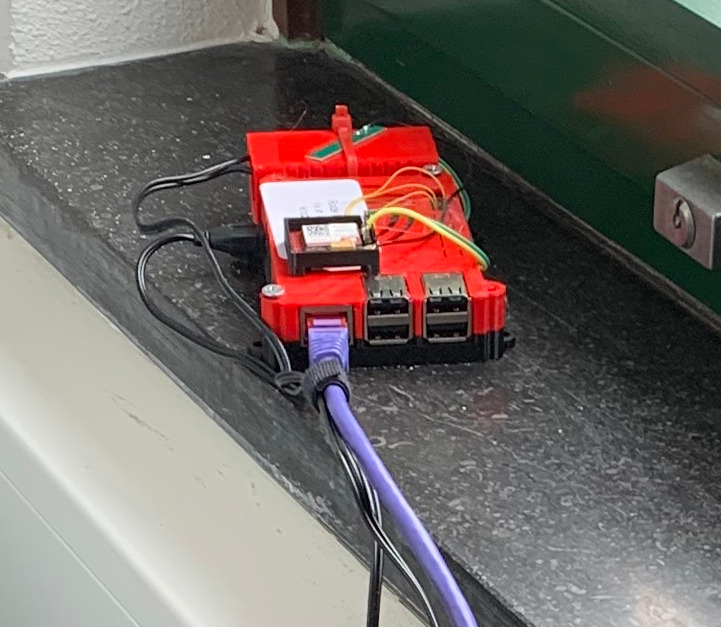
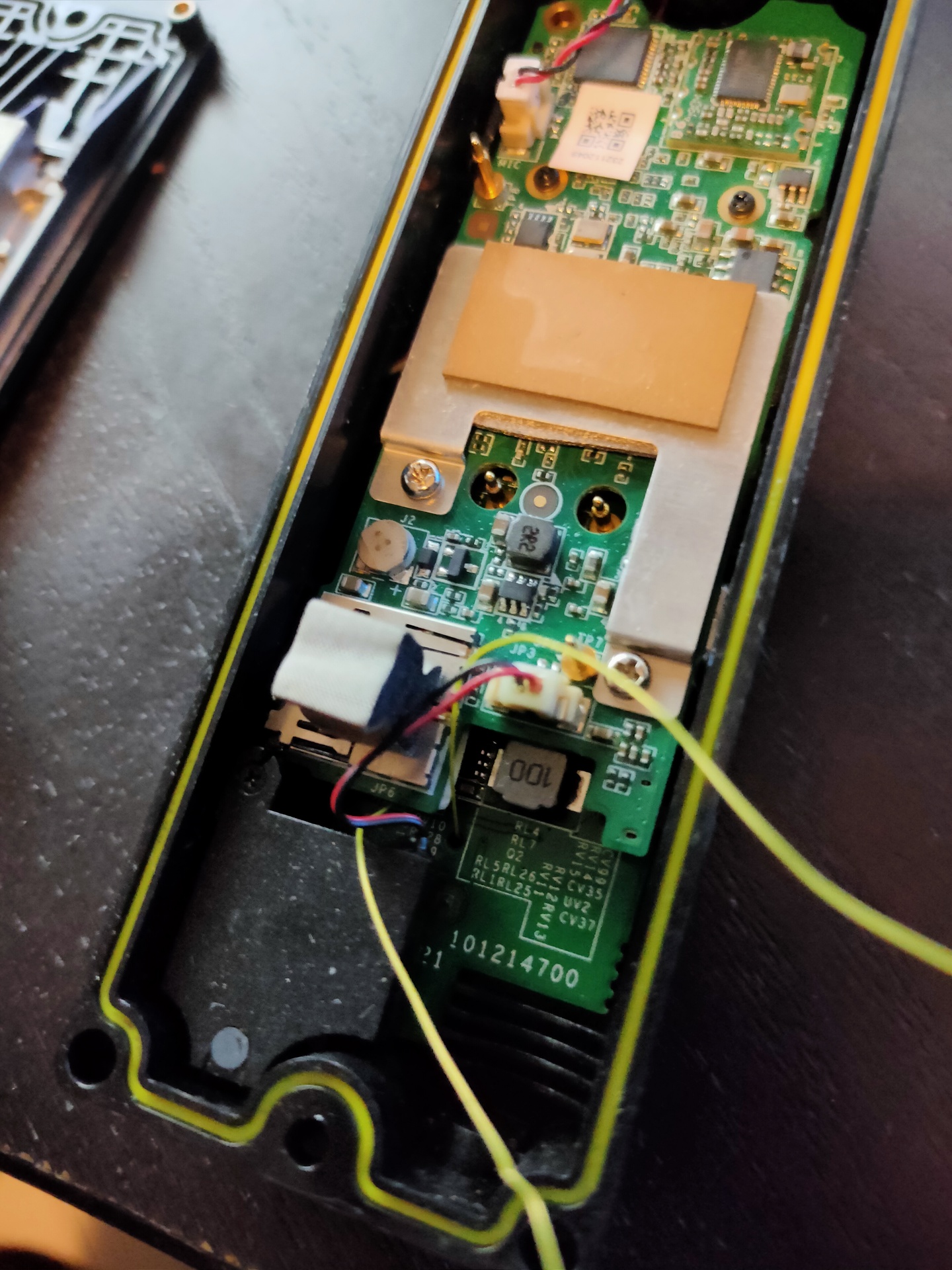
Forgot about this test later, a friend of mine visited me a few days later and warned me about this still being there.
Needed to explain a method you can use with shelly devices to some colleagues.
Forgot about this test later, a friend of mine visited me a few days later and warned me about this still being there.
Big mistake đ It a Linux ARM system with Busybox
Less do some searching on the web.
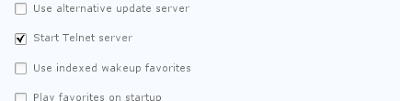
Ah .. enable telnet
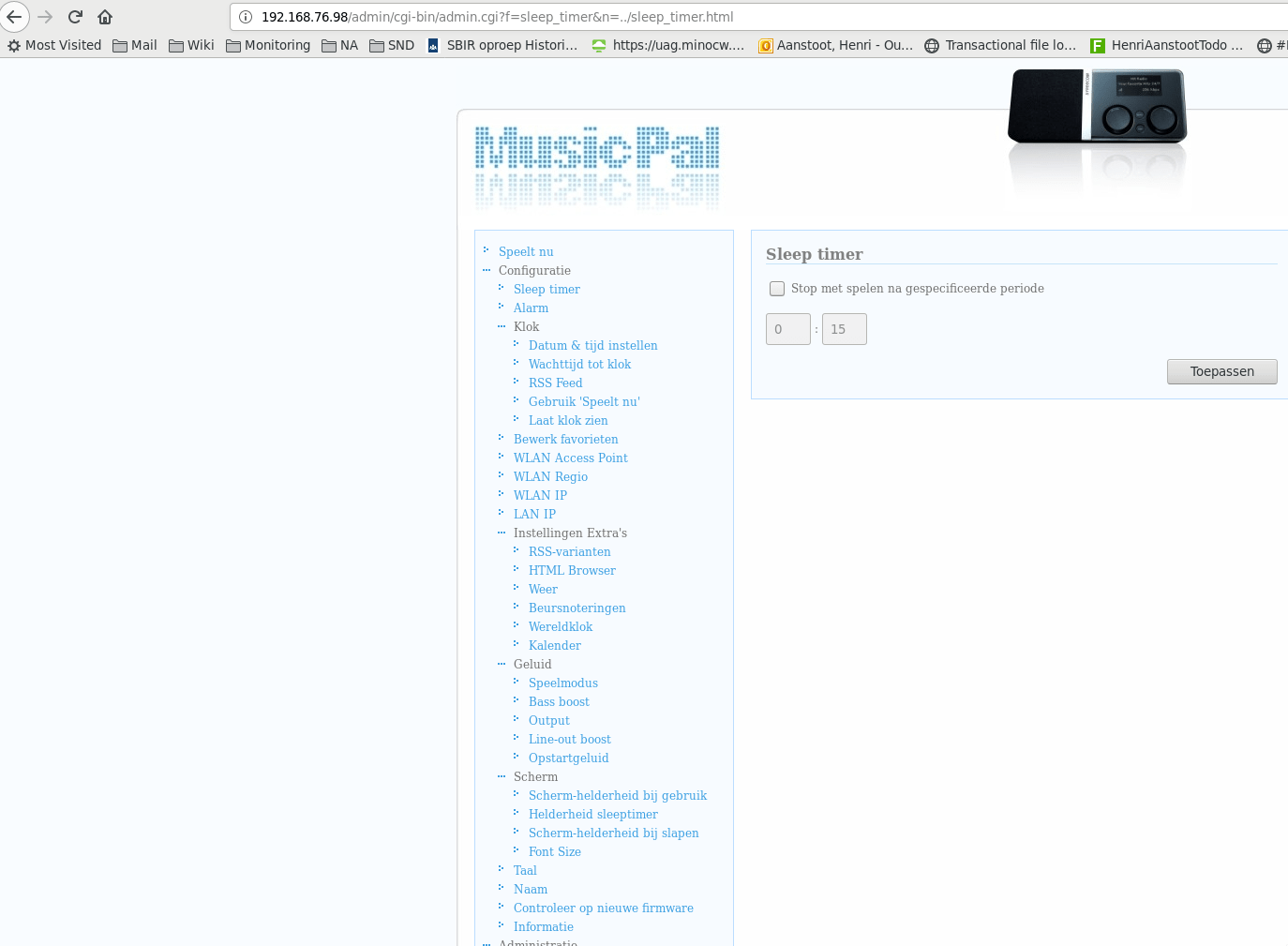
Open in a browser:
http://192.168.1.x/admin/cgi-bin/debug.cgi
Enable telnet:
Connect and install Pong:
telnet 192.168.1.x (username root) # wget http://agilo.acjs.net/files/mppong/setup.sh # chmod 755 setup.sh # ./setup.sh # ./start.sh # ./start.sh musicpal # For the normal player
Links i have to look into:
https://www.qemu.org/docs/master/system/arm/musicpal.html
I wanted to know when trash is being collected. So i made a dual led thingy.
When we lived in Utrecht, the website which mentions when, what is collected was easy .. like a API
We live in Hilversum now, so i had to write a scraper.
UPDATE : Script not working anymore. Site has been changed, and I’m not willing to run a headless browser (phantomjs) to scrape the info
See below my new solution
Script to set leds
#!/bin/bash set -x if [[ $# -eq 0 ]] ; then curl http://10.1.0.46/control?cmd=NeoPixel,1,0,0,0 curl http://10.1.0.46/control?cmd=NeoPixel,2,0,0,0 exit 0 fi set -x if [ $1 = "GFT" ] ;then led1="150,0,0" ;fi if [ $1 = "Rest" ] ;then led1="150,150,150" ;fi if [ $1 = "Paper" ] ;then led1="0,0,150" ;fi if [ $1 = "Plastic" ] ;then led1="75,191,0" ;fi if [ $1 = "Textiel" ] ;then led1="191,191,191" ;fi if [ $1 = "Kerstbomen" ] ;then led1="191,0,0" ;fi if [ "w$2" = "wgft" ] ;then led2="255,0,0" ;fi if [ "w$2" = "wRest" ] ;then led2="150,150,150" ;fi if [ "w$2" = "wpapier" ] ;then led2="0,0,255" ;fi if [ "w$2" = "wplastic" ] ;then led2="100,255,0" ;fi if [ "w$2" = "wTextiel" ] ;then led2="191,191,191" ;fi if [ "w$2" = "wKerstbomen" ] ;then led2="191,0,0" ;fi if [[ $# -eq 1 ]] ; then led2=$led1 fi curl http://10.1.0.46/control?cmd=NeoPixel,1,$led1 curl http://10.1.0.46/control?cmd=NeoPixel,2,$led2
Scraper ( calls setleds and mqtt )
#!/bin/bash
cd /home/pi/
./afvalleds
curl -s https://inzamelkalender.gad.nl/adres/1222HP:39 > /tmp/afvalcurl
today=$(date +%F)
tomorrow=$(date --date="next day" +%F)
for f in petfles-blik-drankpak-pmd.svg appel-gft.svg kliko-grijs-rest.svg doos-karton-papier.svg shirt-textiel.svg kerstboom.svg ; do
p1=$(cat /tmp/afvalcurl | grep -i -A2 "$f" | grep class | cut -f2 -d\> | cut -f1 -d\< | cut -f2- -d" ")
p2=$(echo $p1 | sed s/mei/may/g | sed s/okt/oct/g )
p3=$(date --date="$p2" +%F)
dater=$p3
now=$(date -d $(date --date="1 days ago" +%F) +%s)
p3epoch=$(date --date="$p3" +%s)
diff=$(expr $p3epoch - $now)
if [ $diff -lt 0 ] ; then
dater=$(date -d "$p3 1 year" +%F)
fi
whatdate=$(echo $f | sed s/petfles-blik-drankpak-pmd.svg/Plastic/g |sed s/appel-gft.svg/GFT/g | sed s/kliko-grijs-rest.svg/Rest/g | sed s/doos-karton-papier.svg/Paper/g | sed s/shirt-textiel.svg/Textiel/g | sed s/kerstboom.svg/Kerstbomen/g)
mosquitto_pub -h 127.0.0.1 -p 1883 -t "afvalwijzer/$whatdate" -m "$dater"
if [ "w$today" == "w$dater" ]; then
alltoday="$alltoday $whatdate"
fi
if [ "w$tomorrow" == "w$dater" ]; then
alltomorrow="$alltomorrow $whatdate"
fi
done
mosquitto_pub -h 127.0.0.1 -p 1883 -t "afvalwijzer/Today" -m "$alltoday"
mosquitto_pub -h 127.0.0.1 -p 1883 -t "afvalwijzer/Tomorrow" -m "$alltomorrow"
./afvalleds $alltomorrow
Utrecht scraper
#!/bin/bash set -x curl -s "http://json.mijnafvalwijzer.nl/?method=postcodecheck&postcode=3543eh&huisnummer=72&" > /tmp/afv cat /tmp/afv | python -mjson.tool > /tmp/afv.json today=$(cat /tmp/afv.json | grep -A1 $(date +%Y-%m-%d) | grep nameType | cut -f4 -d\" | paste -sd "/" -) today=$(echo $today | sed s/\ /,/g) tomorrow=$(cat /tmp/afv.json | grep -A1 $(date -d "+1 days" +%Y-%m-%d) | grep nameType | cut -f4 -d\" | paste -sd "/" -) tomorrow=$(echo $tomorrow" | sed s/\ /,/g) cat /tmp/afv.json | grep -B1 nameType | grep -B1 gft | cut -f4 -d\" | grep 202 > /tmp/gft.afv cat /tmp/afv.json | grep -B1 nameType | grep -B1 papier | cut -f4 -d\" | grep 202 > /tmp/papier.afv cat /tmp/afv.json | grep -B1 nameType | grep -B1 plastic | cut -f4 -d\" | grep 202 > /tmp/plastic.afv cat /tmp/afv.json | grep -B1 nameType | grep -B1 kerst | cut -f4 -d\" | grep 202 > /tmp/kerst.afv ( ( for f in $(seq 1 31) ; do dater=$(date -d "+$f days" +%Y-%m-%d) grep $dater /tmp/gft.afv > /dev/null && echo "$dater GFT" | head -1 done ) | head -1 ( for f in $(seq 1 31) ; do dater=$(date -d "+$f days" +%Y-%m-%d) grep $dater /tmp/papier.afv > /dev/null && echo "$dater Papier" | head -1 done ) | head -1 ( for f in $(seq 1 31) ; do dater=$(date -d "+$f days" +%Y-%m-%d) grep $dater /tmp/plastic.afv > /dev/null && echo "$dater Plastic" | head -1 done ) | head -1 ( for f in $(seq 1 31) ; do dater=$(date -d "+$f days" +%Y-%m-%d) grep $dater /tmp/kerst.afv > /dev/null && echo "$dater Kerstboom" | head -1 done ) | head -1 ) | sort -n -k1 | sed s/\ /,/g > /tmp/afv.sorted gft=$(cat /tmp/afv.sorted | grep GFT | cut -f1 -d,) papier=$(cat /tmp/afv.sorted | grep Papier | cut -f1 -d,) plastic=$(cat /tmp/afv.sorted | grep Plastic | cut -f1 -d,) mosquitto_pub -h 127.0.0.1 -p 1883 -t "afvalwijzer/Today" -m "$today " mosquitto_pub -h 127.0.0.1 -p 1883 -t "afvalwijzer/Tomorrow" -m "$tomorrow " mosquitto_pub -h 127.0.0.1 -p 1883 -t "afvalwijzer/Papier" -m "$papier" mosquitto_pub -h 127.0.0.1 -p 1883 -t "afvalwijzer/GFT" -m "$gft" mosquitto_pub -h 127.0.0.1 -p 1883 -t "afvalwijzer/Plastic" -m "$plastic"
Update new solution
My home assistant has a hacs addon installed which does the heavy lifting for me.
Why not use this info?
I wrote about NR and HA here
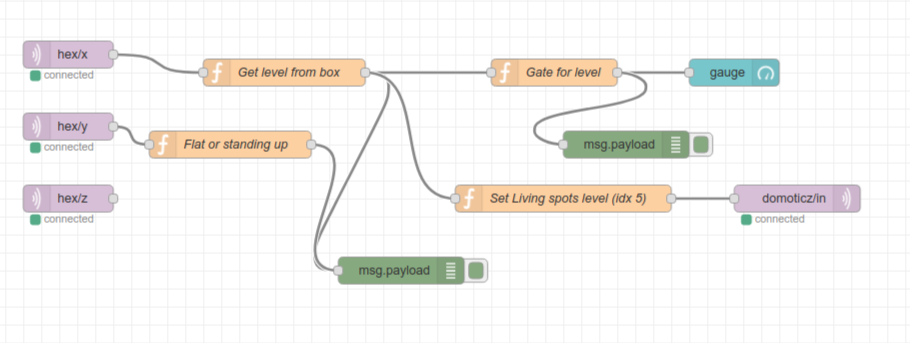
So getting the info for NR to parse:
I only need to use the lightblue node bottom right!
It is the current state node, inject a timestamp every day to get new values.
Parse this and send using Mqtt to my Led display thingy
Update 20221208 – removed internals

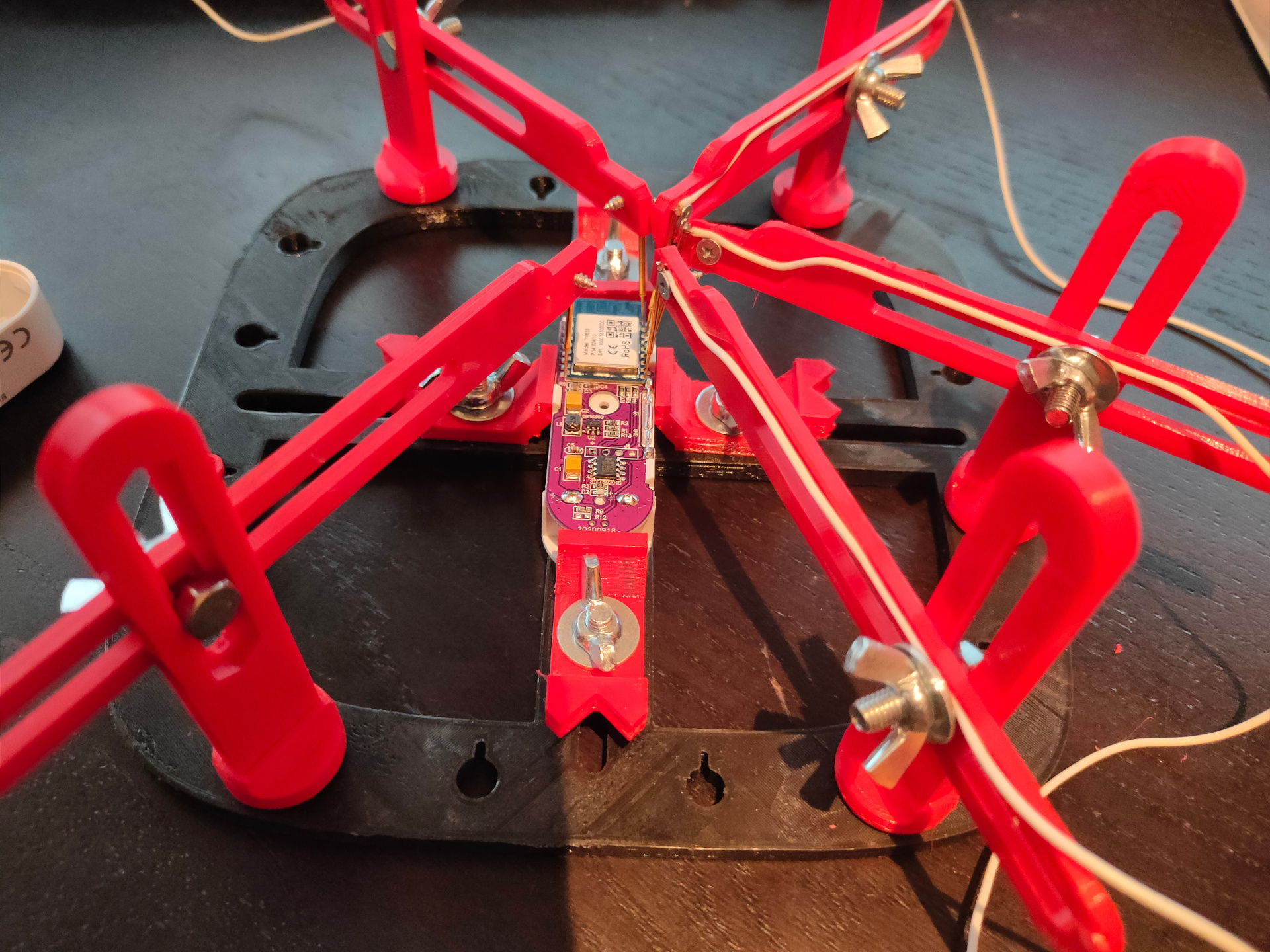
I’ve modded several LSC devices, most of them i could flash with esp-easy or tasmota.
Why mod it? Because it uses the cloud .. i’d like to keep control myself.
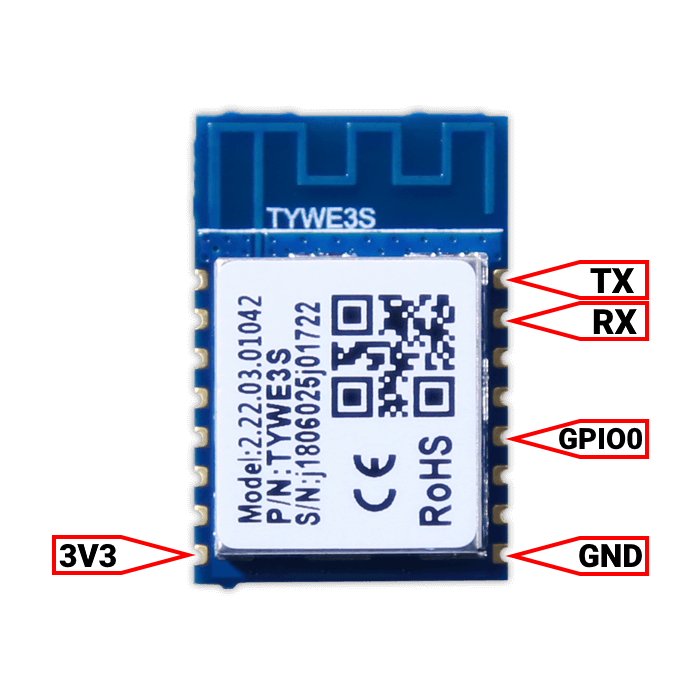
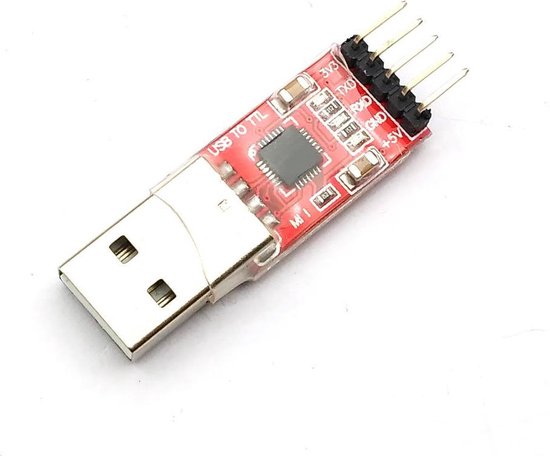
Just connect/solder a USB to TTL Converter UART Module like below.
(See other posts)

But this alarm was different, i ended up removing the chip and replace it with a ESP12.

So now i had to figure out which GPIO pins and how to control them.
#1/bin/bash
# Flashed ESP Easy on this one
# When i did this, 2019, you needed version 2.1-beta1
# GPIO 4 controls LED
sleep 10
curl http://10.1.1.251/control?cmd=GPIO,4,1
sleep 1
curl http://10.1.1.251/control?cmd=GPIO,4,0
sleep 1
curl http://10.1.1.251/control?cmd=GPIO,4,1
sleep 2
curl http://10.1.1.251/control?cmd=GPIO,4,0
sleep 5
# Sending rtttl ringtone
curl "http://10.1.1.251/control?cmd=rtttl,5:d=4,o=5,b=112:8a,8a,a,8a,8a,a,8a,8c6,8f.,16g,2a,8a-,8a-,8a-.,16a-,8a-,8a,8a.,16a,8a,8g,8g,8a,g,c6"
alarm sound
curl "http://10.1.1.251/control?cmd=rtttl,5:d=4,o=5,b=160:2g,2c6,2g,2c6,2g,2c6,2g,2c6"
pager
curl "http://10.1.1.251/control?cmd=rtttl,5:d=4,o=5,b=160:8d6,16p,2d6,16p,8d6,16p,2d6,16p,8d6,16p,2d6"
Update 20221208 – removed internals
Removed my old hack and replaced it with a Wemos D1.
Added a LED
Next to do .. add a amplifier using a LM356/358
Today i used some analog meters to display cpu load and memory usage.
Using below 12 bit DAC (MCP4725 ) and a Wemos Mini
Usage: (Anything you can come up with, if you got a value, you can display it)
curl http://IP/specificArgs?dac_value=$(grep 'cpu ' /proc/stat | awk '{usage=($2+$4)*1000} END {print usage }' |cut -f1 -d.)
Arduino code
#include <ESP8266WiFi.h>
#include <ESP8266WebServer.h>
#include <Wire.h>
#include <Adafruit_MCP4725.h>
#define MCP4725 0x62
unsigned int adc;
byte buffer[3];
Adafruit_MCP4725 dac;
char dac_value_tmp[6] = "0";
int dac_value = 0;
ESP8266WebServer server(80); //Web server
void setup() {
Wire.begin();
Serial.begin(115200);
WiFi.begin("accesspoint", "accesspointpass");
while (WiFi.status() != WL_CONNECTED) {
delay(500);
Serial.println("Waiting to connectâŚ");
}
Serial.print("IP address: ");
Serial.println(WiFi.localIP()); //Print IP
server.on("/genericArgs", handleGenericArgs);
server.on("/specificArgs", handleSpecificArg);
server.begin(); //Start the server
Serial.println("Server listening");
dac.begin(0x60); // The I2C Address
}
void loop() {
uint32_t dac_value;
int adcValueRead = 0;
float voltageRead = 0;
server.handleClient();
}
void handleGenericArgs() { //Handler
String message = "Number of args received:";
message += server.args(); //Get number of parameters
message += "\n";
for (int i = 0; i < server.args(); i++) {
message += "Arg nÂş" + (String)i + " â> ";
message += server.argName(i) + ": ";
message += server.arg(i) + "\n";
}
server.send(200, "text/plain", message);
}
void handleSpecificArg() {
String message = "";
if (server.arg("dac_value")== ""){ //Parameter not found
message = "dac_value Argument not found";
}else{
message = "dac_value = ";
message += server.arg("dac_value"); //Gets the value of the query parameter
int dac_value = server.arg("dac_value").toInt();
Serial.print("DAC Value: ");
Serial.print(dac_value);
buffer[0] = 0b01000000;
buffer[1] = dac_value >> 4; //Puts the most significant bit values
buffer[2] = dac_value << 4; //Puts the Least significant bit values
Wire.beginTransmission(MCP4725); //Joins I2C bus with MCP4725 with 0x61 address
Wire.write(buffer[0]); //Sends control byte
Wire.write(buffer[1]); //Sends the MSB to I2C
Wire.write(buffer[2]); //Sends the LSB to I2C
Wire.endTransmission(); //Ends the transmission
}
server.send(200, "text/plain", message); //Returns the HTTP response
}


Resistor depends on the range of your analog meters
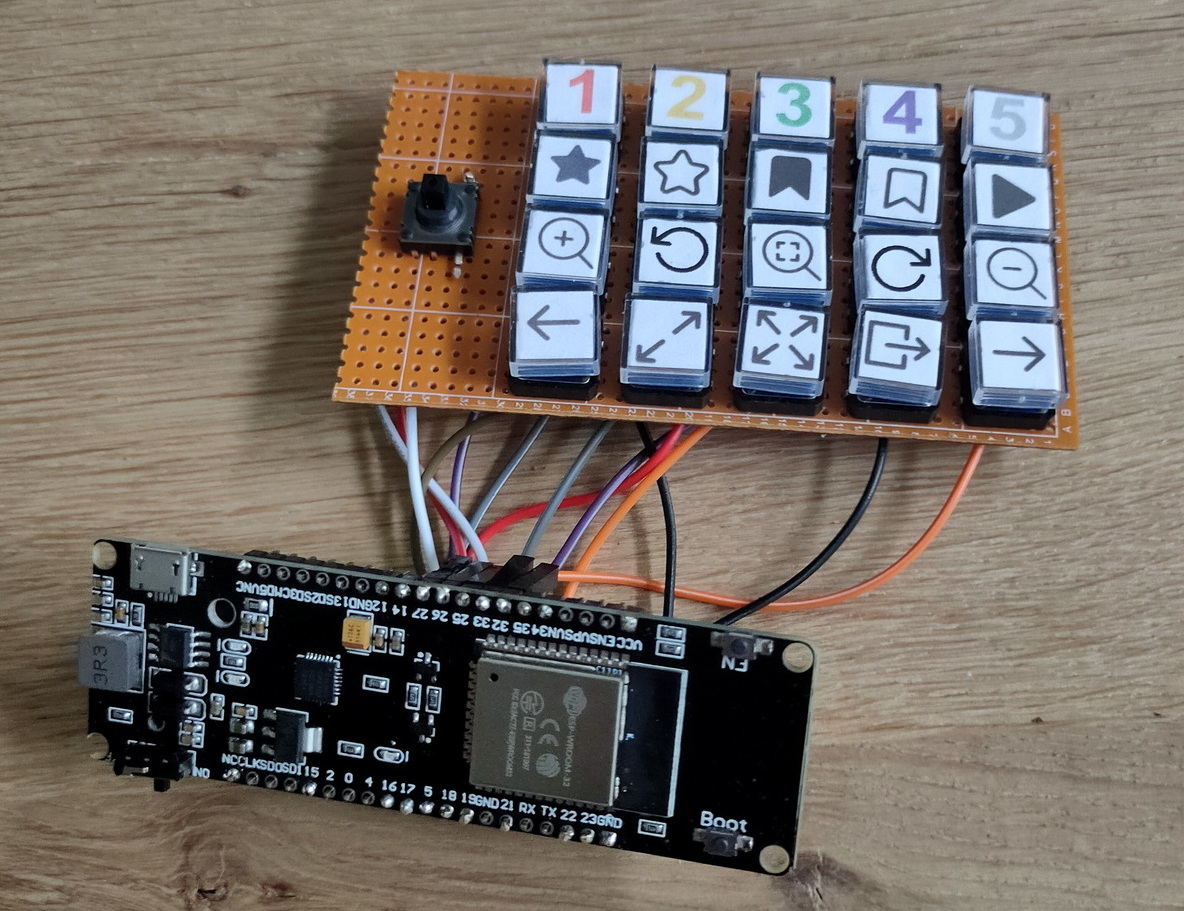
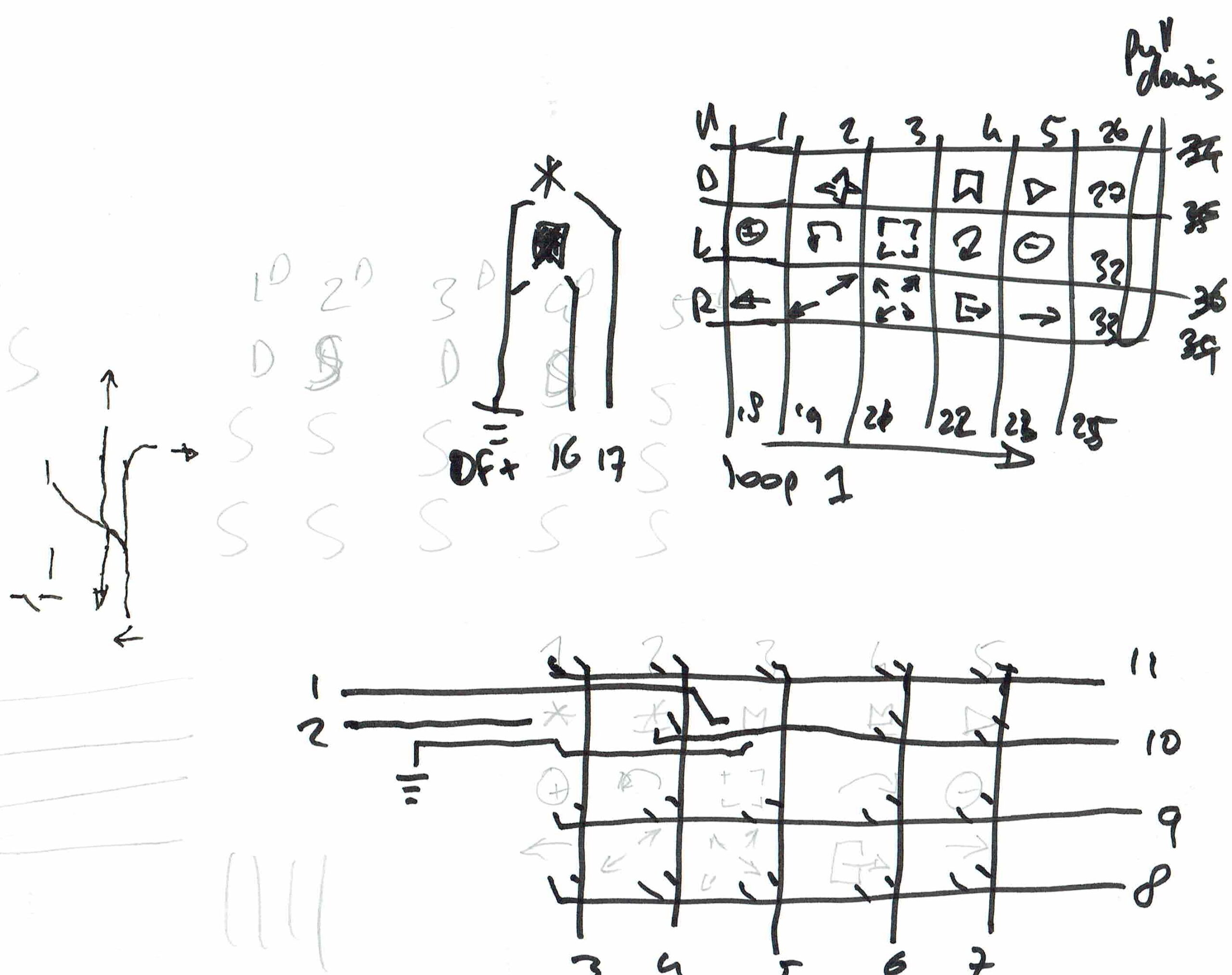
A box with macro buttons for your PC using Arduino Leonardo
#include <Keypad.h> // matrix read
#include <Keyboard.h> // keyboard out
#define ENABLE_PULLUPS // fuck the resistors
#define NUMBUTTONS 25 // matrix
#define NUMROWS 5 // matrix rows
#define NUMCOLS 5 // matrix cols
int analog1 = A3;
int analog2 = A7;
int inPinctrl = 3; // function ctrl, pull to vcc
int inPinalt = 4; // function alt, pull to vcc
int valctrl = 0; // variable to store shifter
int valalt = 0; // variable to store shifter
int joyx = 0;
int joyy = 0;
//define the symbols per key
char buttons[NUMROWS][NUMCOLS] = {
{'q','w','e','r','t'},
{'y','u','i','o','p'},
{'a','s','d','f','g'},
{'h','j','k','l','z'},
{'x','c','v','b','n'},
};
// q-1 (star) e-zoomin r-prev t-up
// y-2 u-clearstar o-open p-down
// a-3 (rate) d-zoomreset f-full g-left
// h-4 j-clearrate l-esc z-right
// x-5 c-slideshow v=zoomout b-next
// 14 16 10 9 8
// 21 q y a h x
// 20 w u s j c
// 19 e i d k v
// 18 t p g z n
// 15 r o f l b
byte rowPins[NUMROWS] = {16,20,19,18,15}; //connect to the row pinouts of the keypad
byte colPins[NUMCOLS] = {14,7,10,9,8}; //connect to the column pinouts of the keypad
//initialize an instance of class NewKeypad
Keypad buttbx = Keypad( makeKeymap(buttons), rowPins, colPins, NUMROWS, NUMCOLS);
void setup() {
Serial.begin(115200); // debug out baud
pinMode(inPinctrl, INPUT); // sets the digital pin 3 as input
pinMode(inPinalt, INPUT); // sets the digital pin 4 as input
digitalWrite(inPinctrl, HIGH); // turn on pullup resistors
digitalWrite(inPinalt, HIGH); // turn on pullup resistors
Keyboard.begin(); // keyb starter
}
void loop() { // loop the program
CheckAllButtons(); // check tha buttons
}
void CheckAllButtons(void) {
joyx = analogRead(analog1);
joyy = analogRead(analog2);
Serial.println(joyx);
Serial.println(joyy);
if (joyx > 900) {
Keyboard.press(KEY_UP_ARROW);
delay(150);
Keyboard.releaseAll();
}
if (joyx < 200) {
Keyboard.press(KEY_DOWN_ARROW);
delay(150);
Keyboard.releaseAll();
}
if (joyy > 900) {
Keyboard.press(KEY_LEFT_ARROW);
delay(150);
Keyboard.releaseAll();
}
if (joyy < 200) {
Keyboard.press(KEY_RIGHT_ARROW);
delay(150);
Keyboard.releaseAll();
}
char key = buttbx.getKey();
if (key != NO_KEY) {
valctrl = digitalRead(inPinctrl); // read the function pin
valalt = digitalRead(inPinalt); // read the function pin
Serial.write(valctrl); // debug
Serial.println(); // enter
Serial.write(valalt); // debug
Serial.println(); // enter
Serial.write(key); // debug
Serial.println(); // enter
// button 1
if (key == 'q') {
if (valctrl == 0) { // function shifter active?
Keyboard.press(KEY_LEFT_CTRL);
}
if (valalt == 0) { // function shifter active?
Keyboard.press(KEY_LEFT_ALT);
}
Keyboard.press('1');
delay(150);
Keyboard.releaseAll();
}
// button 2
if (key == 'y') {
if (valctrl == 0) { // function shifter active?
Keyboard.press(KEY_LEFT_CTRL);
}
if (valalt == 0) { // function shifter active?
Keyboard.press(KEY_LEFT_ALT);
}
Keyboard.press('2');
delay(150);
Keyboard.releaseAll();
}
// button 3
if (key == 'a') {
if (valctrl == 0) { // function shifter active?
Keyboard.press(KEY_LEFT_CTRL);
}
if (valalt == 0) { // function shifter active?
Keyboard.press(KEY_LEFT_ALT);
}
Keyboard.press('3');
delay(150);
Keyboard.releaseAll();
}
// button 4
if (key == 'h') {
if (valctrl == 0) { // function shifter active?
Keyboard.press(KEY_LEFT_CTRL);
}
if (valalt == 0) { // function shifter active?
Keyboard.press(KEY_LEFT_ALT);
}
Keyboard.press('4');
delay(150);
Keyboard.releaseAll();
}
// button 5
if (key == 'x') {
if (valctrl == 0) { // function shifter active?
Keyboard.press(KEY_LEFT_CTRL);
}
if (valalt == 0) { // function shifter active?
Keyboard.press(KEY_LEFT_ALT);
}
Keyboard.press('5');
delay(150);
Keyboard.releaseAll();
}
// button i - clear rate
if (key == 'i') {
Keyboard.press(KEY_LEFT_CTRL);
Keyboard.press('0');
delay(150);
Keyboard.releaseAll();
}
// button k - clear label
if (key == 'k') {
Keyboard.press(KEY_LEFT_ALT);
Keyboard.press('0');
delay(150);
Keyboard.releaseAll();
}
// button v - slideshow
if (key == 'v') {
Keyboard.press(KEY_ESC);
Keyboard.press(KEY_LEFT_CTRL);
Keyboard.press('s');
delay(150);
Keyboard.releaseAll();
}
// button t - zoomin
if (key == 't') {
Keyboard.press('+');
delay(150);
Keyboard.releaseAll();
}
// button g - zoomreset
if (key == 'g') {
Keyboard.press('*');
delay(150);
Keyboard.releaseAll();
}
// button n - zoomout
if (key == 'n') {
Keyboard.press('-');
delay(150);
Keyboard.releaseAll();
}
//r o f l b
// button r - prev
if (key == 'r') {
Keyboard.press(KEY_LEFT_CTRL);
Keyboard.press(KEY_LEFT_ARROW);
delay(150);
Keyboard.releaseAll();
}
// button o - open
if (key == 'o') {
Keyboard.press(KEY_RETURN);
delay(150);
Keyboard.releaseAll();
}
// button f - full
if (key == 'f') {
Keyboard.press('f');
delay(150);
Keyboard.releaseAll();
}
// button l - esc
if (key == 'l') {
Keyboard.press(KEY_ESC);
delay(150);
Keyboard.releaseAll();
}
// button b - next
if (key == 'b') {
Keyboard.press(KEY_LEFT_CTRL);
Keyboard.press(KEY_RIGHT_ARROW);
delay(150);
Keyboard.releaseAll();
}
}
}
For measuring pressure in fermentation containers, I designed a pressure sensor which could be wireless connected to a fermentation container.
The sensor would transmit the values to a Raspberry which was configured as a Access Point and would store the measurements and generated graphs using Grafana.


Nodes config:
Esp configuration, connect with micro-usb
Flashing with linux
esptool.py -p /dev/ttyUSB0 write_flash 0x00000 ESP_Easy_mega-20190311_normal_ESP8266_4M.bin
Make a connection with the ESP Access point
Connect esp with a power source.
Look for a AP with ESP_Easy_0
Use password “configesp” to connect
Start you browser and enter http://192.168.4.1

In wifi wizard setup select “pressurespot”
Enter password “pressurespot”
Press connect
Wait 20s and look in the raspberry logs which IP the ESP got.
Connect laptop/mobile to wifi “pressurespot”and connect
Enter found IP from ESP in your browser.
Proceed to main config
Main setting table, set the following
Press controller tab
Press first edit button and set following
– Protocol: domoticz http
Next set
– Controller IP : 10.42.0.1
– Toggle enabled and press submit
Resulting in:
Next we got to Hardware
I2C interface switch GPIO-4 and GPIO-5
Devices TAB
Press edit, and select device “Environment – BMx280” from the pulldown menu.
Next, set the following
In the Devices tab, you should be able to see the sensor with the values (Temperature and pressure)
No values? Do a i2c scan and/or reboot ESP ( You can find these in the tools tab)
Tools TAB
Press I2C scan, when seeing a address like 0x76 or 0x77 use this in previous tabs.
Still nothing, even after reboot? Maybe faulty hardware?
Everything okay? Back to the config tab
We are going to set the sleep mode.
Warning ! .. when setting this it is hard to get into the config pages again.
ESP will startup, connect to wifi, send values and goes to sleep again.
At the bottom set: Sleep awake time 1 sec
Buttons on the raspberry / pressurespot
Red button :
Led lights on the sensors
Add shutdown script to /etc/rc.local
python /usr/local/bin/power-switch.py &
/usr/local/bin/power-switch.py
#!/usr/bin/python
import threading, subprocess
import RPi.GPIO as GPIO
def shutdown():
subprocess.call('sudo shutdown -h now', shell=True)
def edge_detected(pin):
if GPIO.input(pin):
t.cancel()
subprocess.call('sudo reboot', shell=True)
else:
t.start()
if __name__ == '__main__':
try:
GPIO.setmode(GPIO.BOARD)
GPIO.setup(5, GPIO.IN)
GPIO.add_event_detect(5, GPIO.BOTH, callback=edge_detected, bouncetime=10)
t = threading.Timer(3.0, shutdown)
while True:
pass
finally:
GPIO.cleanup()
/usr/local/bin/ledoff.py
#!/usr/bin/python import RPi.GPIO as GPIO import time GPIO.setmode(GPIO.BCM) GPIO.setwarnings(False) GPIO.setup(18,GPIO.OUT) GPIO.output(18,GPIO.LOW)
/usr/local/bin/ledon.py
#!/usr/bin/python import RPi.GPIO as GPIO import time GPIO.setmode(GPIO.BCM) GPIO.setwarnings(False) GPIO.setup(18,GPIO.OUT) GPIO.output(18,GPIO.HIGH)
nmcli device wifi hotspot ssid pressurespot password pressurespot
/etc/NetworkManager/system-connections/Hotspot-1
[connection]
id=Hotspot-1
uuid=c2c05528-63f9-44c7-93ce-264187a45086
type=wifi
permissions=
timestamp=1553708934
[wifi]
hidden=true
mac-address=B8:27:EB:7F:D5:E7
mac-address-blacklist=
mode=ap
seen-bssids=B8:27:EB:7F:D5:E7;
ssid=pressurespot
[wifi-security]
group=ccmp;
key-mgmt=wpa-psk
pairwise=ccmp;
proto=rsn;
psk=pressurespot
[ipv4]
dns-search=
method=shared
[ipv6]
addr-gen-mode=stable-privacy
dns-search=
method=ignore
/usr/bin/servicecheck.sh (in rc.local and crontab root user – every minute
#!/bin/bash
nmcli connection show | grep "Hotspot-1 c2c05528-63f9-44c7-93ce-264187a45086 802-11-wireless wlan0" >/dev/null && touch /tmp/wlan || rm -f /tmp/wlan
for f in influx domoticz telegraf grafana mosquitto ; do
pgrep $f >/dev/null && touch /tmp/$f || rm -f /tmp/$f
done
count=$(ls /tmp/influx /tmp/domoticz /tmp/telegraf /tmp/grafana /tmp/mosquitto /tmp/wlan | wc -l)
if [ $count -eq 6 ] ; then
/usr/local/bin/ledon.py
exit 0
fi
for timer in {1..10} ; do
/usr/local/bin/ledon.py
sleep 1
/usr/local/bin/ledoff.py
sleep 1
done
Rest services to be installed on Raspberry
At the moment the raspberry uses domoticz between the Mqtt broker (Mosquitto) and the database (Influx)
Data wil be displayed using grafana.
tail -f /var/log/syslog shows which ip to which ESP
DHCPACK(wlan0) 10.42.0.104 cc:50:e3:c4:96:61 lab-
DHCPACK(wlan0) 10.42.0.181 cc:50:e3:c4:8d:73 lab-4
DHCPACK(wlan0) 10.42.0.186 cc:50:e3:c4:9b:ef lab-1
Configuring the raspberry
Install influx and grafana
First we add Influx repositories to apt:
wget -qO- https://repos.influxdata.com/influxdb.key | sudo apt-key add - source /etc/os-release echo "deb https://repos.influxdata.com/debian $(lsb_release -cs) stable" | sudo tee /etc/apt/sources.list.d/influxdb.list
Update apt with the new repo & install.
sudo apt update && sudo apt install -y influxdb
Then start the influxdb service and set it to run at boot:
sudo systemctl enable influxdb --now
Again we need to add the Grafana packages to apt:
wget -q -O - https://packages.grafana.com/gpg.key | sudo apt-key add - echo "deb https://packages.grafana.com/oss/deb stable main" | sudo tee /etc/apt/sources.list.d/grafana.list
We can now update and install the binaries:
sudo apt update && sudo apt install -y grafana
Then simply enable the service and set to run at boot:
sudo systemctl enable grafana-server.service --now
Now we can check that grafana is up by loading it in a browser: http://10.42.0.1:3000. If so, you can log in with the username and password = admin and set a new admin password.
Install mosquitto
sudo apt install mosquitto mosquitto-clients
Install domoticz using below command
<code><strong>curl -sSL install.domoticz.com | sudo bash</strong></code>
Under hardware add MQTT server adress 127.0.0.1
Add virtual sensors to domoticz.
Click hardware and create virtual sensor, lab with sensornumber. Sensor type is Temp+Baro.
When looking at devices you will see the virtual devices.
Pushing the data into Influxdb:
Goto settings > more options > data push > influxdb
Add temperature
Add barometer
Configure Grafana
Go with your browser to http://10.42.0.1 when connected to the rpi access point
Goto settings and data sources, add influxdb with source http://localhost:8086
Goto dashboard and create a new one.

TODO
Telegraf/mosquito
Services in domoticz
Rpi status display
Sensor test / monitor
A friend of mine wanted to monitor his UPS using domoticz.
This UPS only had a simple web interface with information.
So we needed to scrape this information and push this into domoticz.
First create a dummy device in domoticz and note its IDX.
Then we can scrape needed information using below script.
#!/bin/bash
#set -x
# Domoticz server
SERVER="127.0.0.1:8080"
# APC Back-UPS HS 500 status URL
UPS="http://IP-OF-UPS/status.cgi"
# The number of the IDX in the list of peripherals
IDX="362"
# Path for temporary file (RAM drive)
TMPFILE="/tmp/apc-hs500-status.txt"
# Get APC Back-UPS HS 500 status and write to temporary file
wget $UPS -O $TMPFILE 2>/dev/null
if [ $? = 0 ]
then
PWR=$(cat $TMPFILE| tr -dc '[[:print:]]' |awk -F"Watts" '{print $1}' |rev |cut -f1 -d\> |rev |cut -f1 -d\&)
fi
if [ $PWR ]
then
echo "Load on Battery in Watts: $PWR"
# Send data to Domoticz
curl -s -i -H "Accept: application/json" "http://$SERVER/json.htm?type=command¶m=udevice&idx=$IDX&nvalue=0&svalue=$PWR"
PWR=""
fi
rm $TMPFILE
Today i got my first Raspberry Pi!


Many followed
The first-generation Raspberry Pi Model B was released in February 2012, followed by the simpler and cheaper Model A.
Later i bought the Pi2, Pi3, Pi4 and the Zero’s
I like the little buggers! I’ve used them for many projects.
Aloha gave me a banana pi to try, and i’ve tried the orange pi.
Aparantly i already registered at the raspberry store 2012-02-14.
28 of May i got a “activation code” to order
Now (2023 .. all shops out of stock )