Something related, and maybe interesting for people to read.
Maus often published as Maus: A Survivor’s Tale, is a graphic novel by American cartoonist Art Spiegelman, serialized from 1980 to 1991. It depicts Spiegelman interviewing his father about his experiences as a Polish Jew and Holocaust survivor. The work employs postmodern techniques, and represents Jews as mice and other Germans and Poles as cats and pigs respectively. Critics have classified Maus as memoir, biography, history, fiction, autobiography, or a mix of genres. In 1992 it became the first graphic novel to win a Pulitzer Prize.
The next iteration of my Rfid controller will have a write function for the RFID tags.
Stick a tag on a cover art piece of cardboard. (see below)
Read path from data sector.
Send path to player automation
Send path to program using MQTT or website if needed.
Back of printed sticker, to stick on 250gr paper below
Not sure yet, also want to implement a wifi manager on the wemos.
Changes on above idea:
Paths are too long, I could not work out how to create a working program using this.
I stopped using paths, instead I’m using the Logitech media server album IDs.
Using two python scripts, I can use one for programming the card, and another script to control LMS.
How does it work
RFid device is connected to the network.
Start query.py on your LMS server. Search for an album name, it will present an ID and Album name in a list. Enter the ID you want to program, or 0 to exit. (This will also reset the programming mode)
Place an empty or previously programmed tag on the device. It will write the album ID on the tag.
Then it will start the album. Changing the tags will also just change the album playing.
(NOTE: My genre spotify player still works using this method, using the same device)
A second python script will read the Mqtt topic and control the Squeezebox player.
Python Code DB Query
import sqlite3
#paho-mqtt
import paho.mqtt.publish as publish
host = "IPMQTTBROKER"
port = 1883
topic = "spotify/rfid/in/write"
auth = {'username': 'xxxx','password': 'xxxxx'}
client_id = "spotithing"
def readSqliteTable(albumname):
try:
sqliteConnection = sqlite3.connect('/var/lib/squeezeboxserver/cache/library.db')
cursor = sqliteConnection.cursor()
albumname = "%" + albumname + "%"
cursor.execute("select * from albums where title Like ?",
(albumname,))
records = cursor.fetchall()
for row in records:
print("Id: ", row[0],row[1])
cursor.close()
except sqlite3.Error as error:
print("Failed to read data from sqlite table", error)
finally:
if sqliteConnection:
sqliteConnection.close()
album = input("Album name ? ")
readSqliteTable(album)
number = input("Enter ID or 0 to quit : ")
publish.single(topic, "00000" , qos=1, hostname=host, port=port,
auth=auth, client_id=client_id)
if number == 0:
exit()
publish.single(topic, number, qos=1, hostname=host, port=port,
auth=auth, client_id=client_id)
print("Program your tag")
print("Reset/disable writing using exit with 0!")
Python Code Controller (this one needs to be running at all times)
import paho.mqtt.client as mqtt
import urllib.request
def on_connect(client, userdata, flags, rc):
print("Connected with result code {0}".format(str(rc)))
client.subscribe("spotify/rfid/idlms")
def on_message(client, userdata, msg):
print("Message received-> " + msg.topic + " " + str(msg.payload)) # Print a received msg
urllib.request.urlopen("http://IPADDRESLMS:9000/anyurl?p0=playlistcontrol&p1=album_id:" + msg.payload.decode() + "&p2=cmd:load&player=b8:27:eb:11:16:ab")
#NOTE also change b8:27:eb:11:16:ab into you players MACAddress!
client = mqtt.Client("digi_mqtt_test")
client.on_connect = on_connect
client.on_message = on_message
client.connect('IPMQTTBROKER', 1883)
client.loop_forever()
Arduino Code (see schematic in other post)
#include <Arduino.h>
#include <SPI.h>
#include <MFRC522.h>
#include <ESP8266WiFi.h>
#include <WiFiClient.h>
#include <PubSubClient.h>
#define SS_PIN 15
#define RST_PIN 0
MFRC522 mfrc522(SS_PIN, RST_PIN);
MFRC522::StatusCode status; //variable to get card status
byte buffer[18]; //data transfer buffer (16+2 bytes data+CRC)
byte size = sizeof(buffer);
uint8_t pageAddr = 0x06; //In this example we will write/read 16 bytes (page 6,7,8 and 9).
//Ultraligth mem = 16 pages. 4 bytes per page.
//Pages 0 to 4 are for special functions.
unsigned long cardId = 0;
WiFiClient net;
PubSubClient client(net);
const char* mqtt_server = "IPMQTTBROKER";
const char* ssid = "MYSSID";
const char* password = "MYSSIDPASS";
String topicStr = "";
byte buffer2[8];
boolean Rflag=false;
int r_len;
char payload[5];
byte value[5];
void setup() {
Serial.begin(9600);
SPI.begin();
mfrc522.PCD_Init();
WiFi.mode(WIFI_AP_STA);
WiFi.begin(ssid, password);
client.setServer(mqtt_server, 1883);
delay(100);
client.setCallback(callback);
delay(100);
client.subscribe("spotify/rfid/in/#");
}
void reconnect() {
while (WiFi.waitForConnectResult() != WL_CONNECTED) {
}
while (!client.connected()) {
String clientId = "rfid-";
clientId += String(random(0xffff), HEX);
if (!client.connect(clientId.c_str(), "rfidclient", "...")) {
Serial.print("failed, rc=");
Serial.print(client.state());
delay(5000);
}
}
client.subscribe("spotify/rfid/in/#");
}
void callback(char* topic, byte* payload, unsigned int length) {
Serial.print(F("Called"));
Rflag=true; //will use in main loop
r_len=length; //will use in main loop
Serial.print("length message received in callback= ");
Serial.println(length);
int j=0;
for (j;j<length;j++) {
buffer2[j]=payload[j];
}
if (r_len < 3) {
Rflag=false;
Serial.print(F("Set false"));
}
buffer2[j]='\0'; //terminate string
}
void loop() {
if (!client.connected()) {
reconnect();
}
client.loop();
if (!mfrc522.PICC_IsNewCardPresent()) {
return;
}
if (!mfrc522.PICC_ReadCardSerial()) {
return;
}
if (Rflag) {
for (int i=0; i < 4; i++) {
//data is writen in blocks of 4 bytes (4 bytes per page)
status = (MFRC522::StatusCode) mfrc522.MIFARE_Ultralight_Write(pageAddr+i, &buffer2[i*4], 4);
if (status != MFRC522::STATUS_OK) {
Serial.print(F("MIFARE_Read() failed: (W) "));
Serial.println(mfrc522.GetStatusCodeName(status));
return;
}
}
Serial.println(F("MIFARE_Ultralight_Write() OK "));
Serial.println();
Rflag=false;
}
cardId = getCardId();
char buffer3[10];
sprintf(buffer3, "%lu", cardId);
client.publish("spotify/rfid/id", buffer3);
// Read data ***************************************************
Serial.println(F("Reading data ... "));
//data in 4 block is readed at once.
status = (MFRC522::StatusCode) mfrc522.MIFARE_Read(pageAddr, buffer, &size);
if (status != MFRC522::STATUS_OK) {
Serial.println(F("MIFARE_Read() failed: (R)"));
Serial.println(mfrc522.GetStatusCodeName(status));
return;
}
Serial.println(F("Read data: "));
//Dump a byte array to Serial
for (byte i = 0; i < 5; i++) {
Serial.write(buffer[i]);
buffer2[i]=buffer[i];
}
client.publish("spotify/rfid/idlms", buffer,5);
delay(1000);
mfrc522.PICC_HaltA();
}
unsigned long getCardId() {
byte readCard[4];
for (int i = 0; i < 4; i++) {
readCard[i] = mfrc522.uid.uidByte[i];
}
return (unsigned long)readCard[0] << 24
| (unsigned long)readCard[1] << 16
| (unsigned long)readCard[2] << 8
| (unsigned long)readCard[3];
}
Today we worked on this project again. (Bigred and me)
There were some problems we needed to fix since last time:
It was quite hard to get the correct parts. Our display connector was only fitted with connection pins on the wrong side of the connector. (up/down) So I bought a connector with both positions populated. So we had to replace this hard to solder (40 pin) connector.
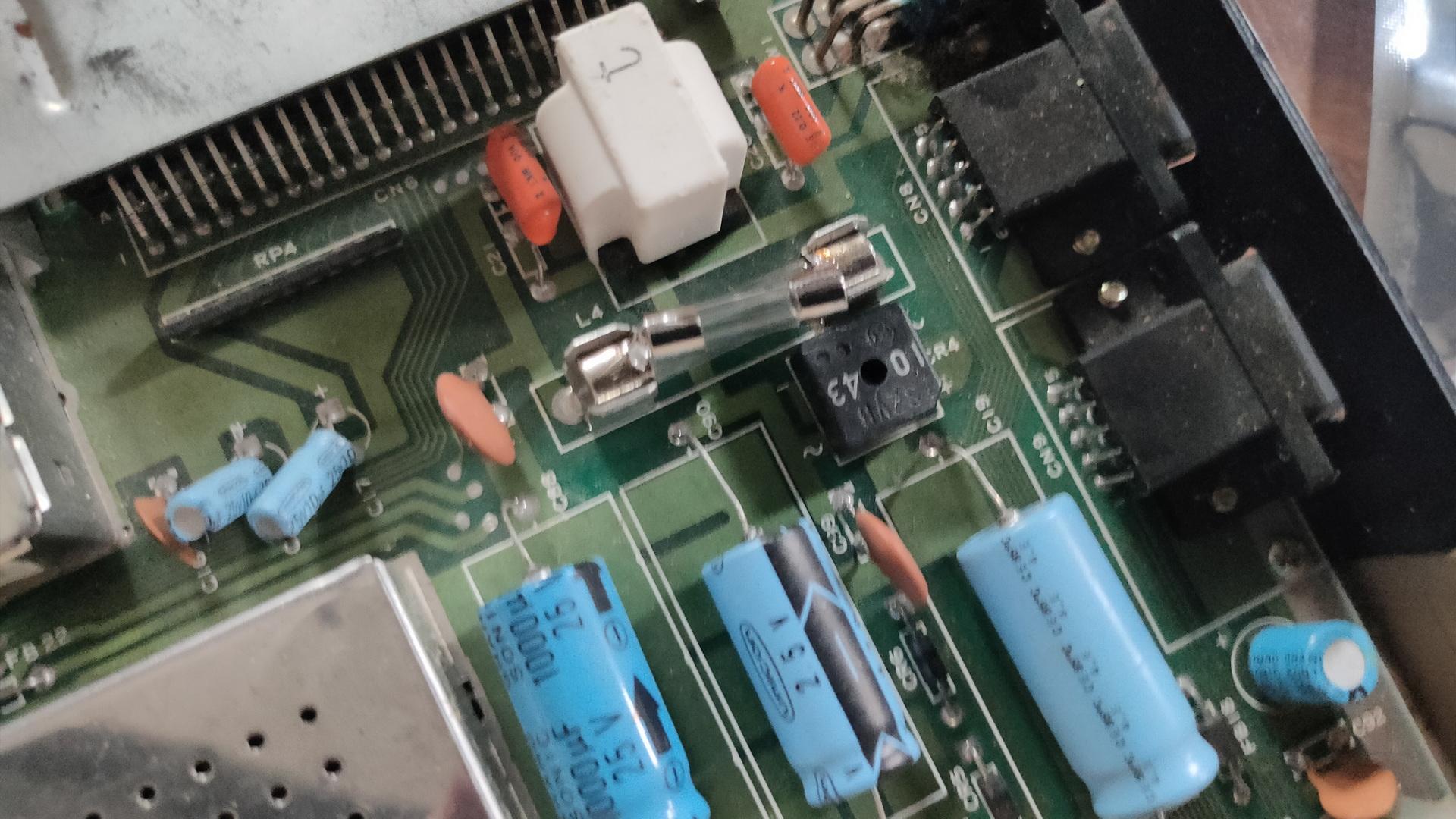
It was not clear what the orientation should be of the atmega328pb. We looked at the pinout, and followed the VCC/GND. But these are also available of the opposite side of the chip. (We missed that) Later, we saw a tiny line on the PCB, which showed the pin 1 placement. So we had to remove and replace the chip. When turning on the power, (with incorrect placement) probably fried R5 (10k resistor), on both our boards. Had to replace those also.
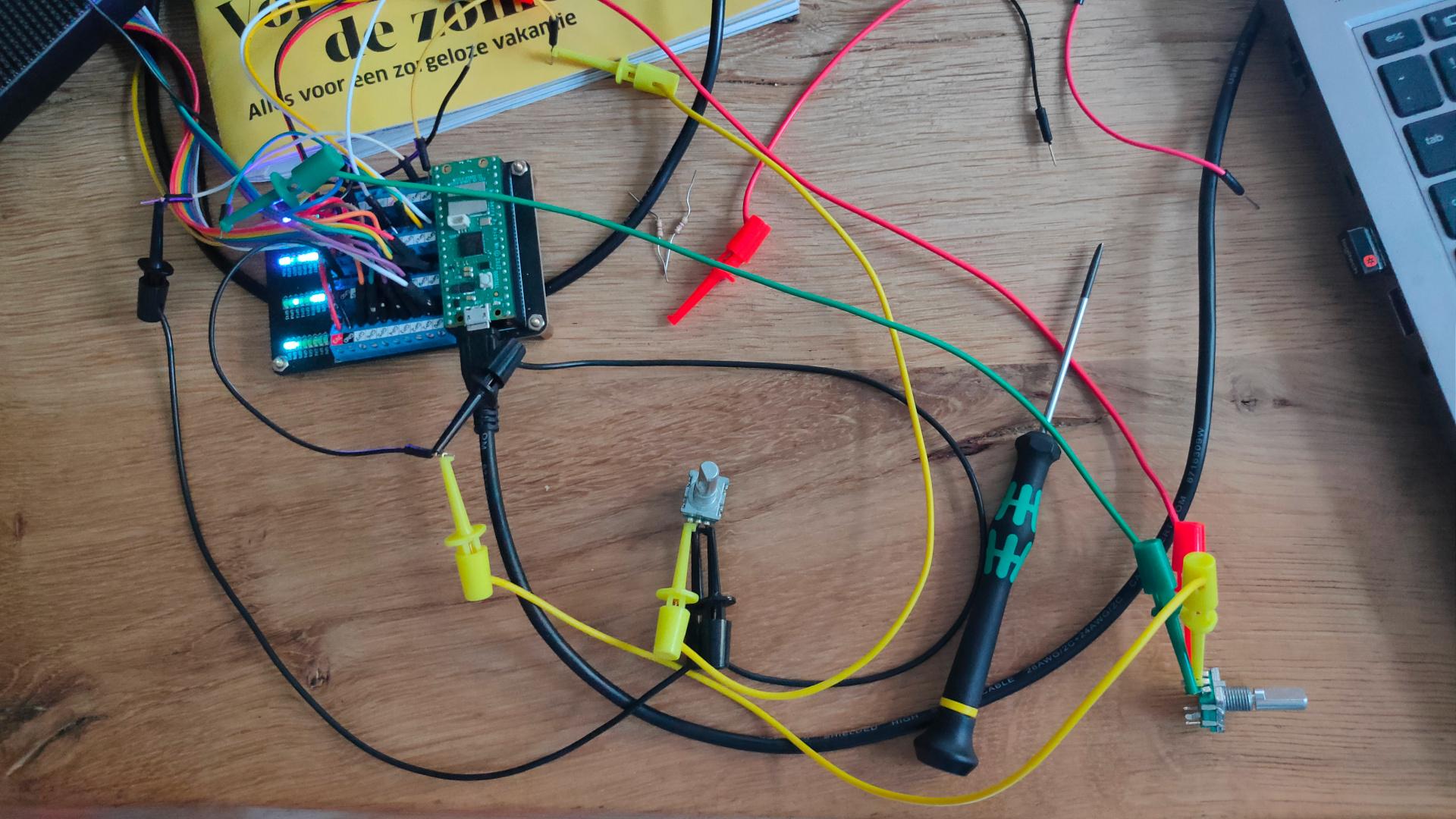
Programming the atmega328pb was not easy, see below fixes.
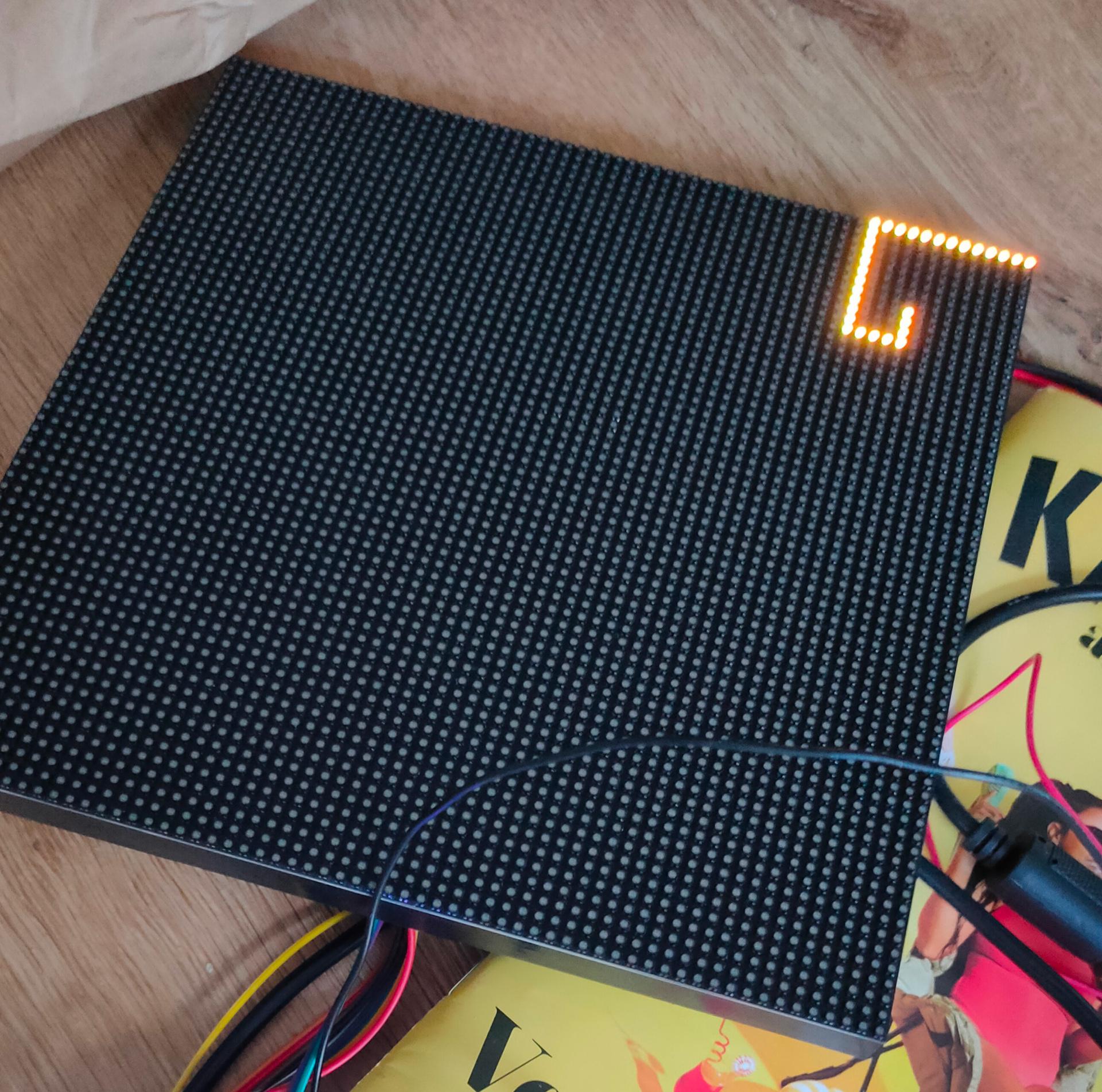
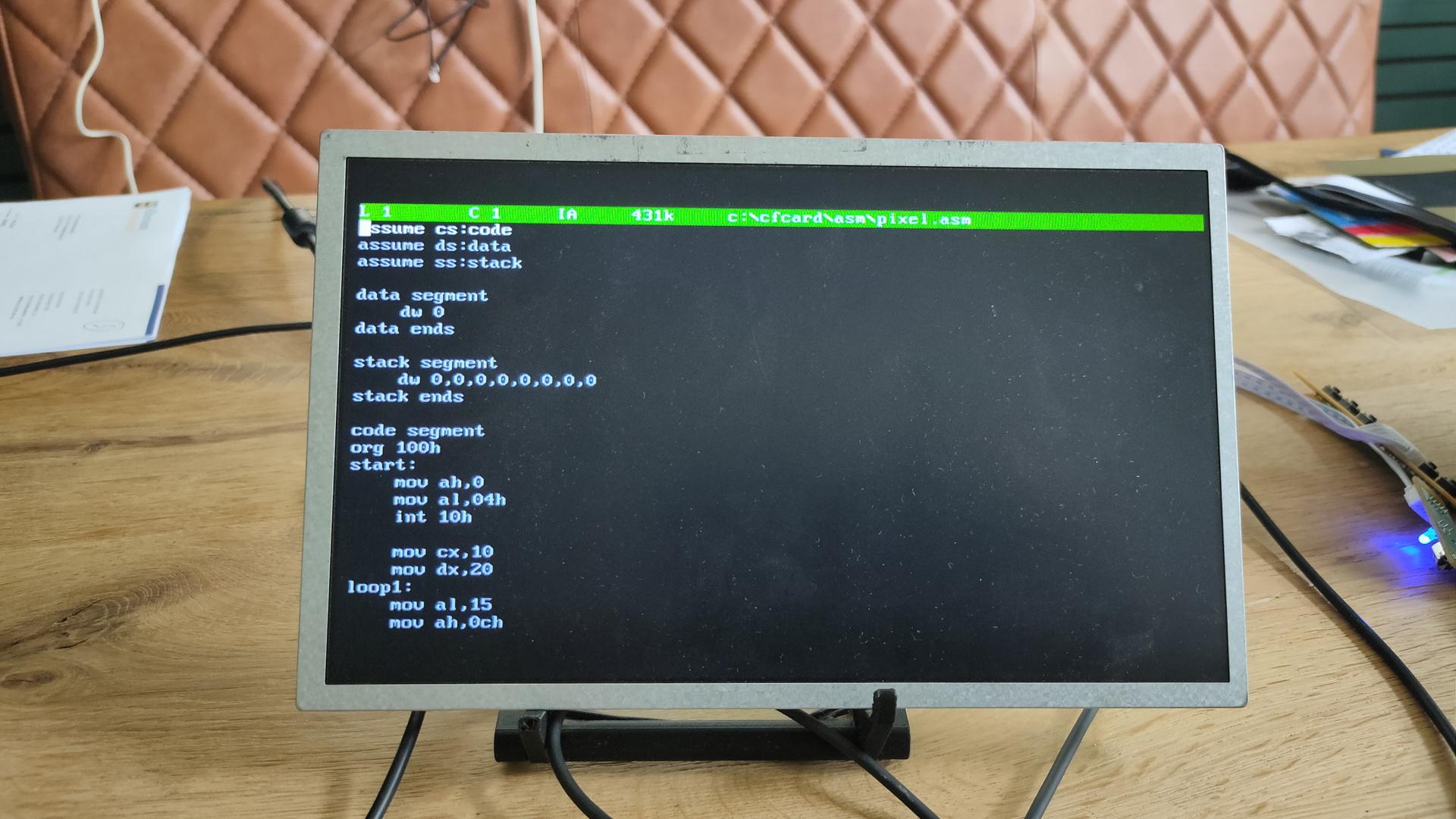
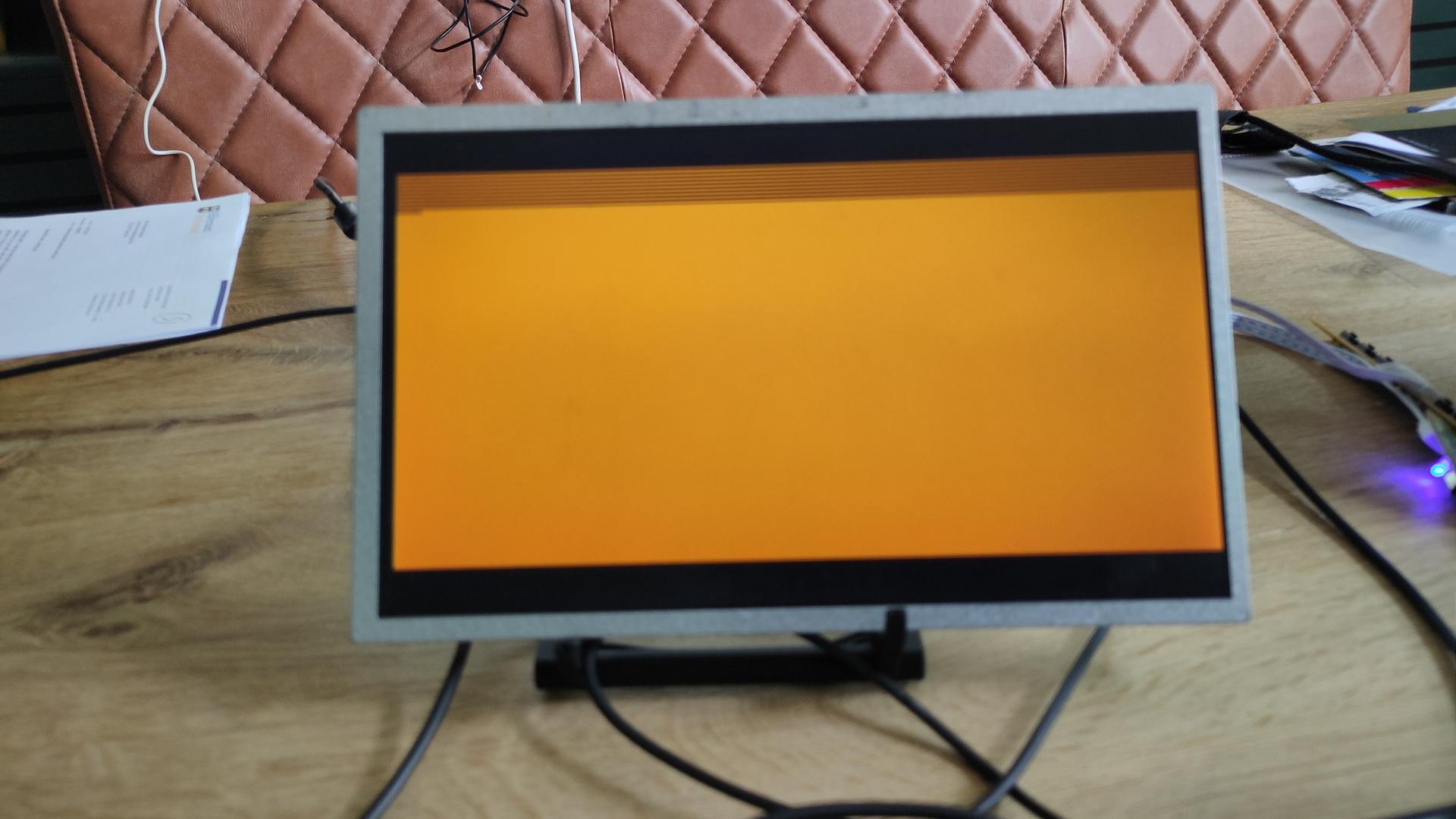
Compiling the pico firmware resulted in a black screen. Below the fixes I had to make to get the screen working.
Other things still to fix.
Bigreds screen.
atmega328p didn’t work for Bigred, so probably needs to replace with the pb version.
My battery controller is not charging. See bottom of page
Some of my buttons are working. The pewpew and some of the cursor keys (not as I expect, there are some up/down issues) And none of the other keys are working.
Some other things we noticed.
sdcard: remove partitions, format using mkfs.exfat Create a c64 directory on this filesystem where you can put the d64 files!
0402 SMD is far too small for me. There is enough room on the board to use 0805 for example. Even THT is possible, there are only a few components.
Some components are TOO close together, removing a component resulted in other small parts disconnecting also.
My friend Bigred said: If I can see it, I can solder it. But it is not easy. This probably keeps a lot of people from building it!
WHAT IS A FLAMBADOU? It’s a cast iron cone with a large opening at the top and a small one at the bottom attached to a long metal handle (generally 1m) designed to heat until red-hot to ignite and melt fat quickly.
Reportedly from the Middle Ages, flambadous were historically used to sear joints of meat, but are comparatively rare now. It’s also a traditional French technique for basting meat with fat as it cooks over the coals.
First, a french baguette.
I used Herb butter for the flambadou.
Don’t make the Flambadou as hot as you would do with the fat for the meat.
Recipe own made herb butter.
250 g unsalted butter (at room temperature)
Pinch of coarse salt
A few sprigs of fresh parsley
A few sprigs of chives
2 cloves of garlic
1 tablespoon lemon juice
Mash the butter finely with a fork. Add a pinch of sea salt and a tablespoon of lemon juice. Add finely chopped garlic. Chop the parsley and chives and add at the end and mix everything well. Wrap in cling film.
Let the herb butter harden in the refrigerator. Remove it a few minutes before use. So not frozen but still solid.
For the meat, I used Picanha and the cubed pieces of fat. Next time I’m going to use Bacon Fat or Geese Fat.
The Flambadou was NOT hot enough for the fat. Ah well, learning every day.
This week (while preparing for a mini retro party) I fixed some Amiga stuff.
I’ve bought a new gadget.
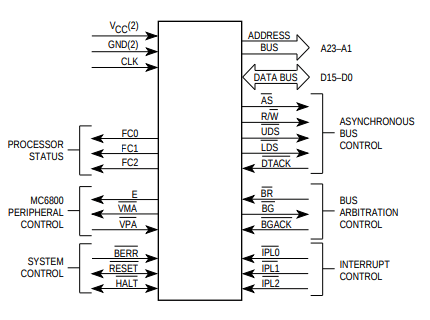
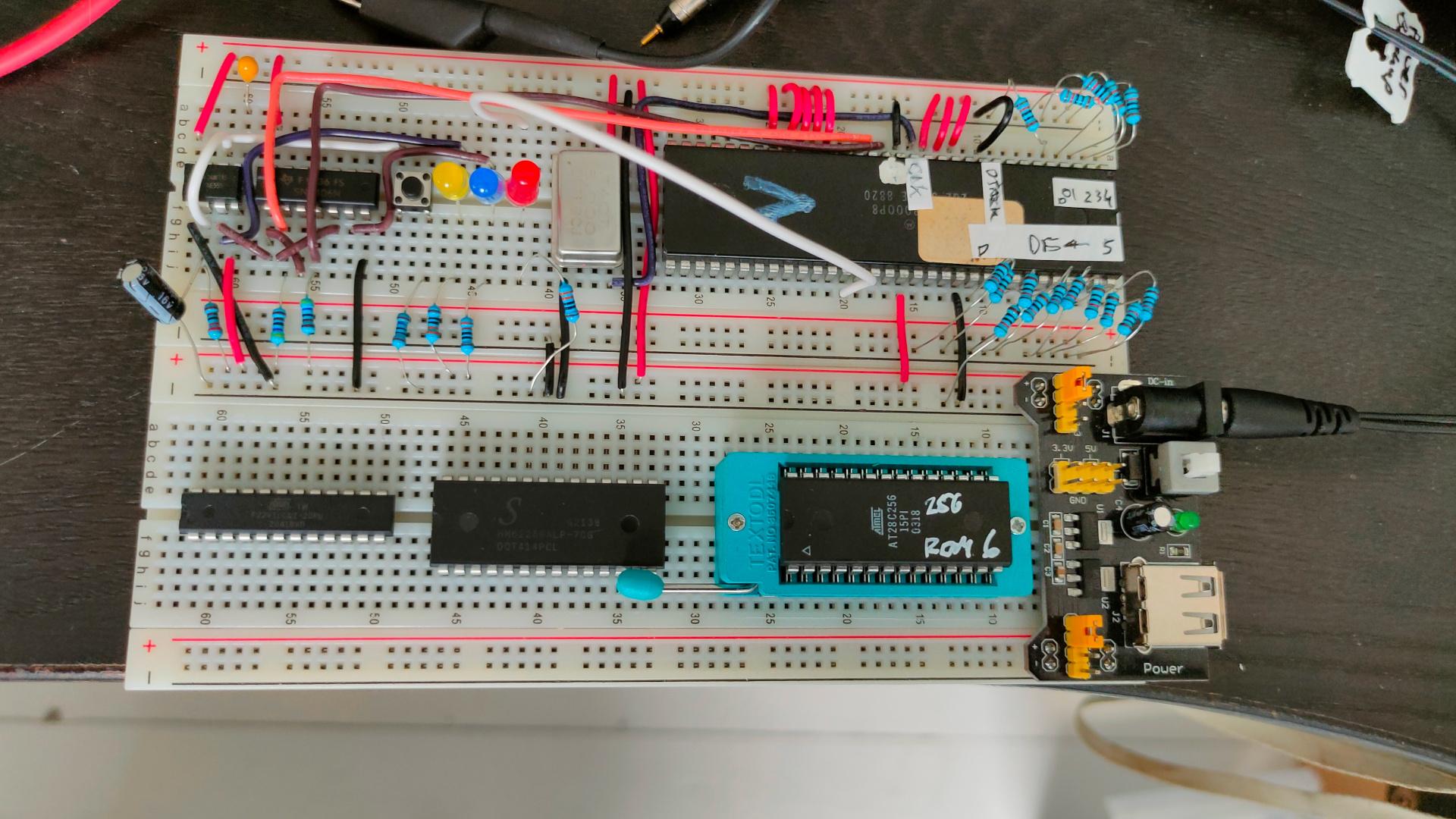
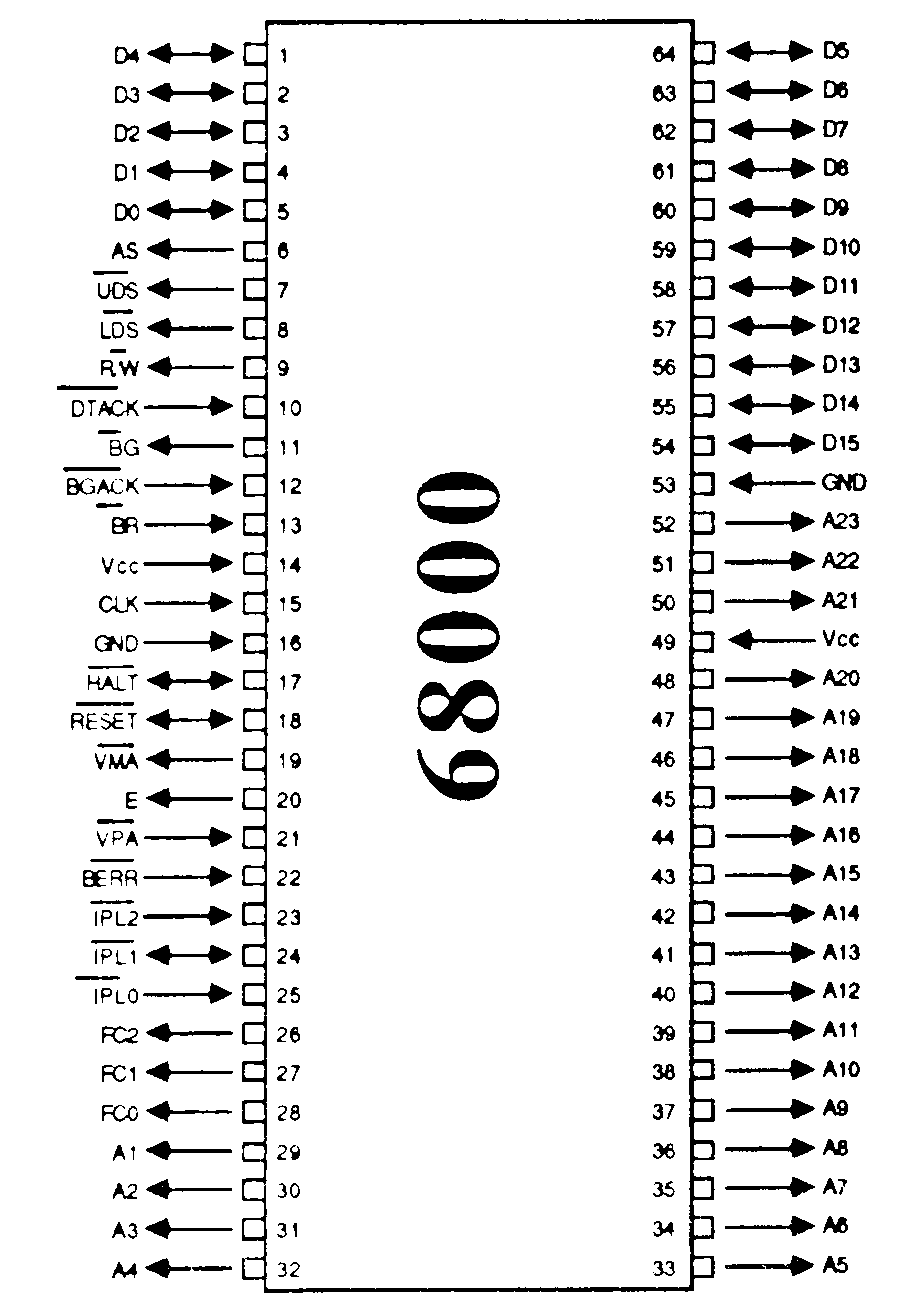
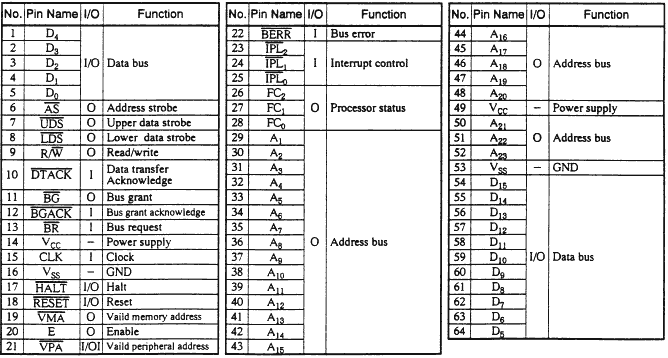
You place this PCB between the CPU IC socket and the CPU (68000) itself.
Now running a special floppy image, which loads a driver, I can use the 512MB sdcard as “harddisk”.
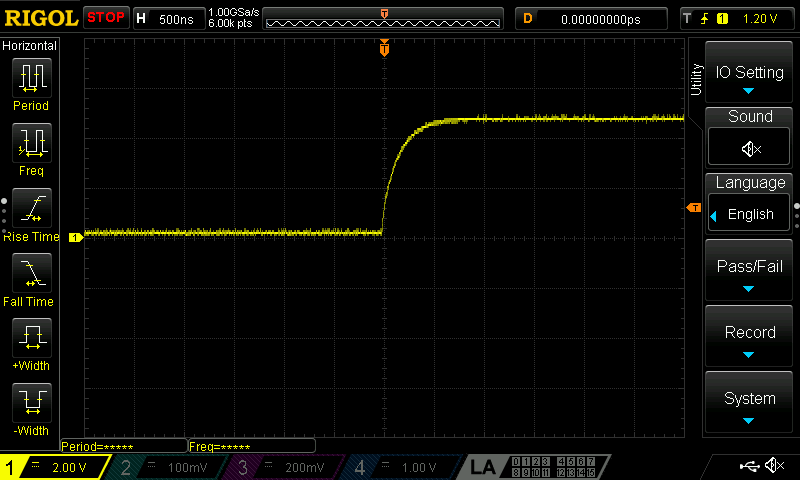
It at first ran into all kinds of hangups. Checking everything, I found CIAB (8520) the culprit. Timing errors I’ve never noticed before!
Switching this one with CIAA resolved the problem. (I don’t use a printer anyway, but I have to remember that anything using the parallel port can have problems now.)
Running some programs
Meanwhile, I wanted to have a better control over the Amiga drives, so I’m planning to use a second switch to reassign drive numbers using a switch.
For switching Internal/External drive (df0/df1) I was using a Gotek boot switch. (Just press 3x ctrl-Amiga-Amiga)
But I have TWO external devices. The Gotek virtual disk device and a real 5.24″ drive.
So I’m going to use a ON-ON double switch to toggle the external devices.
oppo_32
The internal switch toggles internal and external. The secondary I’m going to build into the 5.25″ drive toggles df2 and the “df1”. That way the internal drive can be 0 (boot) or 1. The external drives can be 0,1 or 2.
Bottom connector is incorrect!Better view of cross switch part
NOTE: Switch pin 21 and 9 using the cross switch!
SO: Amiga with internal drive -> External 5.24″ which has a passthrough to the Gotek.
Another amiga thing fixed: I re-installed Aros (on an old Laptop this time)
And third: I’ve bought the Amiga Forever cdrom.
Booting kickstartDPaintWorkbench 3.xHQ PPaintEven in 1920×1080
When you get the ISO image from AmigaForever, and want to run it using Linux, do this to get it working
sudo apt install xkbfile1:i386
sudo apt install libxkbfile1:i386
mkdir -p /cdrom
sudo mount -t iso9660 ~/Downloads/AF.iso /cdrom
cd /cdrom/Private/Linux/e-uae/
./kxlight-start.sh
If you install Wine, you can use the windows gui in linux also.
Amiga samplers
Missing a DB-9, I have to look into this.I’m not sure about this one. I made it myself. But it could be a PC version?
Testing the sampler (demo for Tyrone)
Sampling the sound of a C64 on an Amiga. Started (booted) the sampling program from second external drive using switch setup as above.
In 1938 Piet Bos founded the Natural History Museum in Holten. Bos had a nationally renowned taxidermy company in Holten. In the era of emerging tourism, Mr Bos had a good sense of how he could captivate visitors. He had a unique idea at the time, namely to exhibit stuffed animals in their “own” environment through dioramas (viewing boxes). Not only the dioramas, but also display cases with prepared birds and mammals still appeal to the imagination. Over the years, the collection has grown into one of the most extensive in Europe. Son Kees Bos has given the museum a contemporary character as a painter and sculptor. The name of the museum has been changed to Natuurdiorama Holterberg. Visitors to the Sallandse Heuvelrug can learn about the history and flora and fauna of the area in the museum. The nature museum also shows animals that occur in other parts of Europe. More than 1,000 animals and birds can be viewed in eleven life-size dioramas, accompanied by accompanying sounds.
My friend Tyrone posted something he recorded from TV. It was an illusion, using rotated images.
The effect is that it seems that the card is rotating at different speeds, when pressing the s (show/unshow) key, you see the card rotating at the same speed as before.
So I wanted to try to recreate this using python. The effect is there, but a little less. What can I improve?
Mine:
Around the 30 seconds mark I disable the background, you’ll see the card rotating as before.
Original:
Better version, larger and using s key to toggle water off, to see the card rotating
<?php
// squeezebox.php
// leave playerid as is, for the default.
// change to MAC address of player to get coverart specific player
$img = file_get_contents('http://IP-LOGITECH_MEDIA_SERVER:9000/music/current/cover.jpg?player=<playerid>');
$im = imagecreatefromstring($img);
$width = imagesx($im);
$height = imagesy($im);
$newwidth = '240';
$newheight = '240';
$thumb = imagecreatetruecolor($newwidth, $newheight);
imagecopyresized($thumb, $im, 0, 0, 0, 0, $newwidth, $newheight, $width, $height);
//imagejpeg($thumb,'small.jpg'); //save image as jpg
header('Content-Type: image/jpeg');
imagejpeg($thumb);
imagedestroy($thumb);
imagedestroy($im);
?>
Arduino install:
Start IDE
Install TJpg_Decoder library
Open examples>Tjpeg_decoder>SPIFFS>SPIFFS_web_spiffs
change wifi credentials
and the url to your php script.
bool loaded_ok = getFile("https://myserver/onkyo.php", "/M81.jpg"); // Note name preceded with "/"
replace bottom part with
// while(1) yield();
delay(5000);
SPIFFS.remove("/M81.jpg");
Get image from below url. Note! .. its a static non refreshing image!
http://192.168.1.2/album_art.cgi
Note: This gives me a file which shows fine in a browser, but being a http feed you cannot embed this in a https site. Another ‘problem’ with this image is that it includes headers, rendering this a invalid jpg when processing! (remove first 3 lines programmatically) I also want to have it updated, so I could make a mjpeg streamer for this. Probably i’m going to use my reverse proxy which uses SSL offloading to access cover art over https. (Then I can push this cover image on this webblog so you guys can see what we are listing to)
Another idea is to push this to an arduino display.
Not using https?
You can embed the album art in a dashboard. This won’t refresh, but the added time code will stop caching problems.