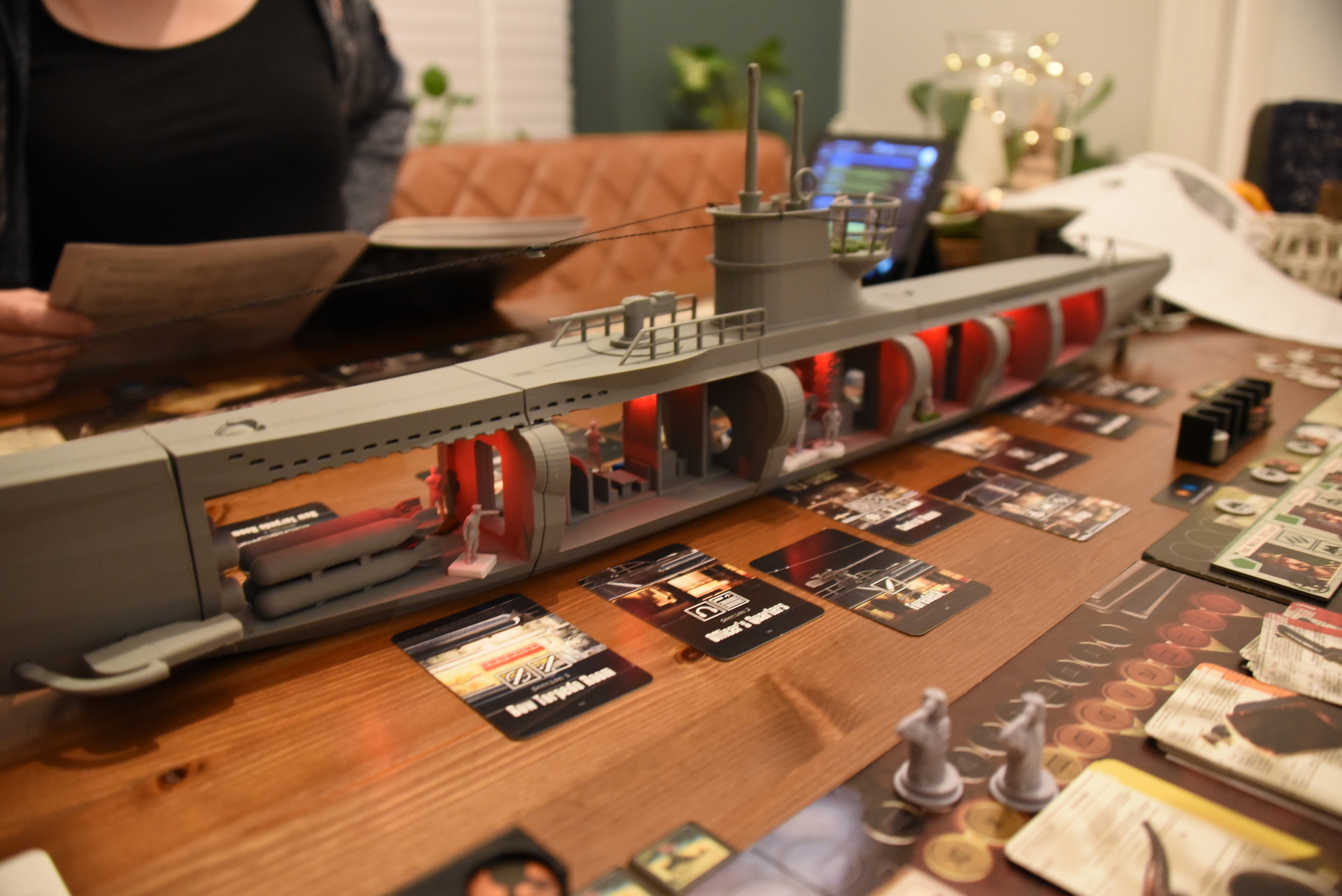
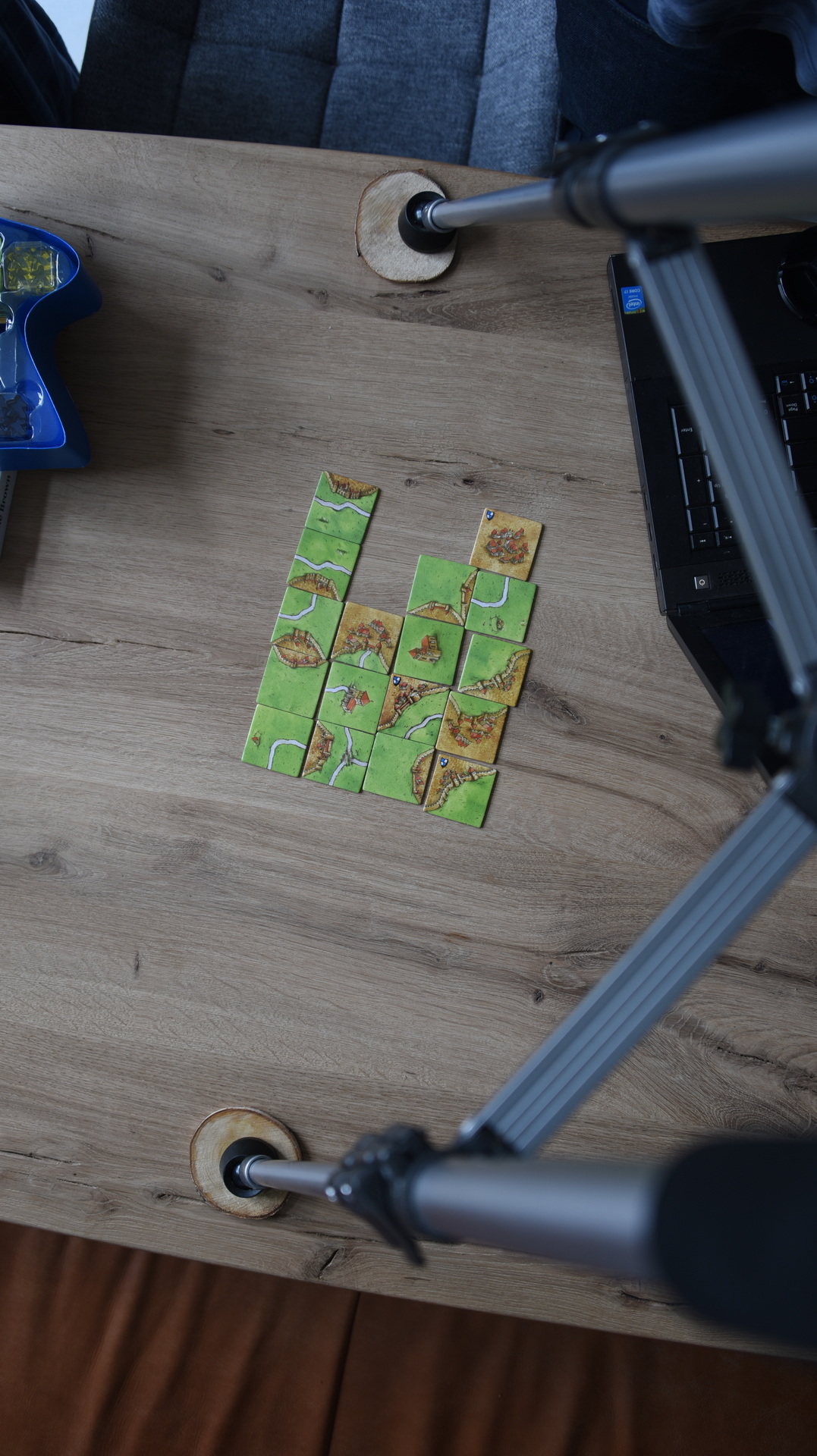
2019-06-08 I’ve bought myself Uboot the game.
It is one of my favourite board games.
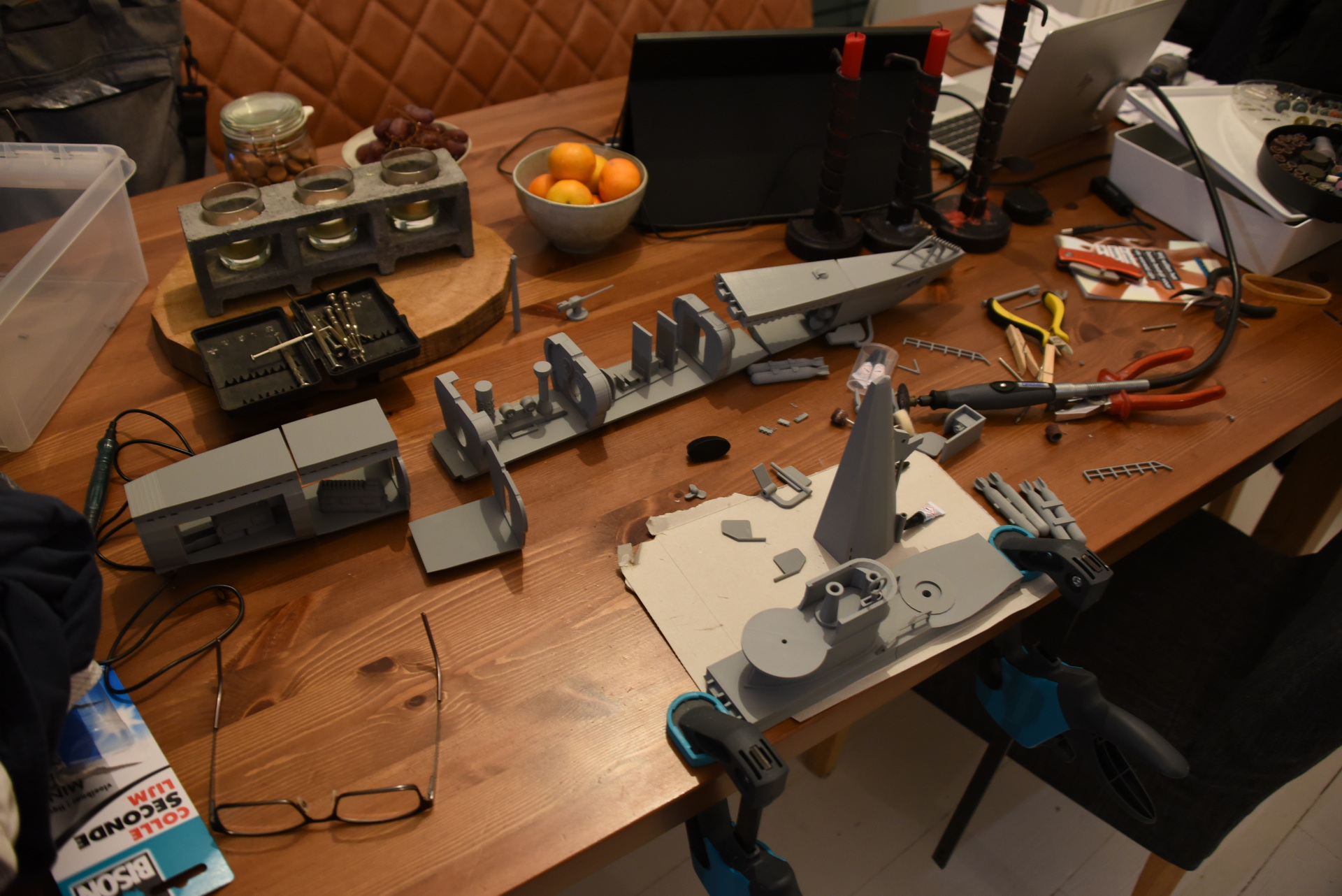
Playing with a cardboard uboot is … okay. But when you have a 3D printer .. do i need to say more?
3D printed version assembled and completed in Jan 2021
Led’s are controlled by a Arduino, Mqtt or a fysical button can be used.
In 2012 I started with 3D printing, I didn’t have my own yet. So it was done using shapeways.
April 2019 I ordered my own, a Creality CR-10S.
Specs
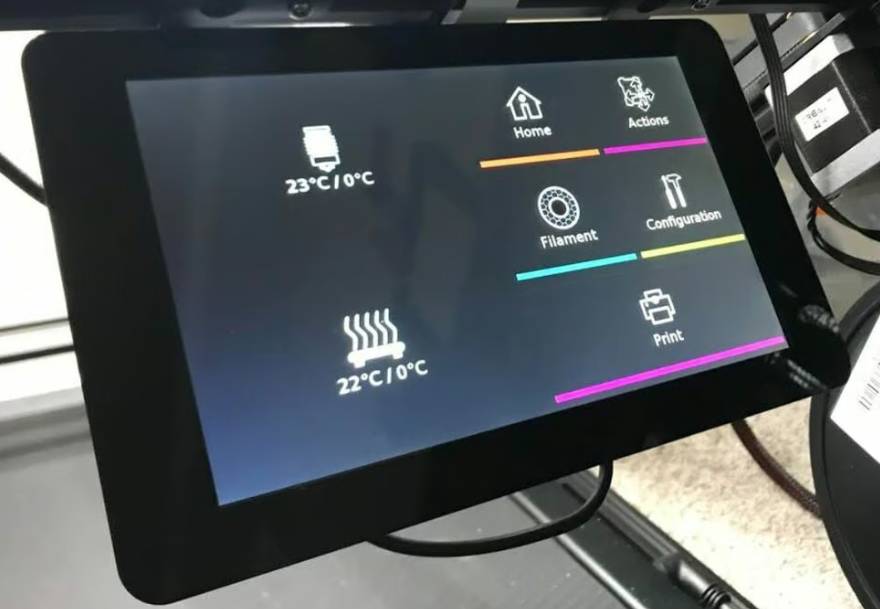
Problem with this 3D Printer is the lack of a thermal runaway detection. My solution is a MQTT/Nodered warning system which plays an alarm and uses a shelly to disconnect the power.
https://www.henriaanstoot.nl/2022/05/11/mqtt-bash-nodered-notify/
Software I Use – see other posts
Hardware
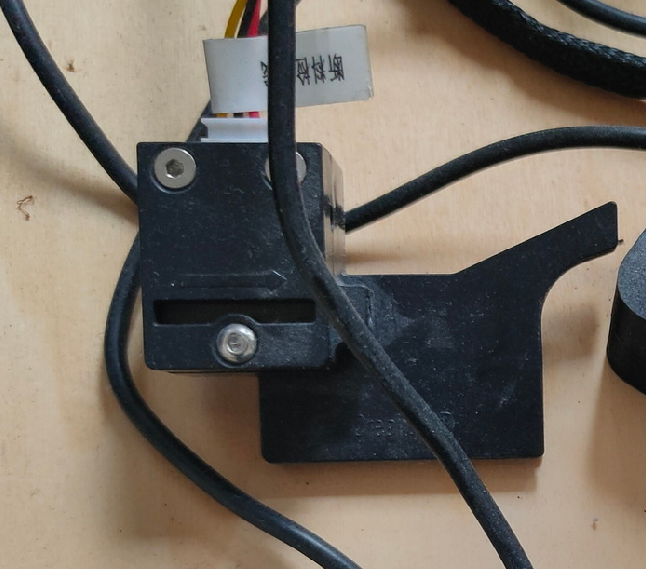
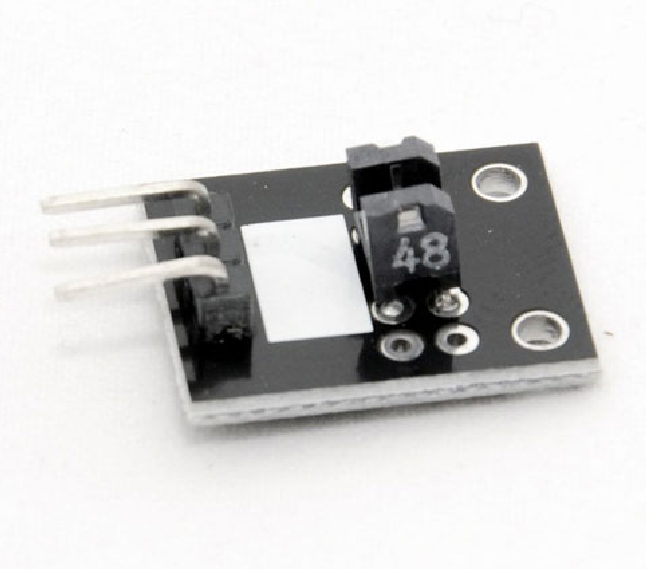
I’m using a filament sensor like the one in below picture
It used to be a DIY thingy using an arduino. (below)
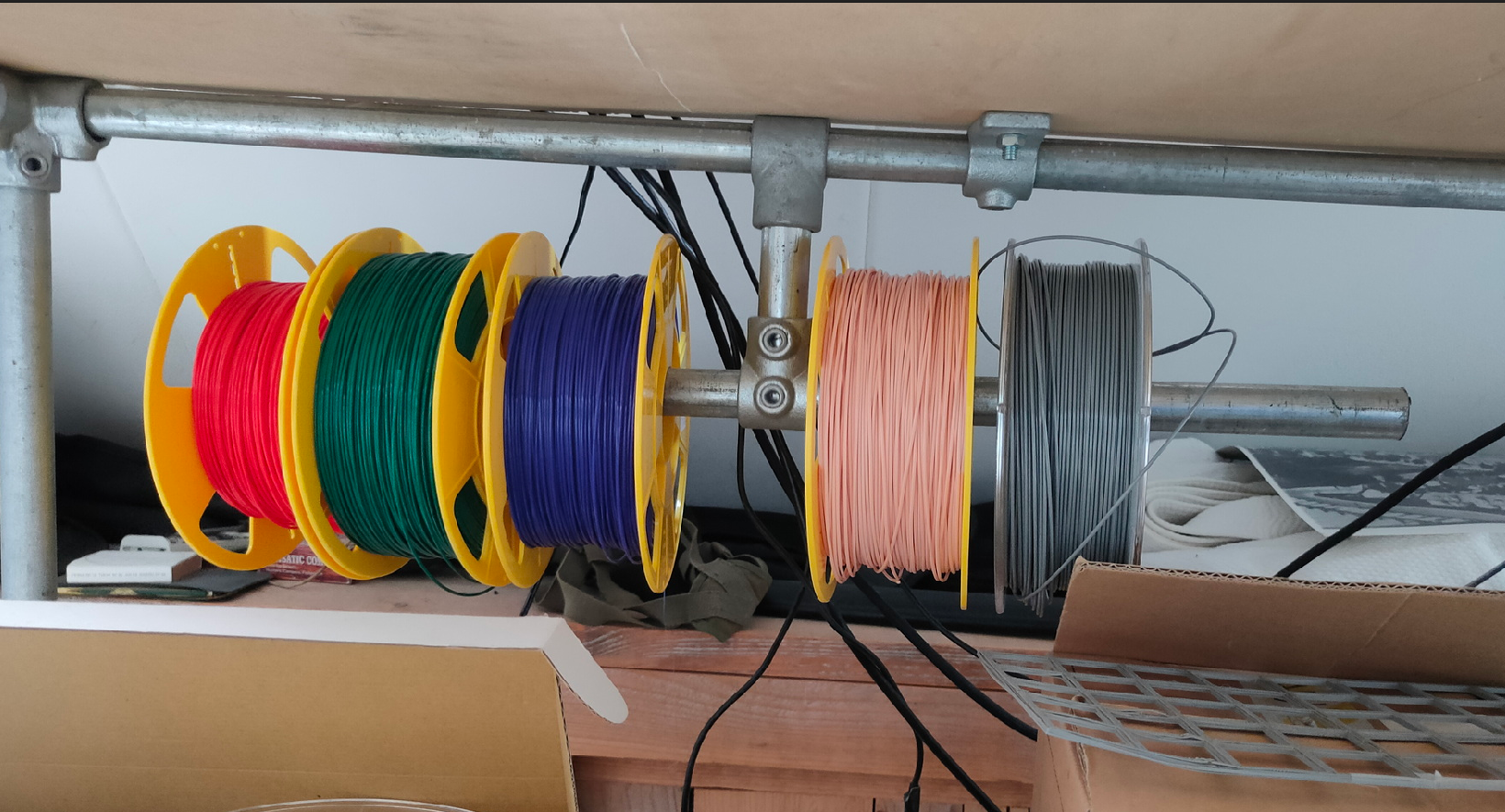
Filament under my table ( in the “dark” )
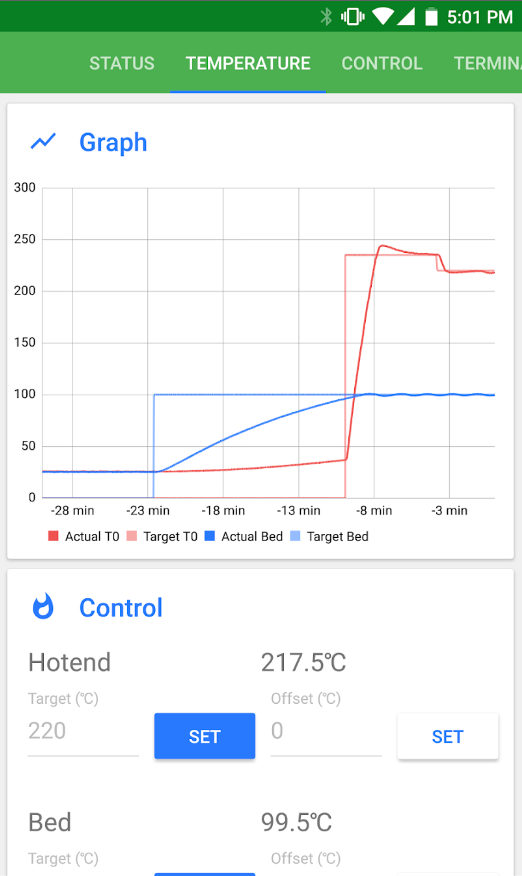
Software on my mobile
Hints and tips
Want to know what filament is in your gcode?
grep M104 <file.gcode> # M104 is the temperature M104 200 -> PLA M104 240 -> PETG
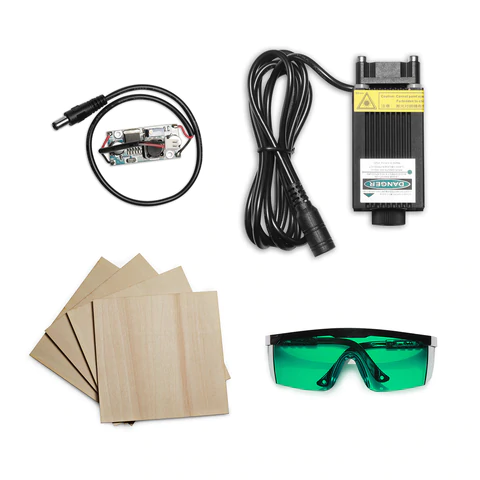
Laser engraving using my 3D printer (pre lasercutter)
Websites
UPDATE 20230803
Best gap filler i found which is easily sanded down with a dremel.
Alabastine Polyester Plamuur
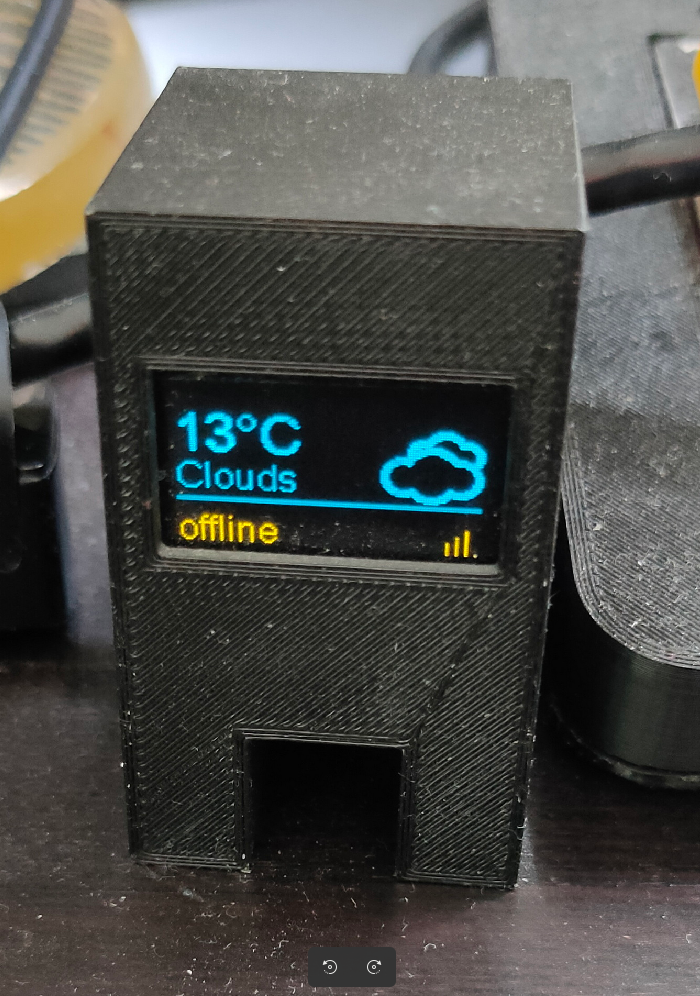
I wanted to know when trash is being collected. So i made a dual led thingy.
When we lived in Utrecht, the website which mentions when, what is collected was easy .. like a API
We live in Hilversum now, so i had to write a scraper.
UPDATE : Script not working anymore. Site has been changed, and I’m not willing to run a headless browser (phantomjs) to scrape the info
See below my new solution
Script to set leds
#!/bin/bash set -x if [[ $# -eq 0 ]] ; then curl http://10.1.0.46/control?cmd=NeoPixel,1,0,0,0 curl http://10.1.0.46/control?cmd=NeoPixel,2,0,0,0 exit 0 fi set -x if [ $1 = "GFT" ] ;then led1="150,0,0" ;fi if [ $1 = "Rest" ] ;then led1="150,150,150" ;fi if [ $1 = "Paper" ] ;then led1="0,0,150" ;fi if [ $1 = "Plastic" ] ;then led1="75,191,0" ;fi if [ $1 = "Textiel" ] ;then led1="191,191,191" ;fi if [ $1 = "Kerstbomen" ] ;then led1="191,0,0" ;fi if [ "w$2" = "wgft" ] ;then led2="255,0,0" ;fi if [ "w$2" = "wRest" ] ;then led2="150,150,150" ;fi if [ "w$2" = "wpapier" ] ;then led2="0,0,255" ;fi if [ "w$2" = "wplastic" ] ;then led2="100,255,0" ;fi if [ "w$2" = "wTextiel" ] ;then led2="191,191,191" ;fi if [ "w$2" = "wKerstbomen" ] ;then led2="191,0,0" ;fi if [[ $# -eq 1 ]] ; then led2=$led1 fi curl http://10.1.0.46/control?cmd=NeoPixel,1,$led1 curl http://10.1.0.46/control?cmd=NeoPixel,2,$led2
Scraper ( calls setleds and mqtt )
#!/bin/bash
cd /home/pi/
./afvalleds
curl -s https://inzamelkalender.gad.nl/adres/1222HP:39 > /tmp/afvalcurl
today=$(date +%F)
tomorrow=$(date --date="next day" +%F)
for f in petfles-blik-drankpak-pmd.svg appel-gft.svg kliko-grijs-rest.svg doos-karton-papier.svg shirt-textiel.svg kerstboom.svg ; do
p1=$(cat /tmp/afvalcurl | grep -i -A2 "$f" | grep class | cut -f2 -d\> | cut -f1 -d\< | cut -f2- -d" ")
p2=$(echo $p1 | sed s/mei/may/g | sed s/okt/oct/g )
p3=$(date --date="$p2" +%F)
dater=$p3
now=$(date -d $(date --date="1 days ago" +%F) +%s)
p3epoch=$(date --date="$p3" +%s)
diff=$(expr $p3epoch - $now)
if [ $diff -lt 0 ] ; then
dater=$(date -d "$p3 1 year" +%F)
fi
whatdate=$(echo $f | sed s/petfles-blik-drankpak-pmd.svg/Plastic/g |sed s/appel-gft.svg/GFT/g | sed s/kliko-grijs-rest.svg/Rest/g | sed s/doos-karton-papier.svg/Paper/g | sed s/shirt-textiel.svg/Textiel/g | sed s/kerstboom.svg/Kerstbomen/g)
mosquitto_pub -h 127.0.0.1 -p 1883 -t "afvalwijzer/$whatdate" -m "$dater"
if [ "w$today" == "w$dater" ]; then
alltoday="$alltoday $whatdate"
fi
if [ "w$tomorrow" == "w$dater" ]; then
alltomorrow="$alltomorrow $whatdate"
fi
done
mosquitto_pub -h 127.0.0.1 -p 1883 -t "afvalwijzer/Today" -m "$alltoday"
mosquitto_pub -h 127.0.0.1 -p 1883 -t "afvalwijzer/Tomorrow" -m "$alltomorrow"
./afvalleds $alltomorrow
Utrecht scraper
#!/bin/bash set -x curl -s "http://json.mijnafvalwijzer.nl/?method=postcodecheck&postcode=3543eh&huisnummer=72&" > /tmp/afv cat /tmp/afv | python -mjson.tool > /tmp/afv.json today=$(cat /tmp/afv.json | grep -A1 $(date +%Y-%m-%d) | grep nameType | cut -f4 -d\" | paste -sd "/" -) today=$(echo $today | sed s/\ /,/g) tomorrow=$(cat /tmp/afv.json | grep -A1 $(date -d "+1 days" +%Y-%m-%d) | grep nameType | cut -f4 -d\" | paste -sd "/" -) tomorrow=$(echo $tomorrow" | sed s/\ /,/g) cat /tmp/afv.json | grep -B1 nameType | grep -B1 gft | cut -f4 -d\" | grep 202 > /tmp/gft.afv cat /tmp/afv.json | grep -B1 nameType | grep -B1 papier | cut -f4 -d\" | grep 202 > /tmp/papier.afv cat /tmp/afv.json | grep -B1 nameType | grep -B1 plastic | cut -f4 -d\" | grep 202 > /tmp/plastic.afv cat /tmp/afv.json | grep -B1 nameType | grep -B1 kerst | cut -f4 -d\" | grep 202 > /tmp/kerst.afv ( ( for f in $(seq 1 31) ; do dater=$(date -d "+$f days" +%Y-%m-%d) grep $dater /tmp/gft.afv > /dev/null && echo "$dater GFT" | head -1 done ) | head -1 ( for f in $(seq 1 31) ; do dater=$(date -d "+$f days" +%Y-%m-%d) grep $dater /tmp/papier.afv > /dev/null && echo "$dater Papier" | head -1 done ) | head -1 ( for f in $(seq 1 31) ; do dater=$(date -d "+$f days" +%Y-%m-%d) grep $dater /tmp/plastic.afv > /dev/null && echo "$dater Plastic" | head -1 done ) | head -1 ( for f in $(seq 1 31) ; do dater=$(date -d "+$f days" +%Y-%m-%d) grep $dater /tmp/kerst.afv > /dev/null && echo "$dater Kerstboom" | head -1 done ) | head -1 ) | sort -n -k1 | sed s/\ /,/g > /tmp/afv.sorted gft=$(cat /tmp/afv.sorted | grep GFT | cut -f1 -d,) papier=$(cat /tmp/afv.sorted | grep Papier | cut -f1 -d,) plastic=$(cat /tmp/afv.sorted | grep Plastic | cut -f1 -d,) mosquitto_pub -h 127.0.0.1 -p 1883 -t "afvalwijzer/Today" -m "$today " mosquitto_pub -h 127.0.0.1 -p 1883 -t "afvalwijzer/Tomorrow" -m "$tomorrow " mosquitto_pub -h 127.0.0.1 -p 1883 -t "afvalwijzer/Papier" -m "$papier" mosquitto_pub -h 127.0.0.1 -p 1883 -t "afvalwijzer/GFT" -m "$gft" mosquitto_pub -h 127.0.0.1 -p 1883 -t "afvalwijzer/Plastic" -m "$plastic"
Update new solution
My home assistant has a hacs addon installed which does the heavy lifting for me.
Why not use this info?
I wrote about NR and HA here
So getting the info for NR to parse:
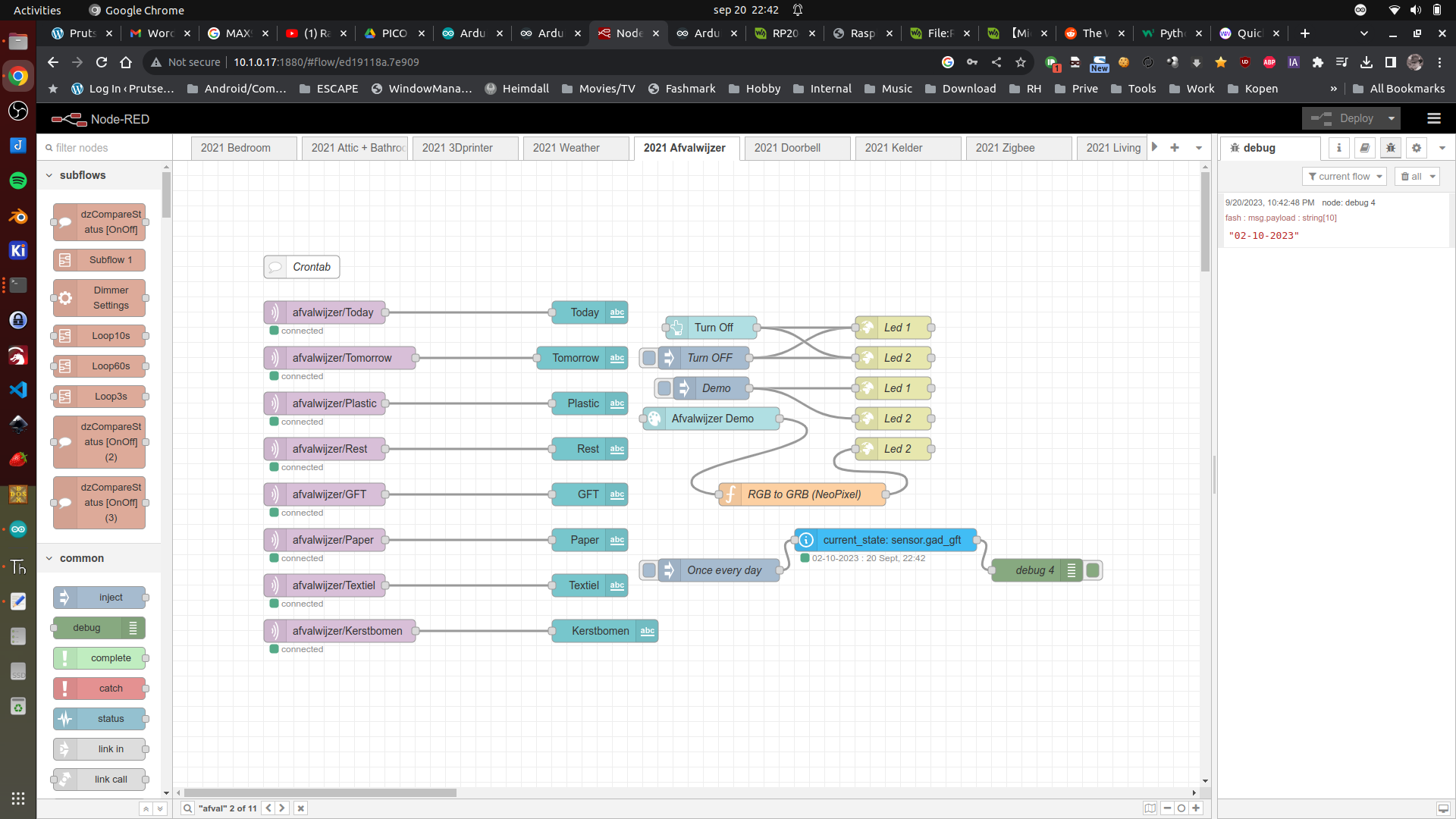
I only need to use the lightblue node bottom right!
It is the current state node, inject a timestamp every day to get new values.
Parse this and send using Mqtt to my Led display thingy
UPDATE: 20230320 new version
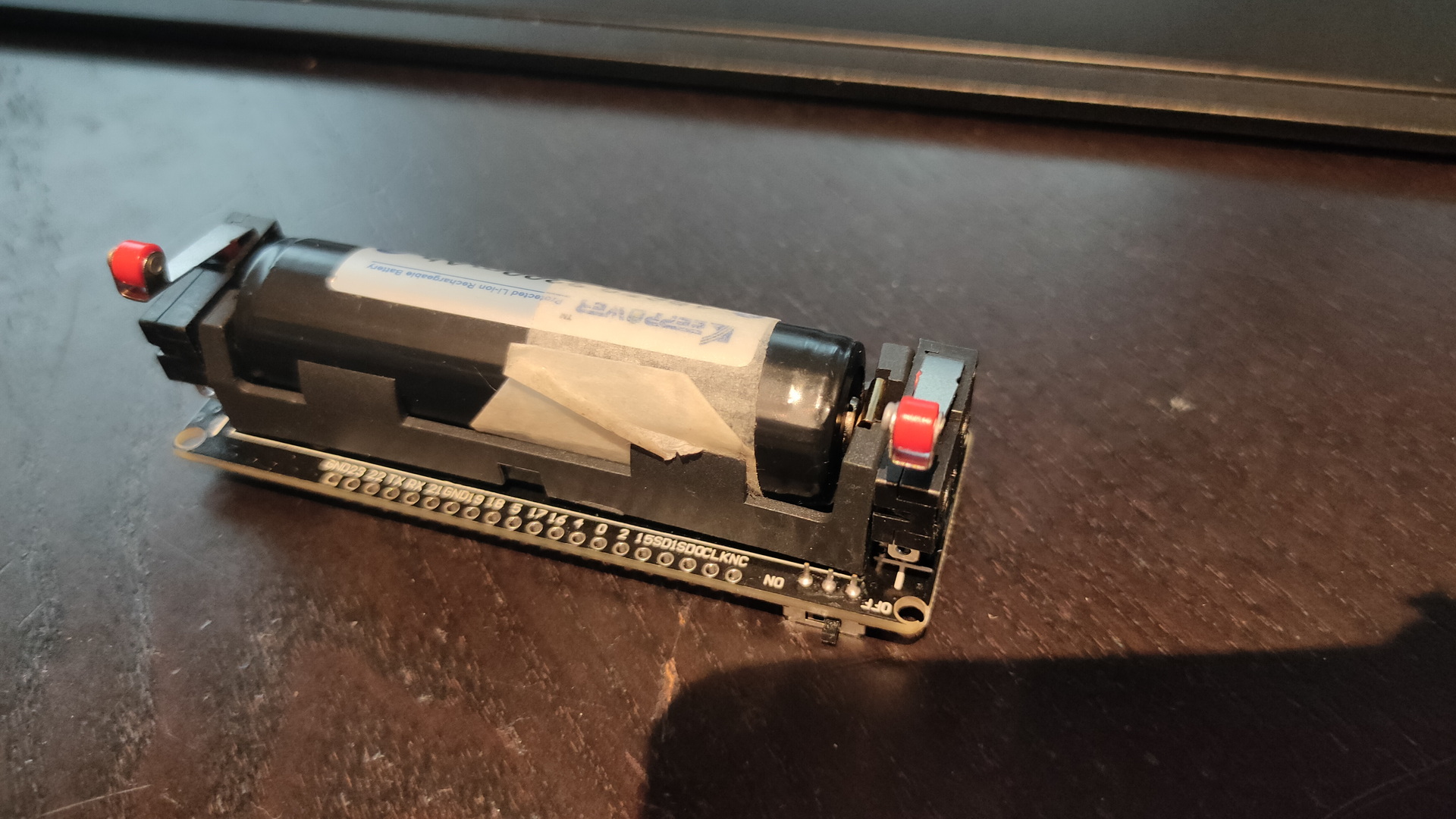
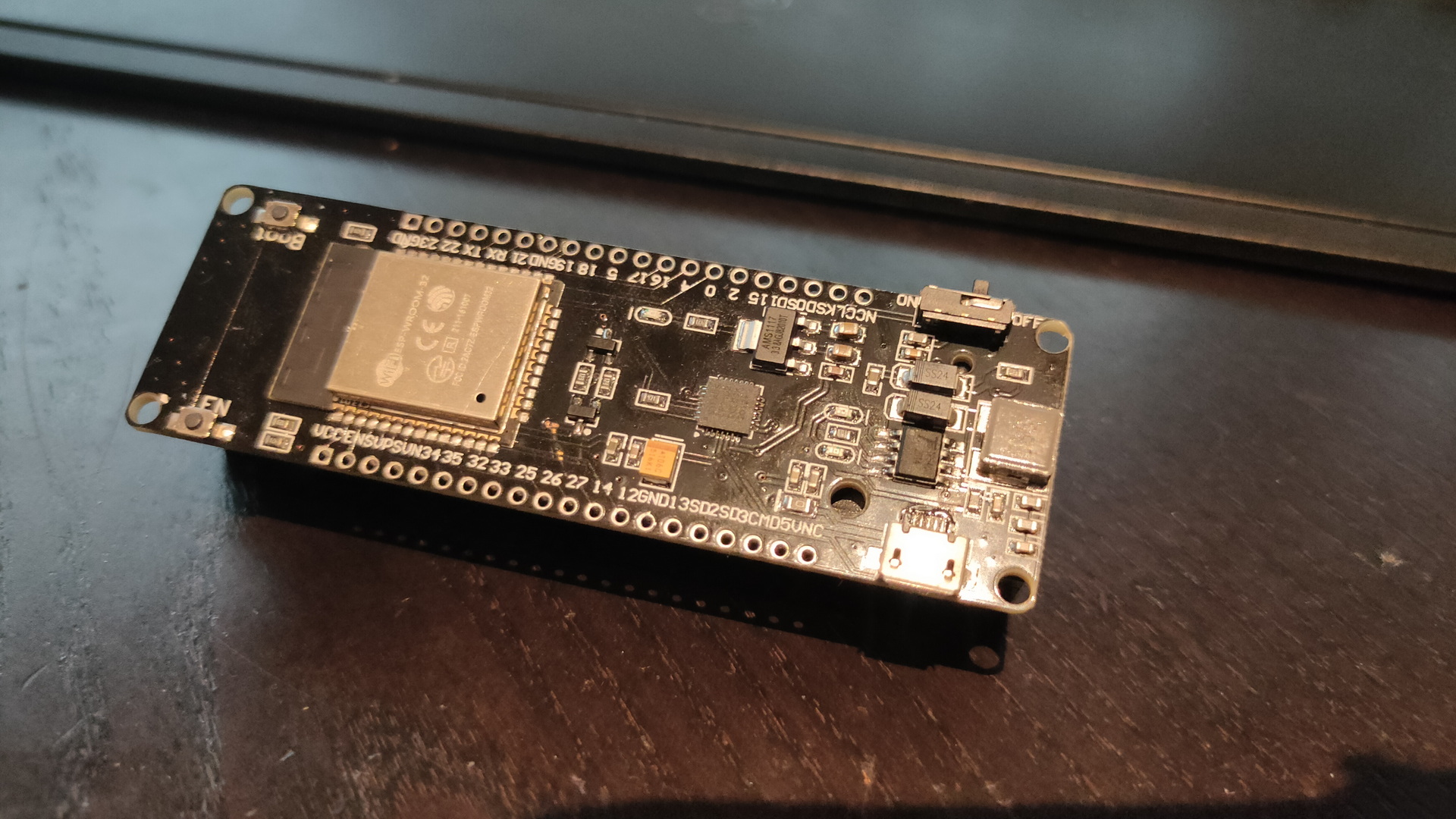
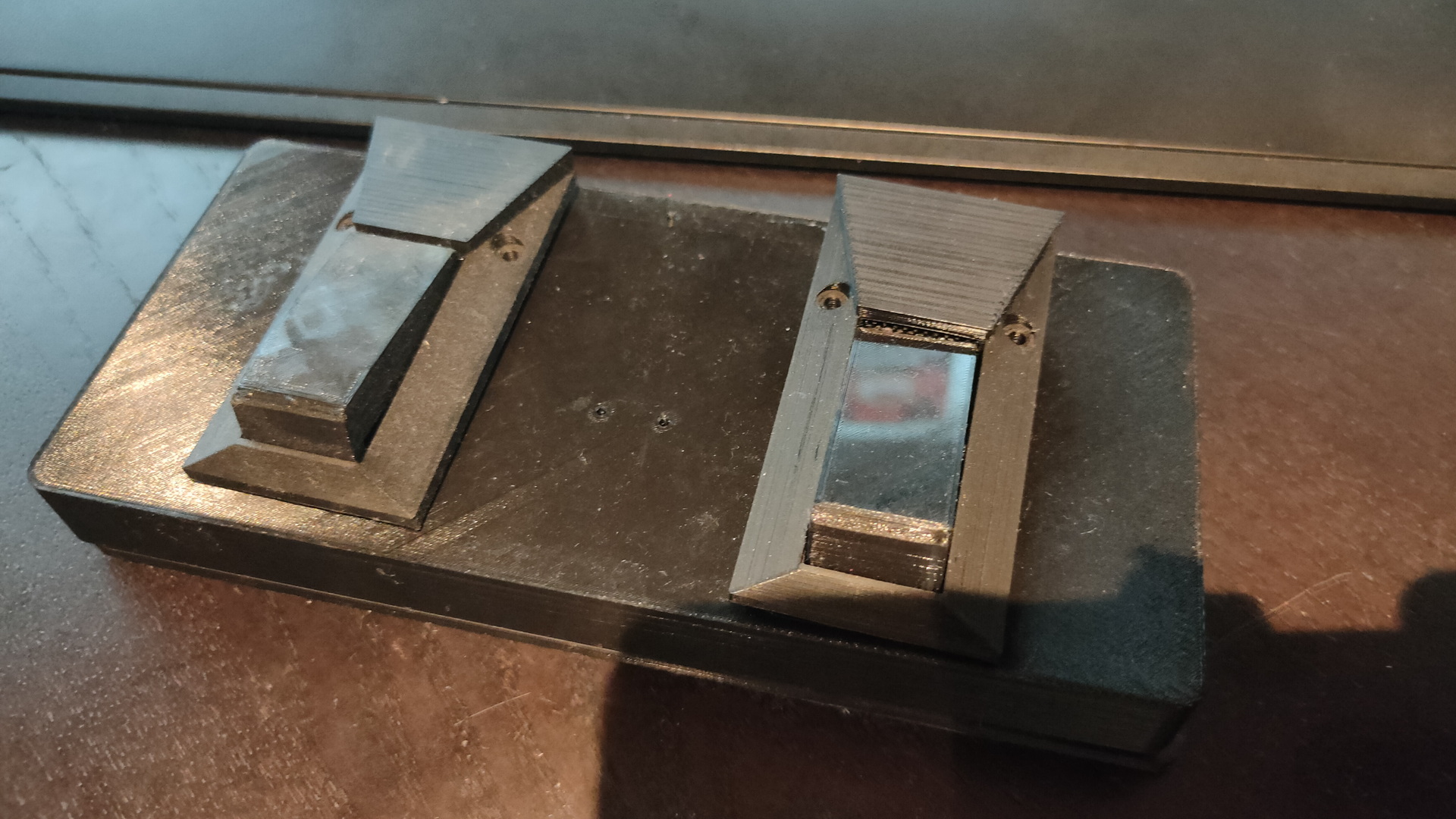
My first version of the Bluetooth page turner.
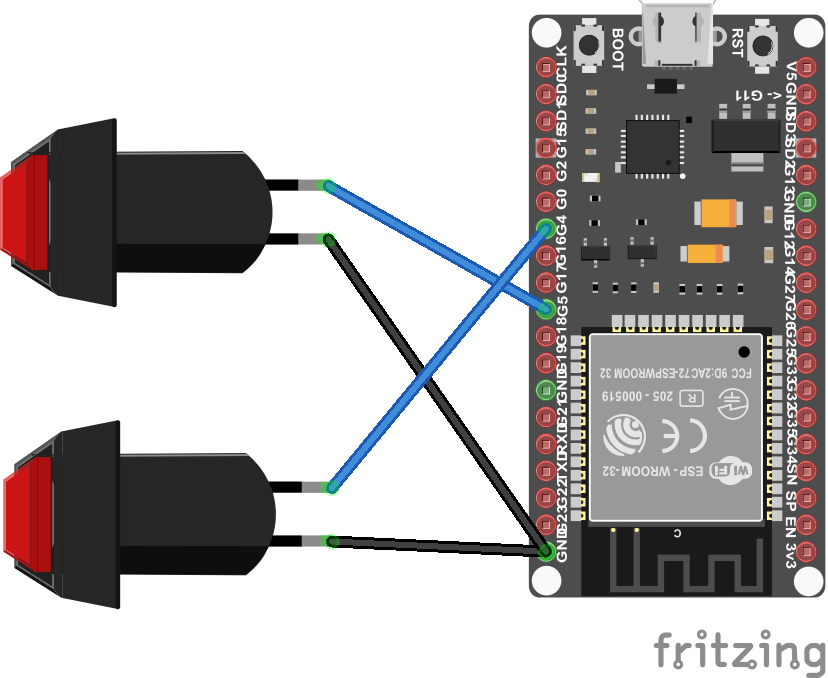
This was made using an Arduino and some buttons.
I’m using Fbreader and Ebookdroid on the tablet.
Code:
Note: Volume buttons work for both apps, if you want to use other keys, you need to put a keymap.xml file in your fbreader books directory on your android device to remap those!
#include <BleKeyboard.h>
#define RIGHT_TURN 4
#define LEFT_TURN 5
BleKeyboard bleKeyboard("fashpageturner", "Bluetooth Device Manufacturer", 100);
void setup() {
bleKeyboard.begin();
pinMode(LEFT_TURN, INPUT_PULLUP);
pinMode(RIGHT_TURN, INPUT_PULLUP);
}
void loop() {
if (bleKeyboard.isConnected() && !digitalRead(RIGHT_TURN)) {
bleKeyboard.press(KEY_MEDIA_VOLUME_UP);
delay (100);
bleKeyboard.releaseAll();
}
if (bleKeyboard.isConnected() && !digitalRead(LEFT_TURN)) {
bleKeyboard.press(KEY_MEDIA_VOLUME_DOWN);
delay (100);
bleKeyboard.releaseAll();
}
}
NEW Version


Why? Because i can
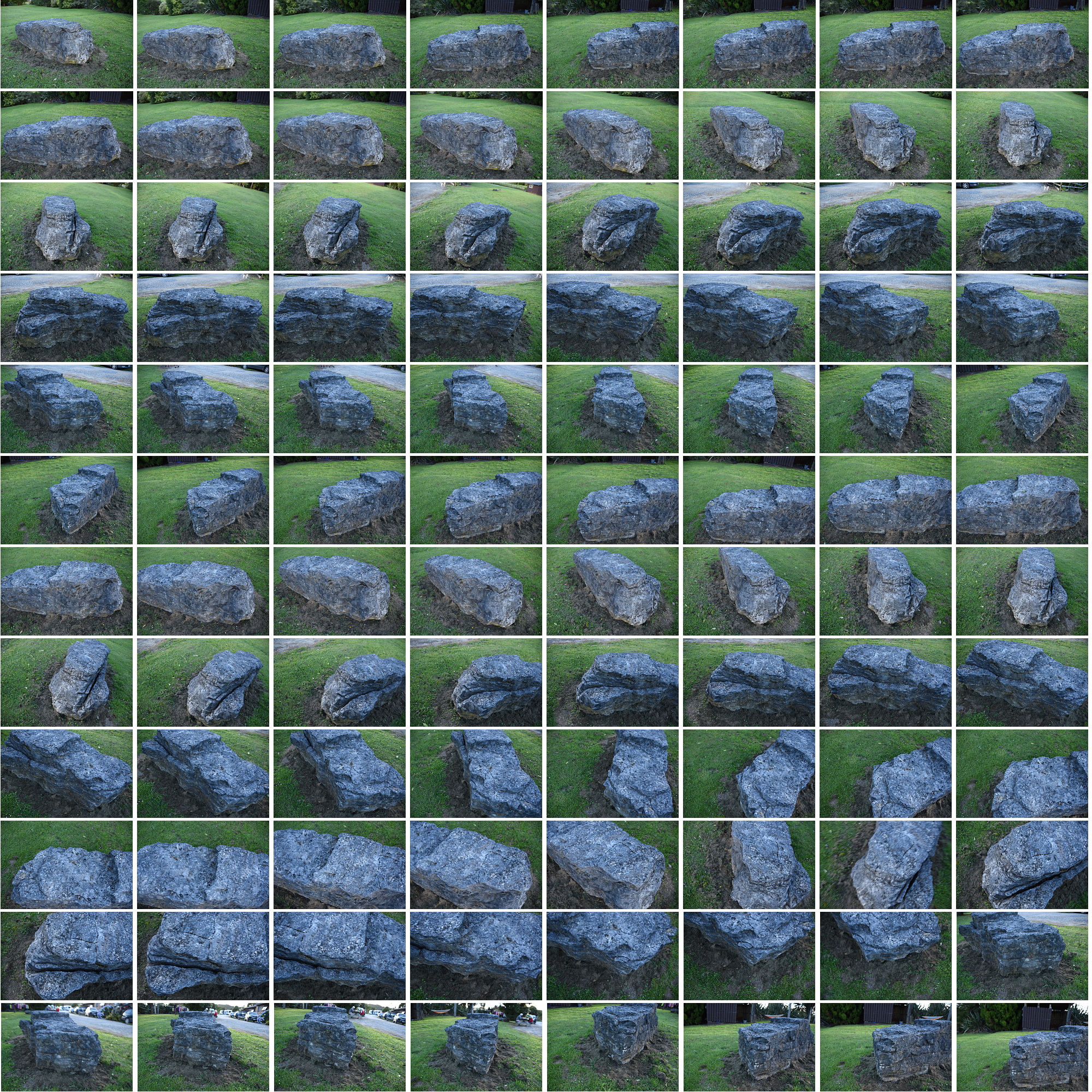
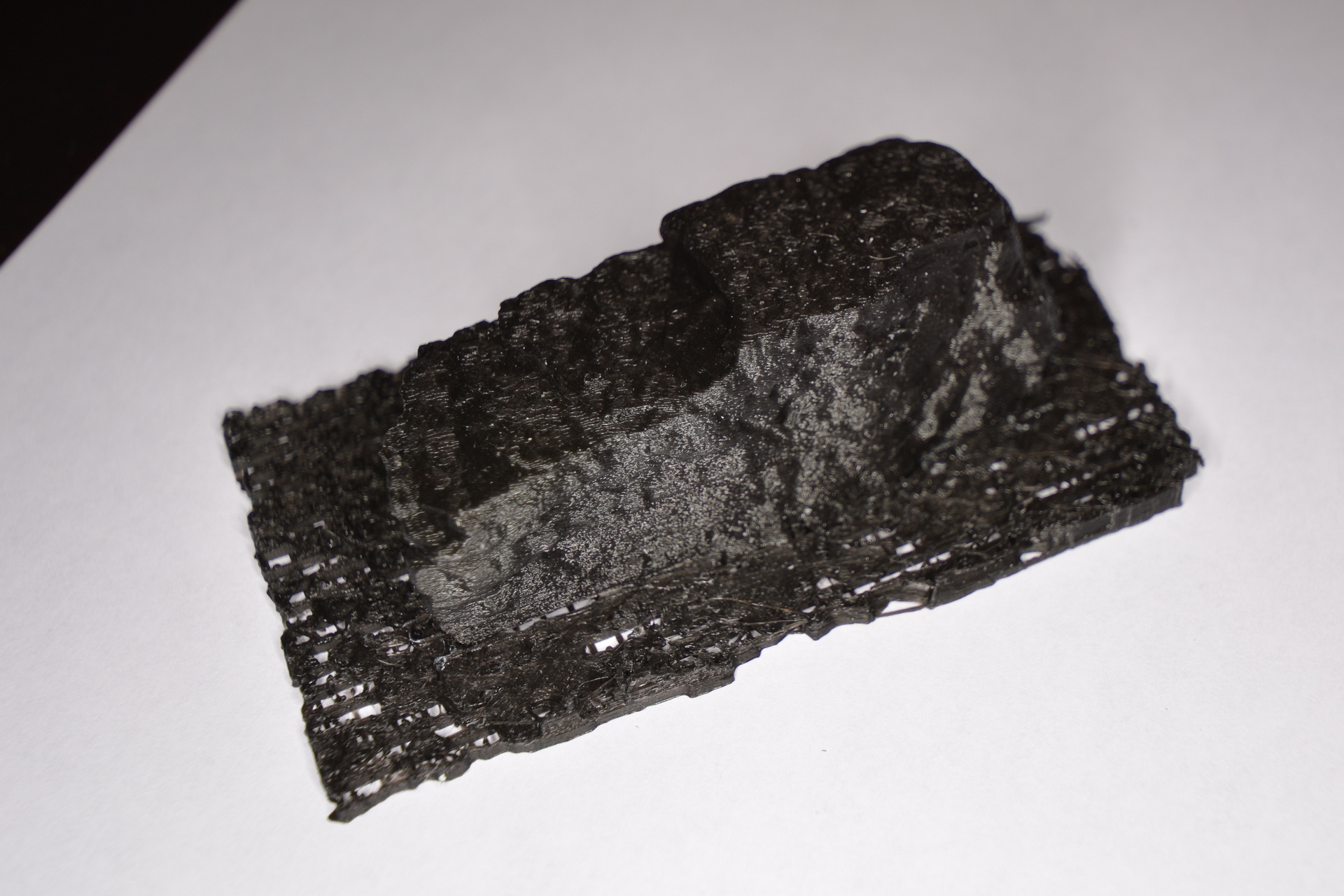
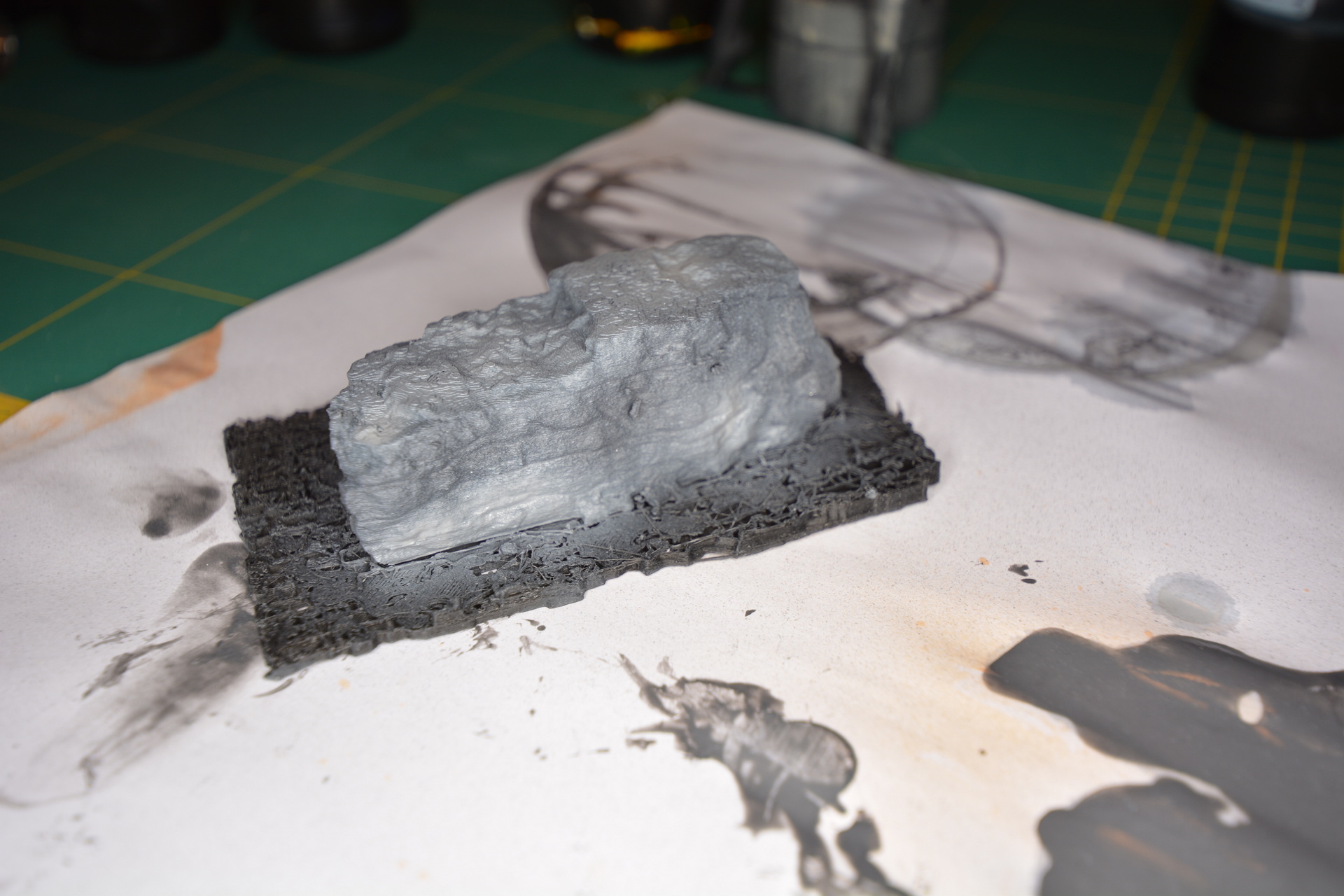
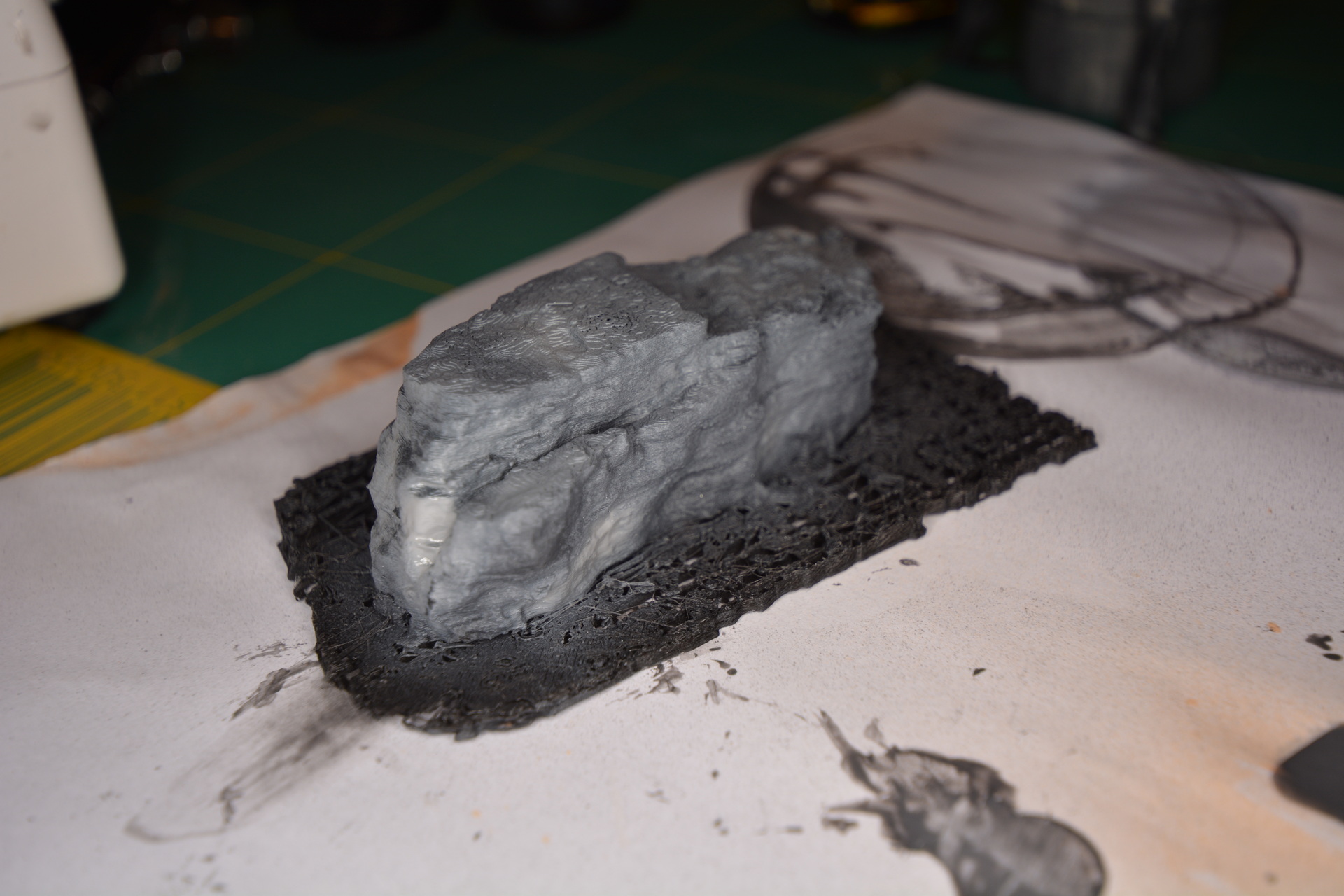
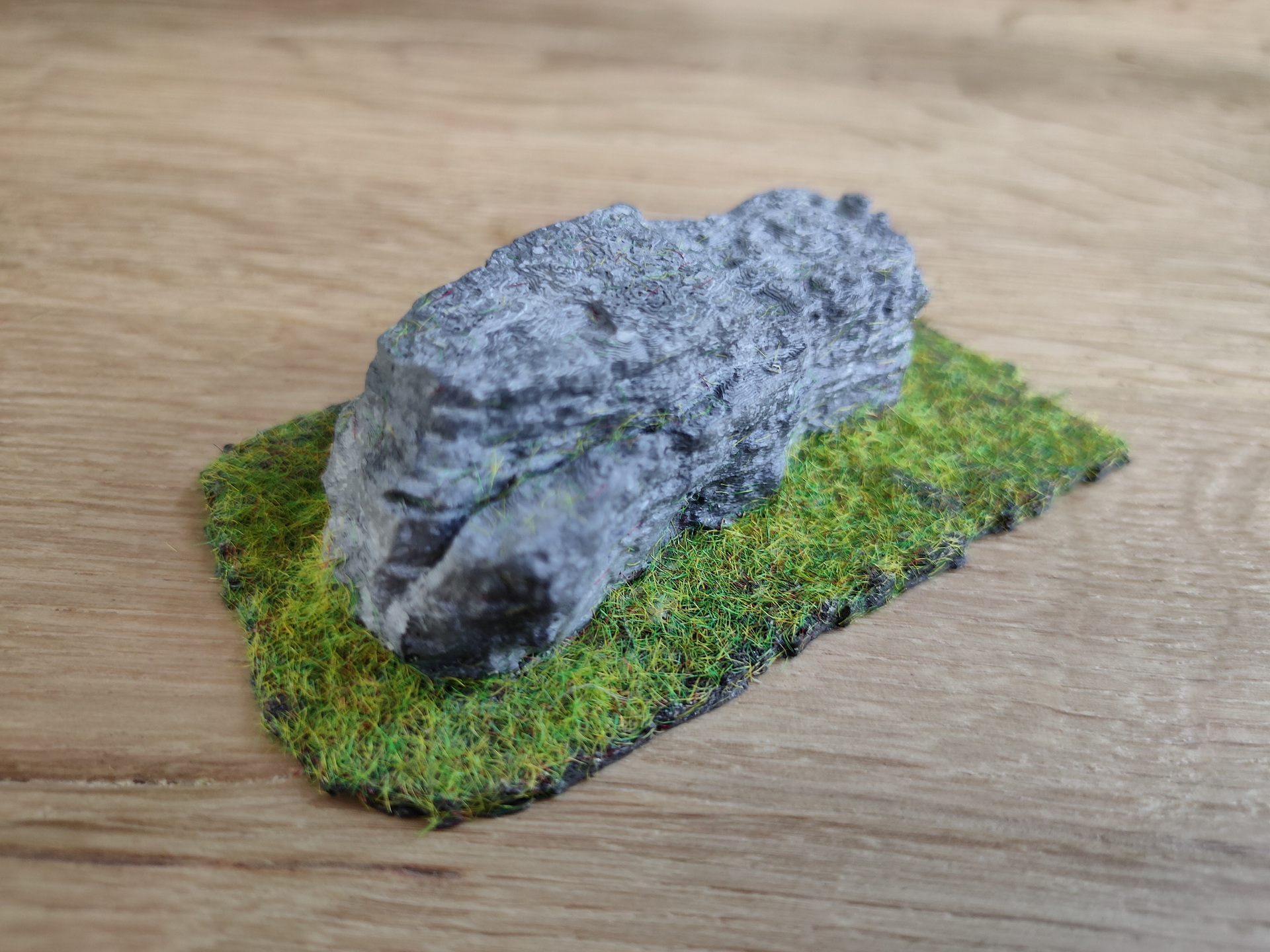
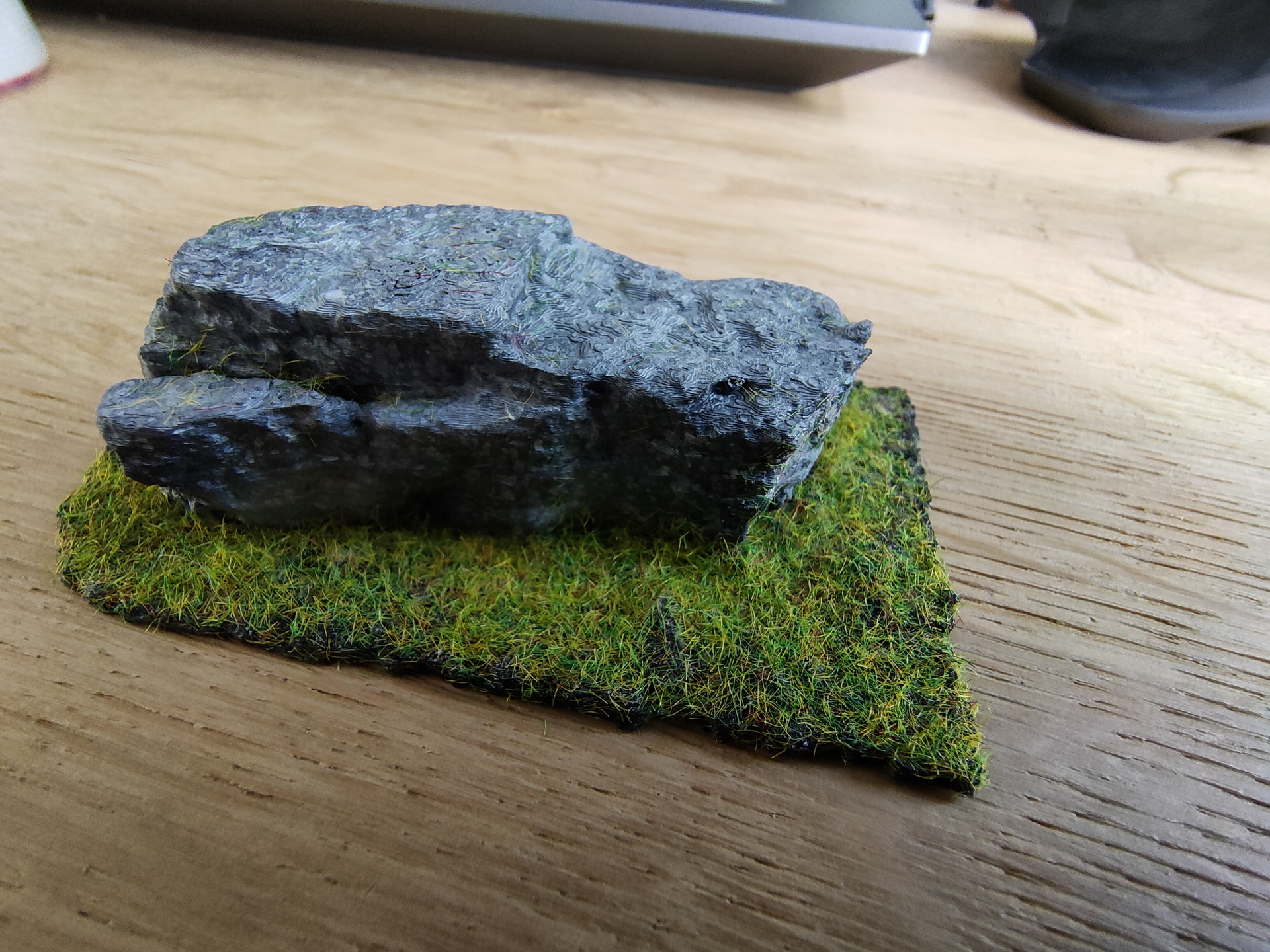
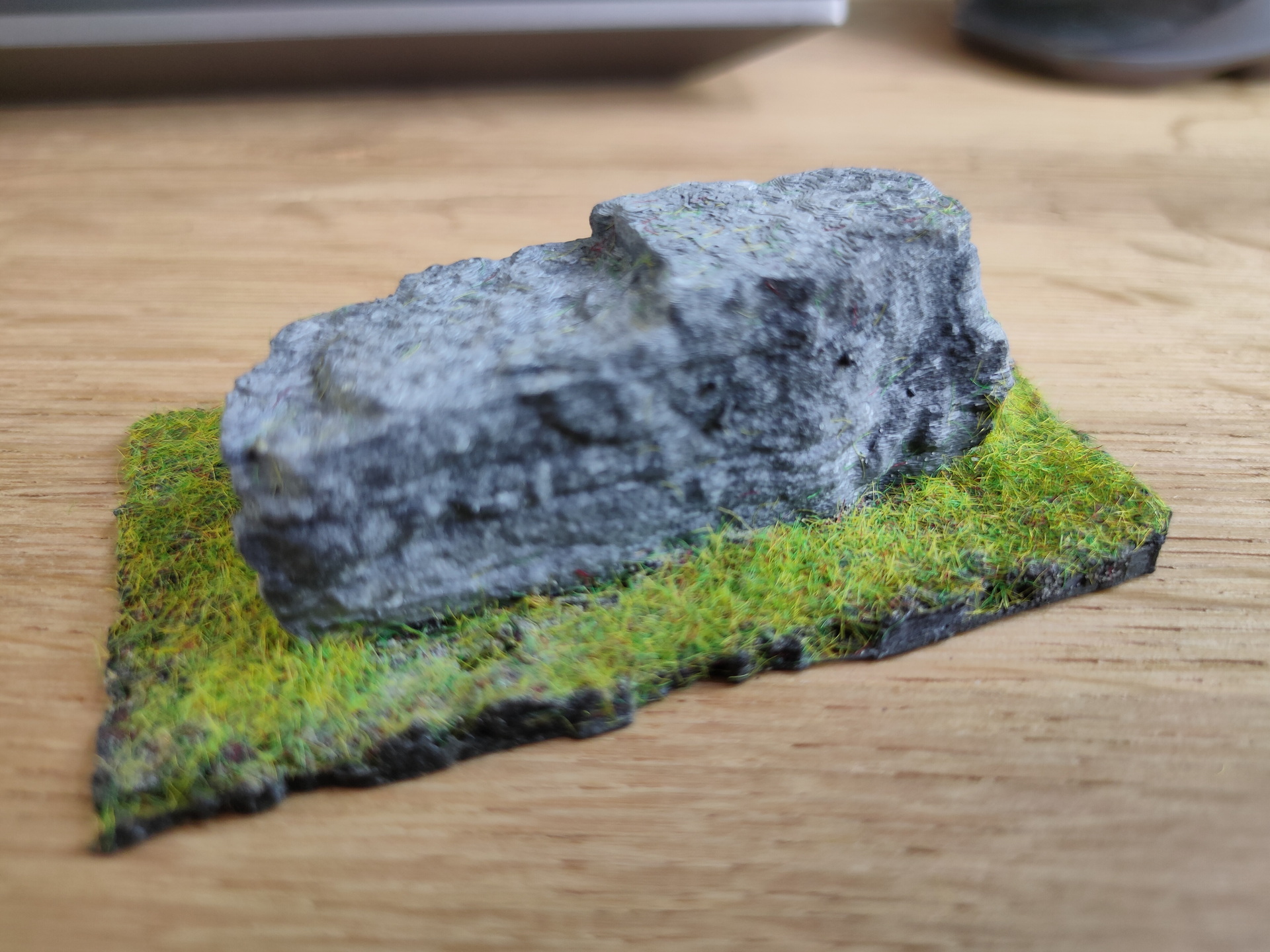
While on holiday in New Zealand i made photos of a rock i found on the campsite we where. Nothing special about the rock, but it was a nice subject to try to replicate.
So i took many many pictures of the stone from all sides.
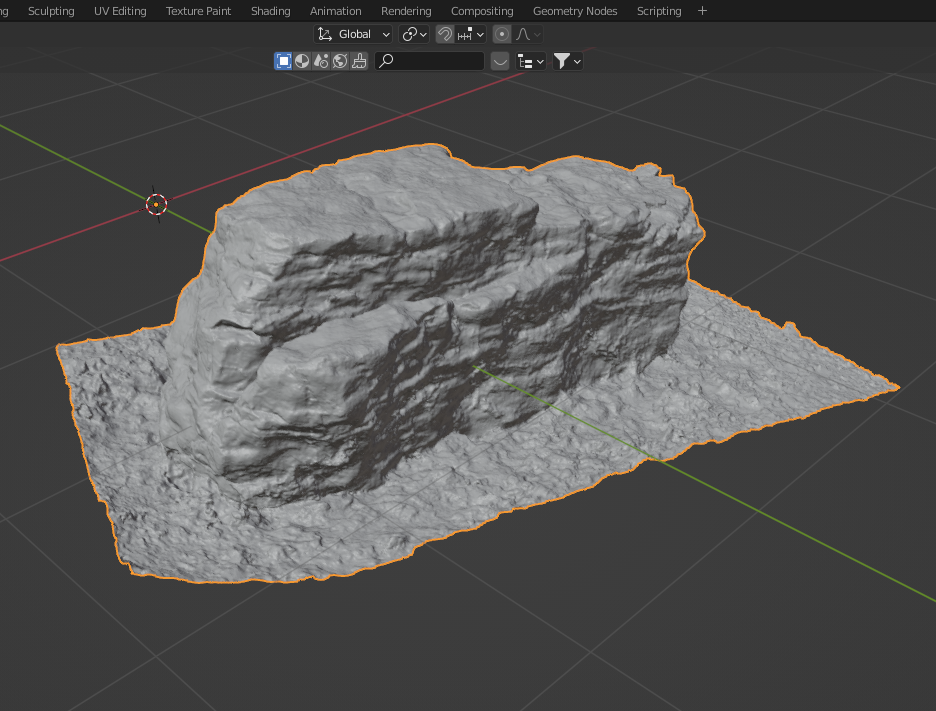
Imported those images in meshroom and convered it to a 3D stl object.
Printing and airbrushing


Added some grass from our clock project


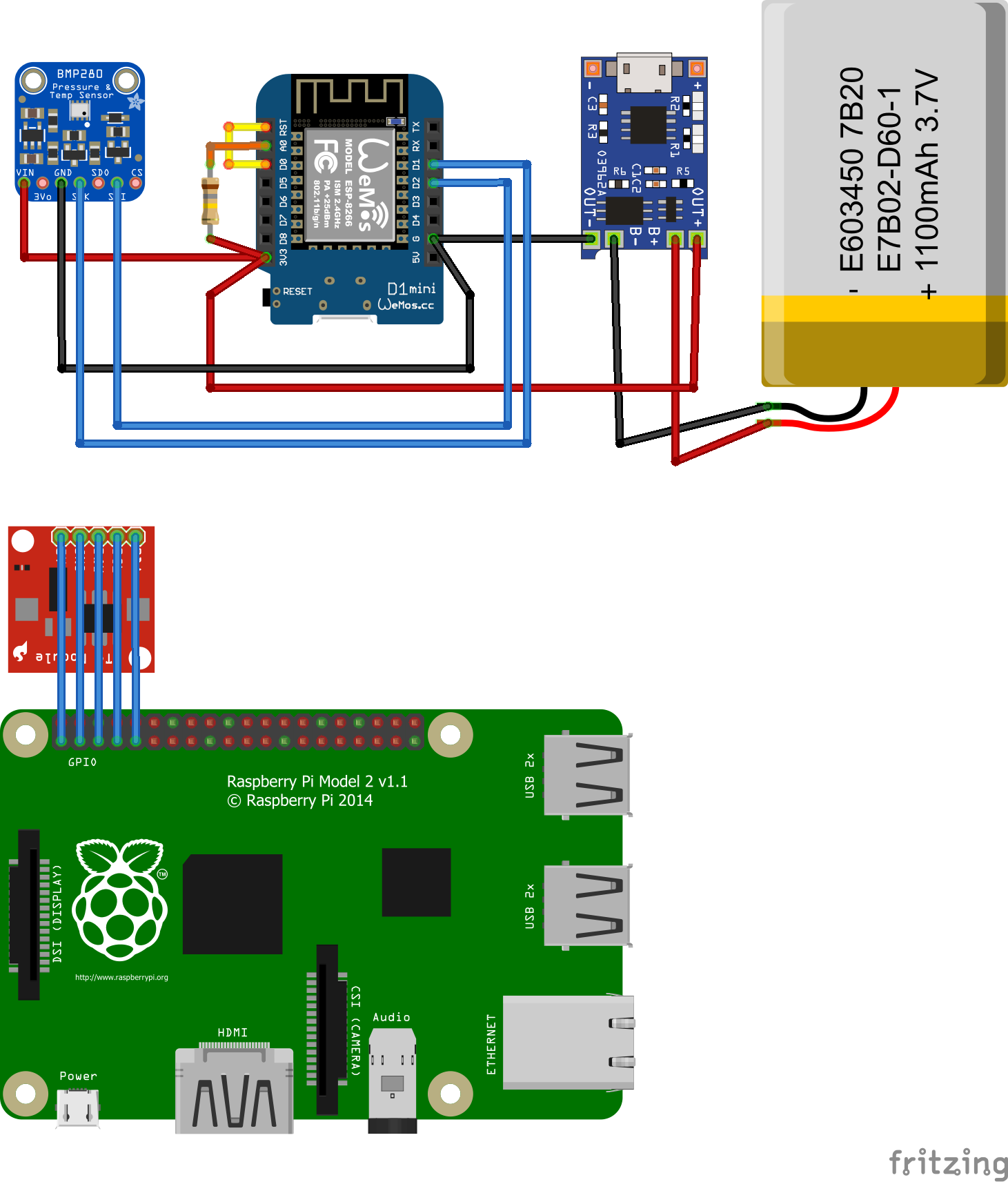
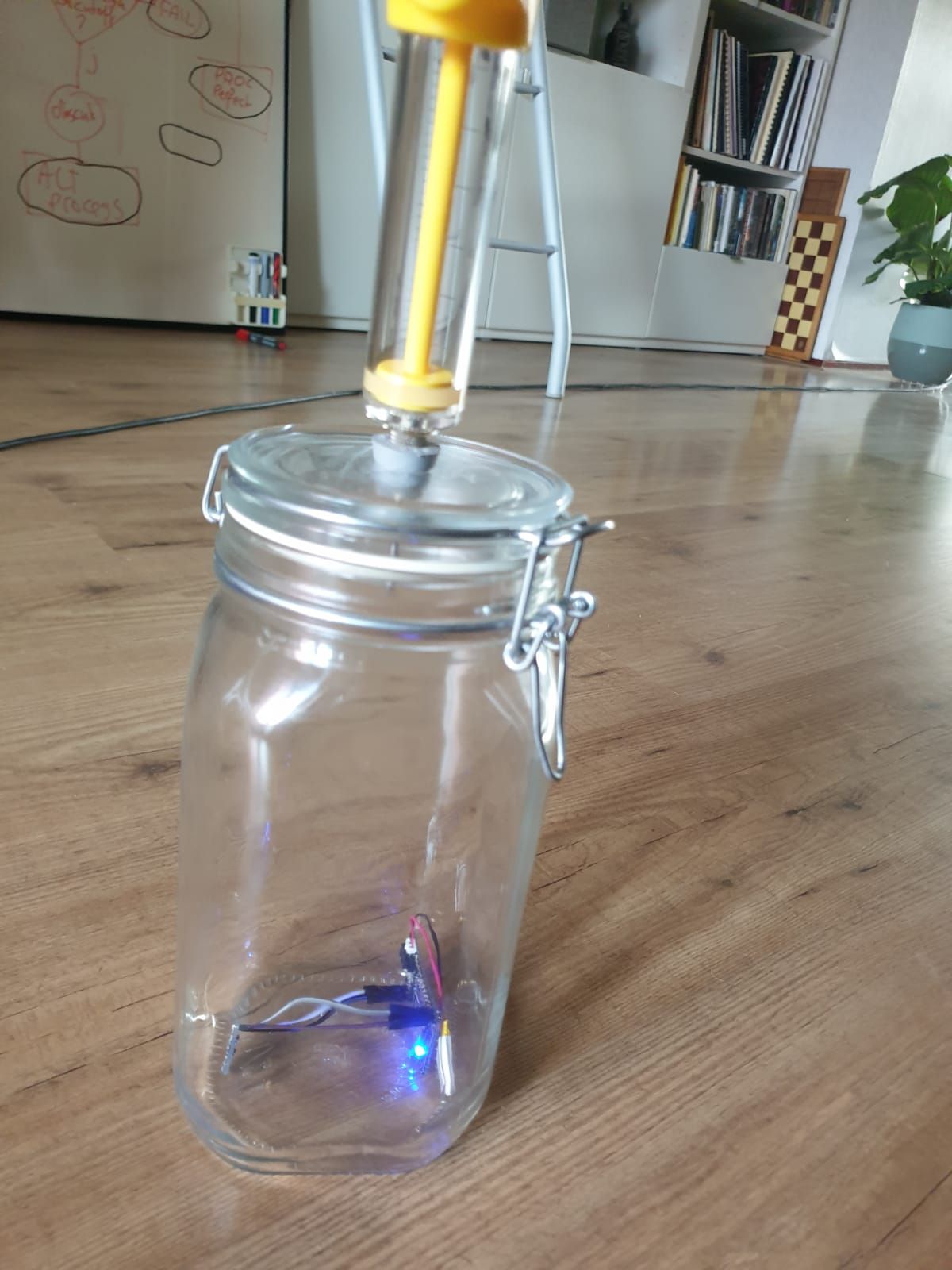
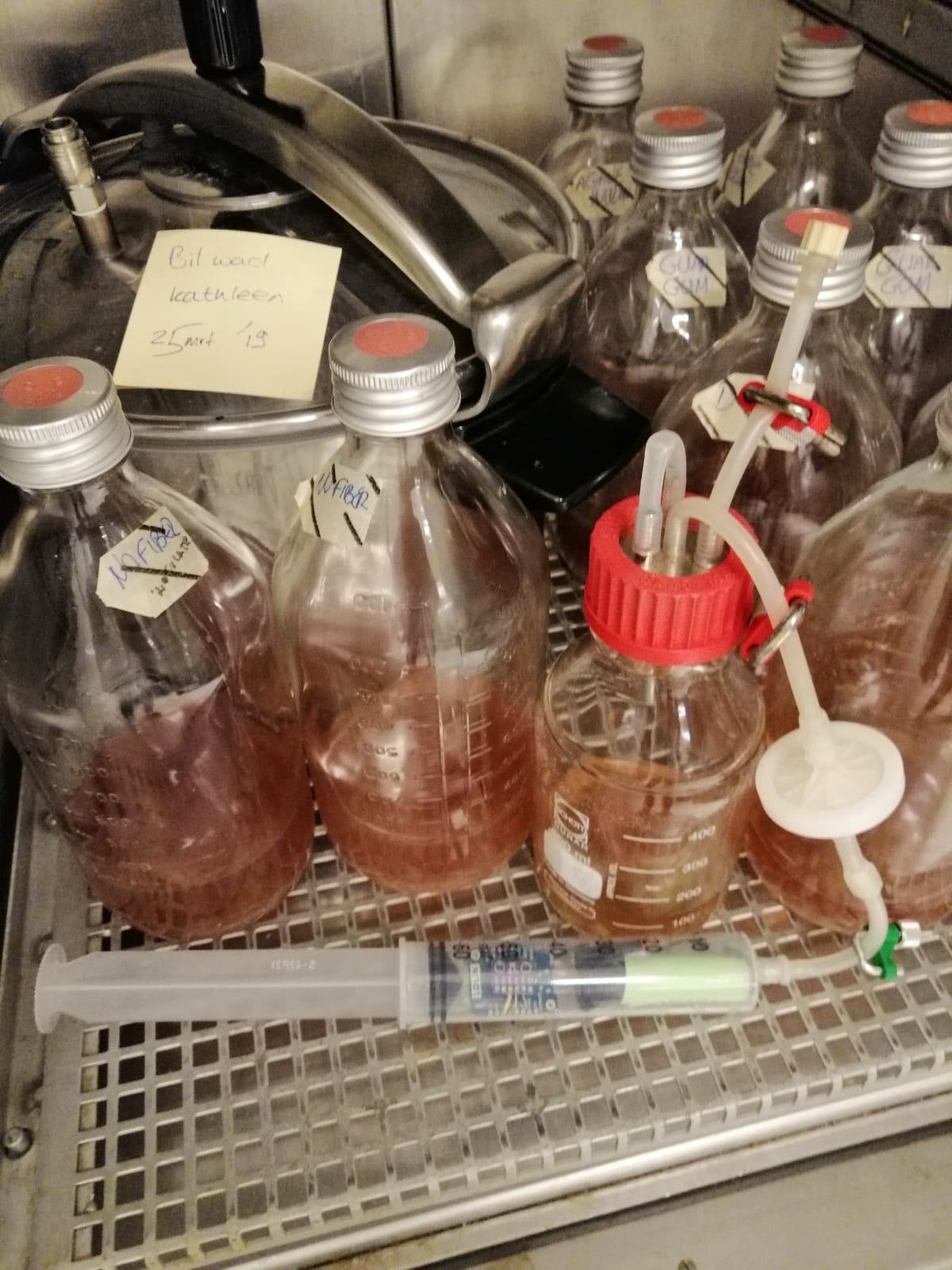
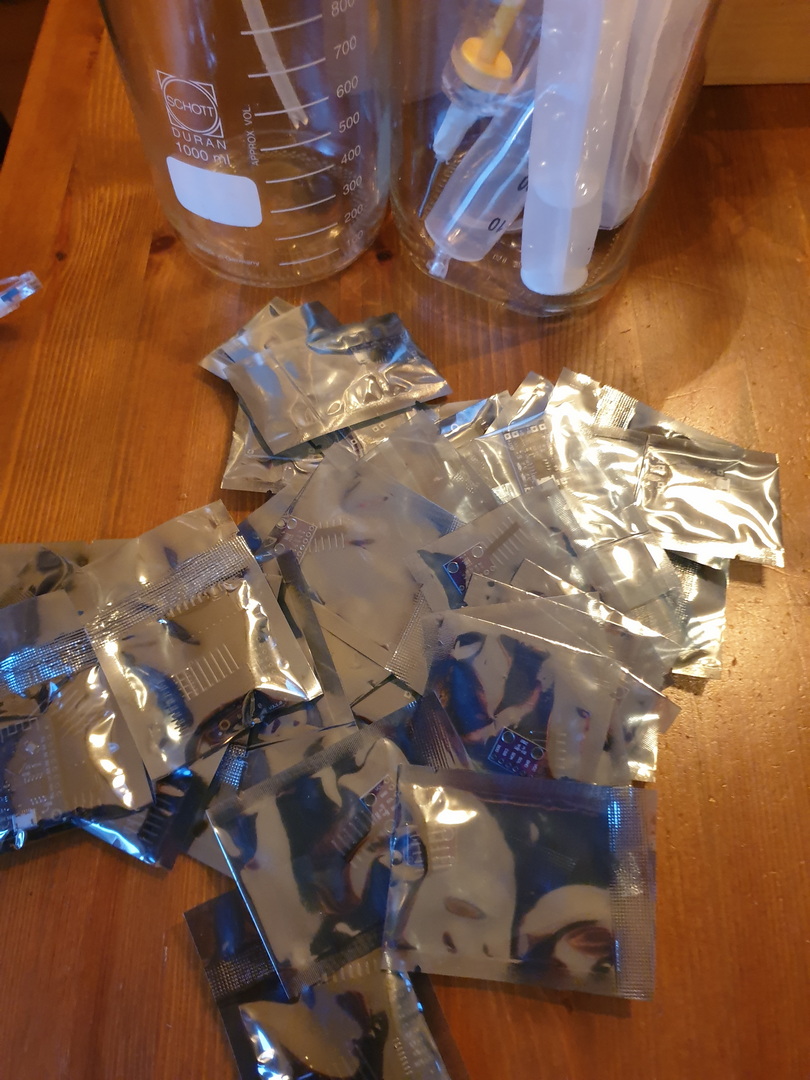
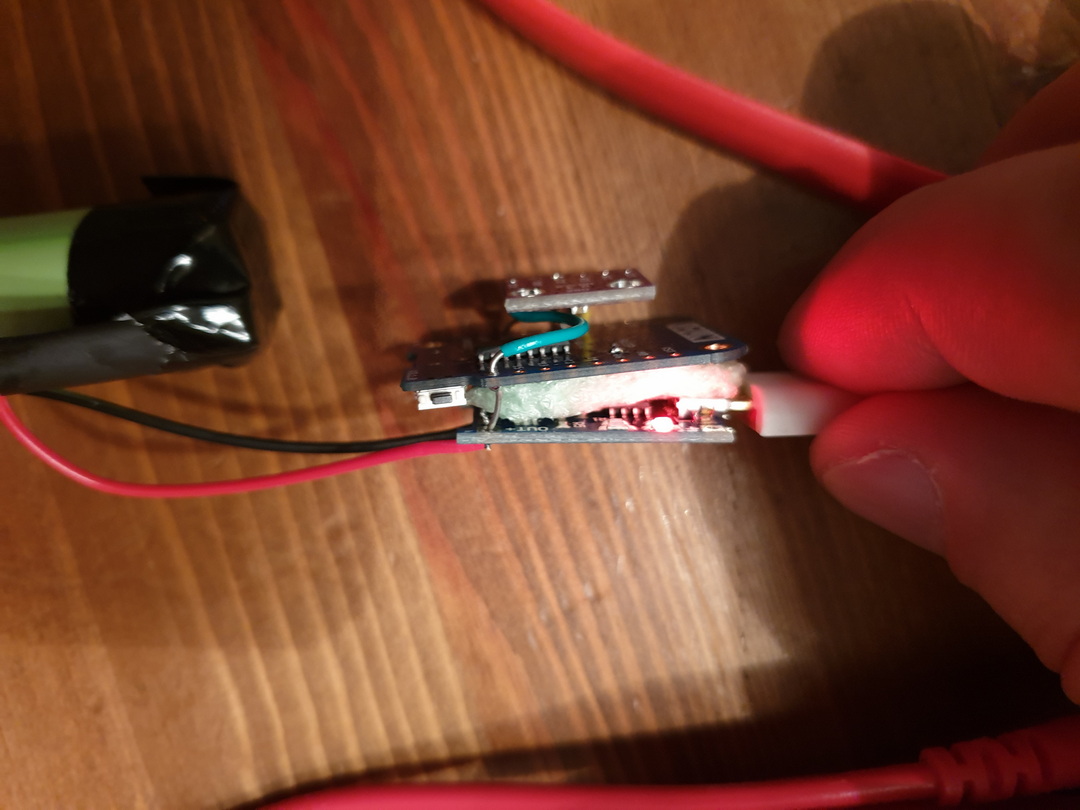
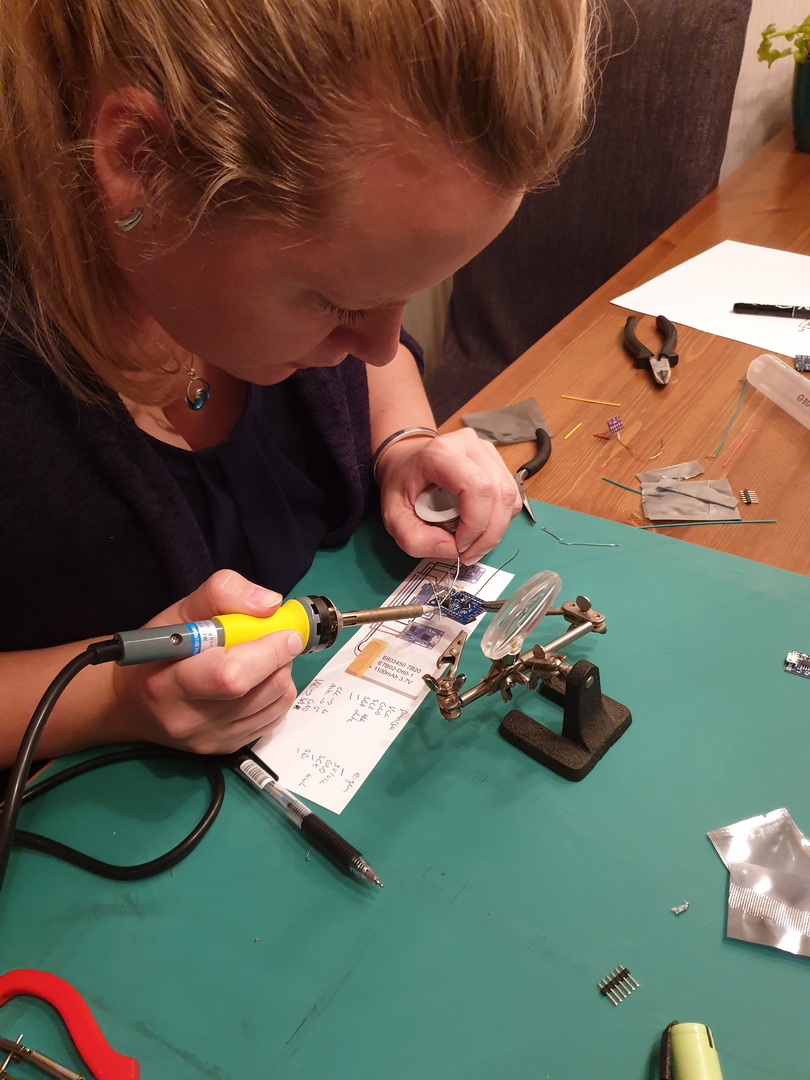
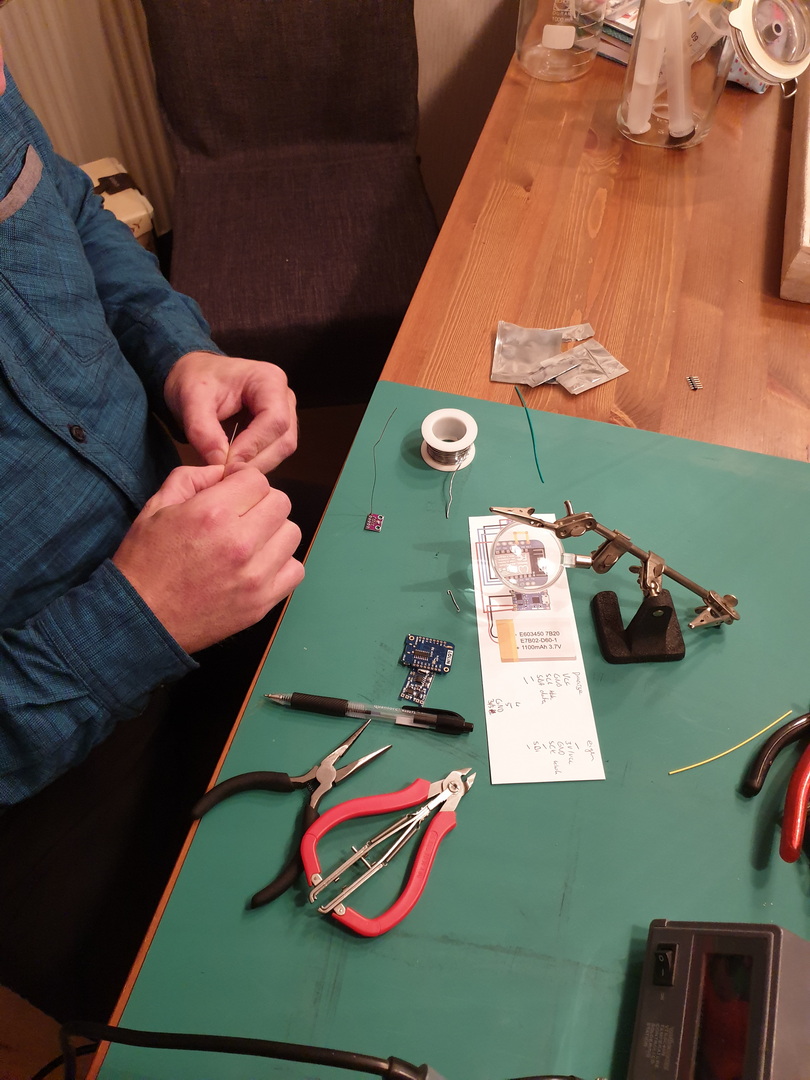
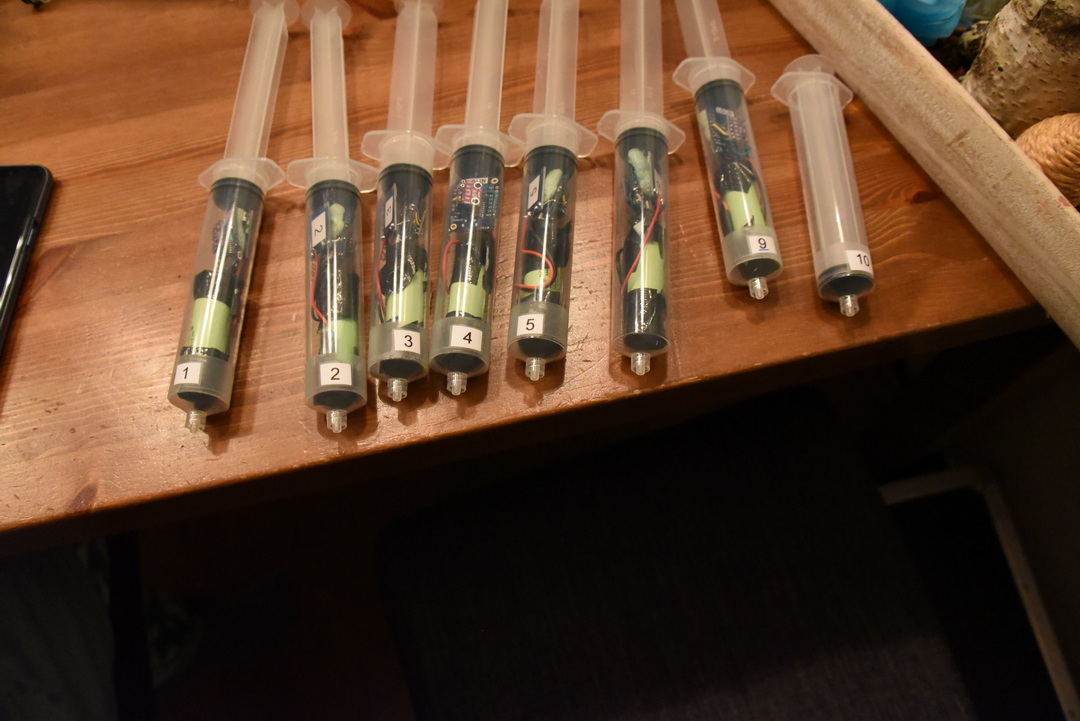
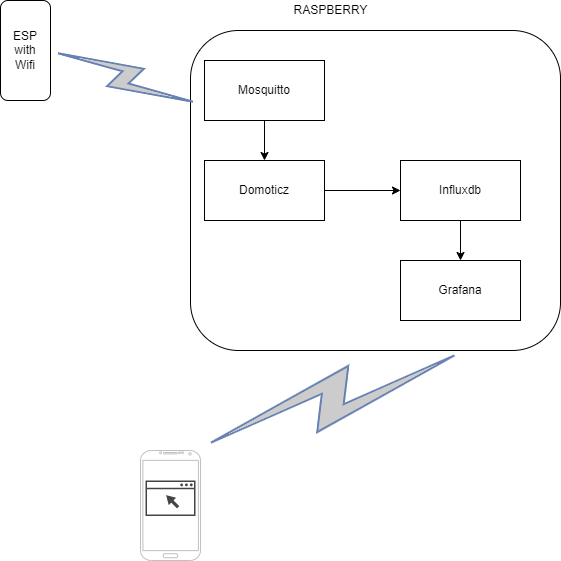
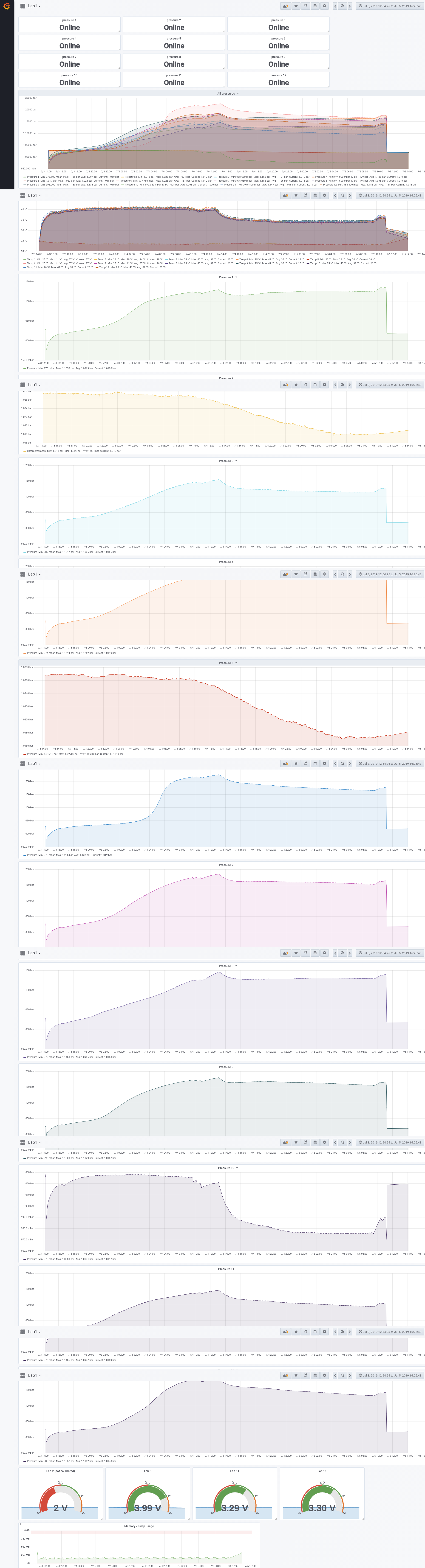
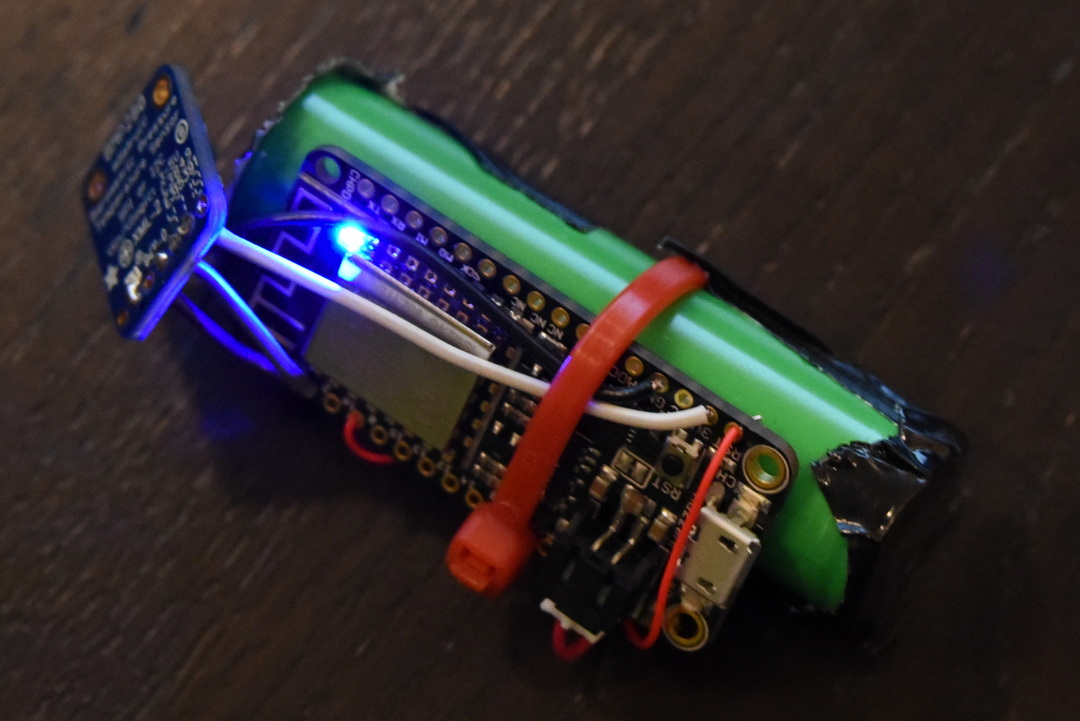
For measuring pressure in fermentation containers, I designed a pressure sensor which could be wireless connected to a fermentation container.
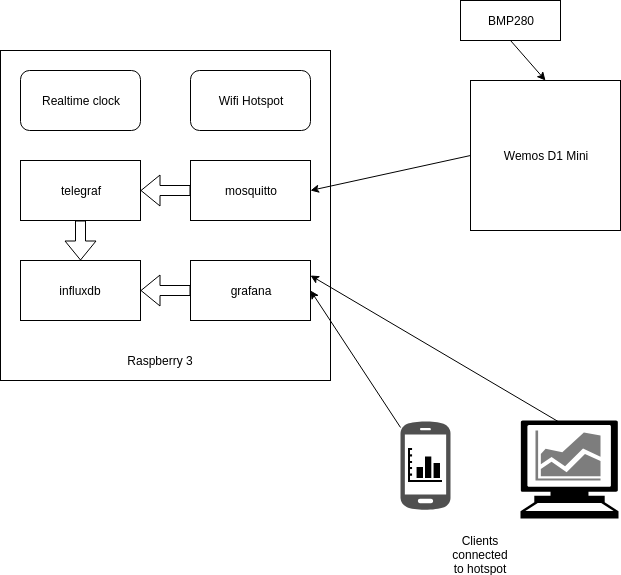
The sensor would transmit the values to a Raspberry which was configured as a Access Point and would store the measurements and generated graphs using Grafana.


Nodes config:
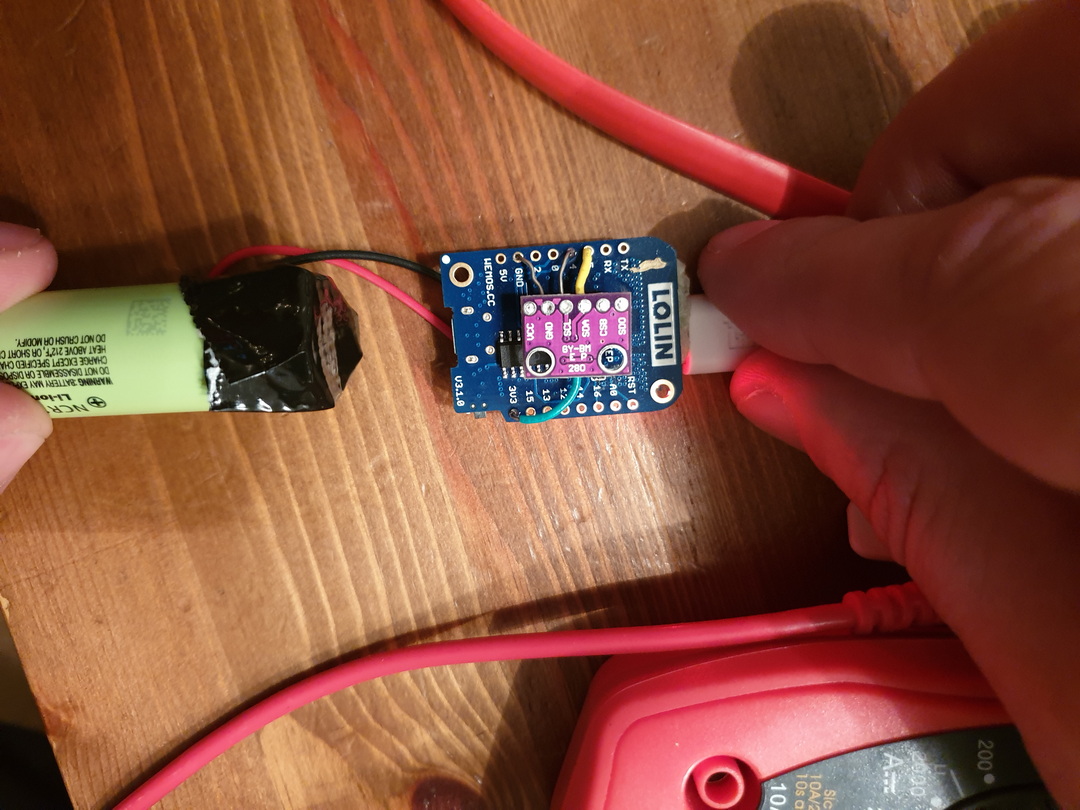
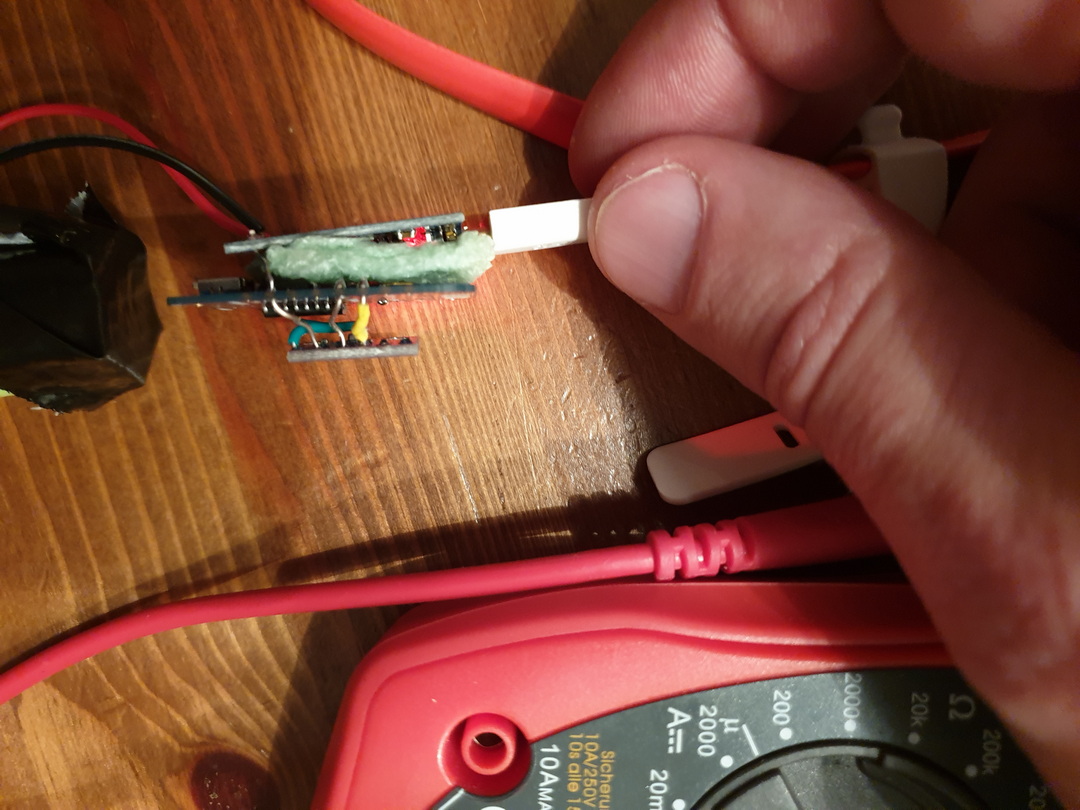
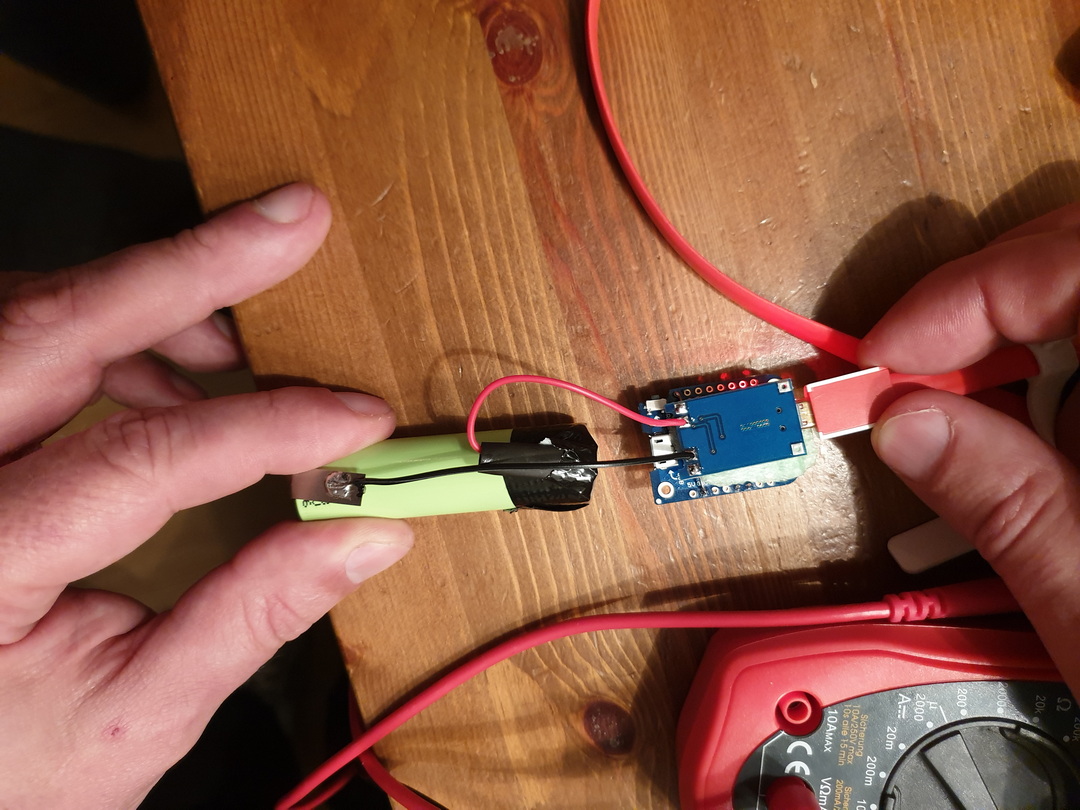
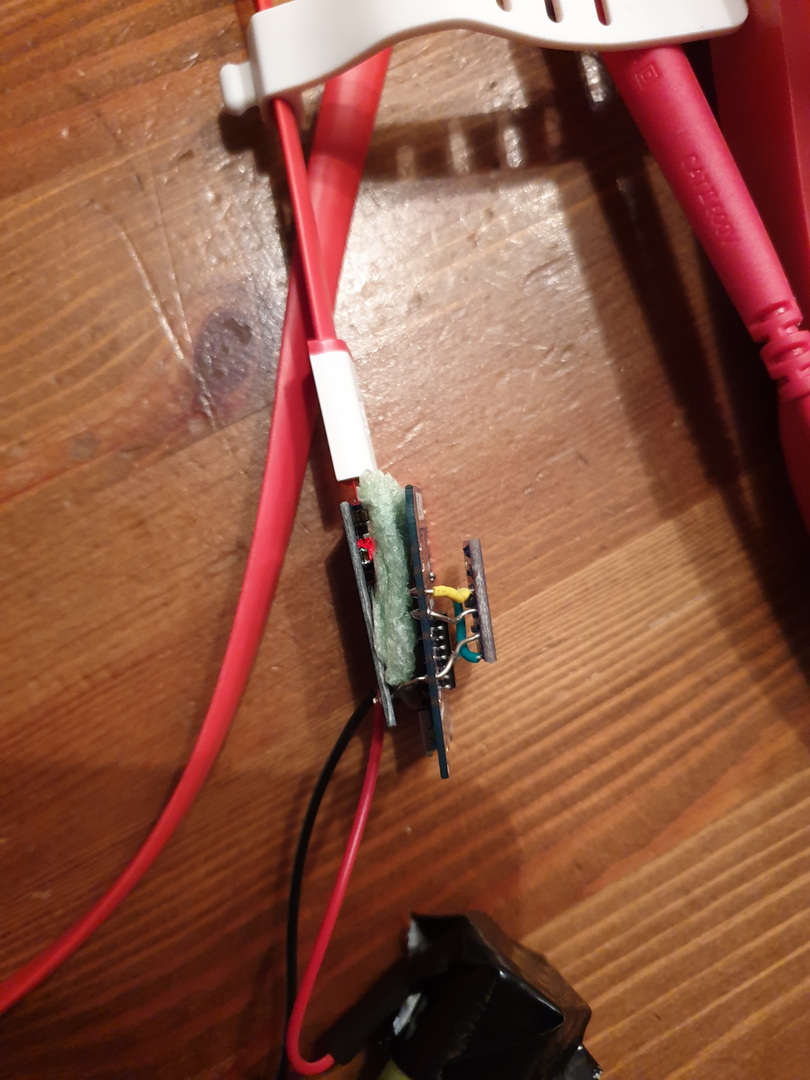
Esp configuration, connect with micro-usb
Flashing with linux
esptool.py -p /dev/ttyUSB0 write_flash 0x00000 ESP_Easy_mega-20190311_normal_ESP8266_4M.bin
Make a connection with the ESP Access point
Connect esp with a power source.
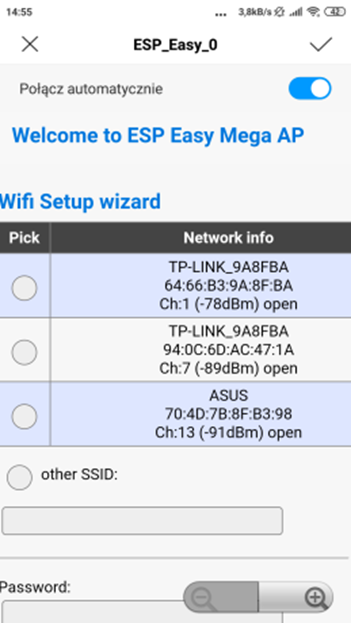
Look for a AP with ESP_Easy_0
Use password “configesp” to connect
Start you browser and enter http://192.168.4.1

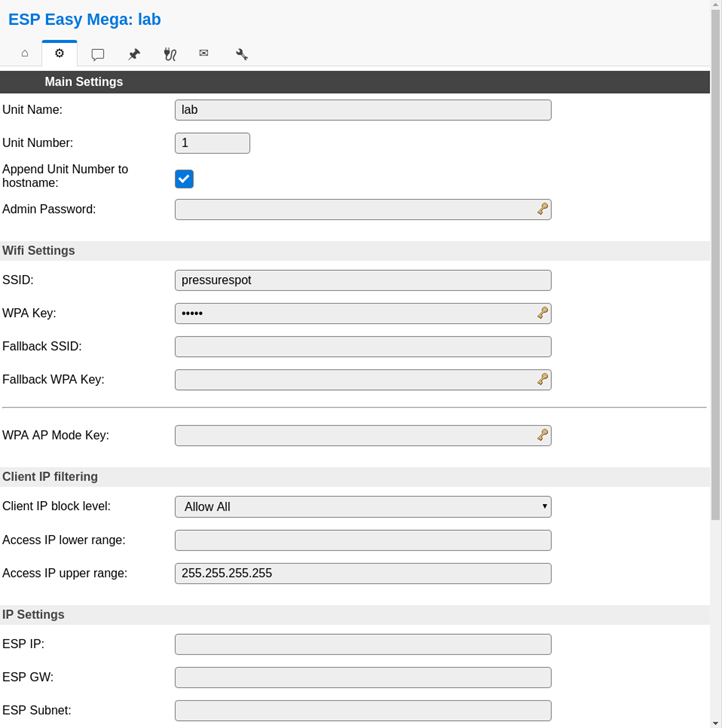
In wifi wizard setup select “pressurespot”
Enter password “pressurespot”
Press connect
Wait 20s and look in the raspberry logs which IP the ESP got.
Connect laptop/mobile to wifi “pressurespot”and connect
Enter found IP from ESP in your browser.
Proceed to main config
Main setting table, set the following
Press controller tab
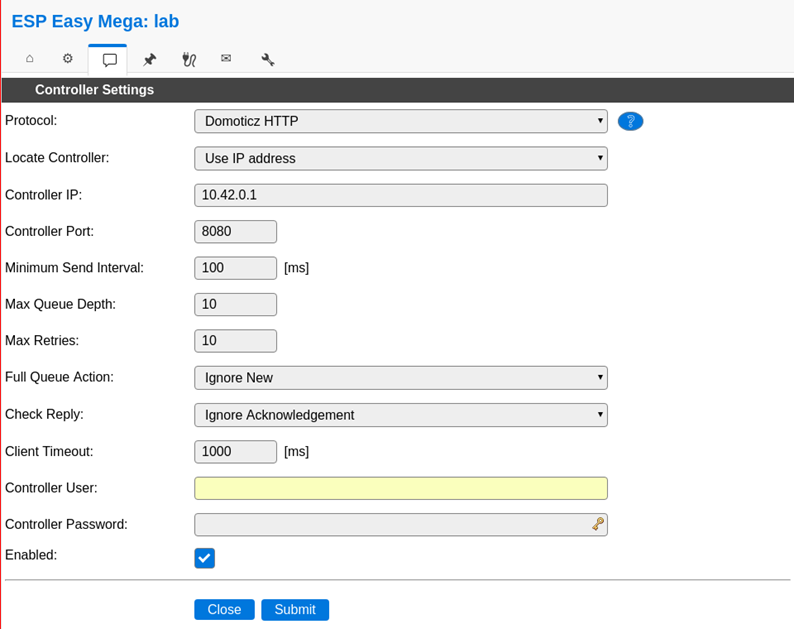
Press first edit button and set following
– Protocol: domoticz http
Next set
– Controller IP : 10.42.0.1
– Toggle enabled and press submit
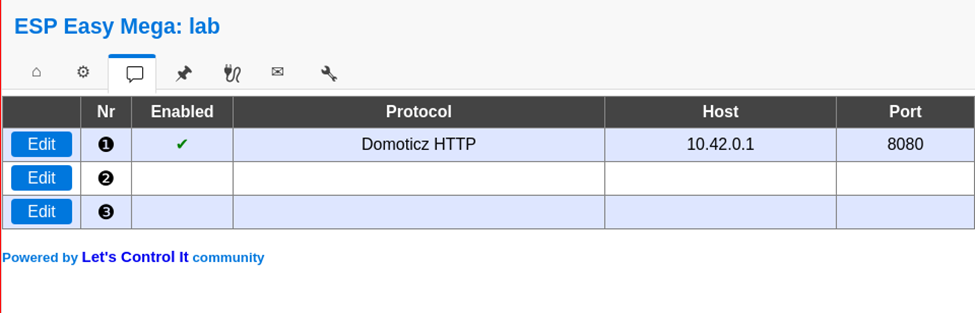
Resulting in:
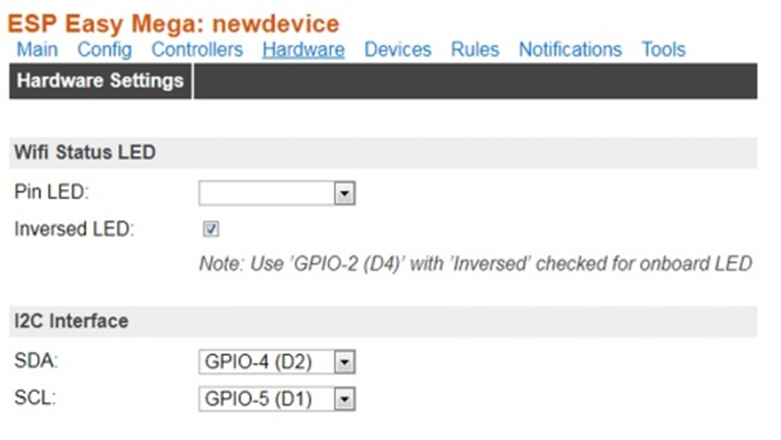
Next we got to Hardware
I2C interface switch GPIO-4 and GPIO-5
Devices TAB
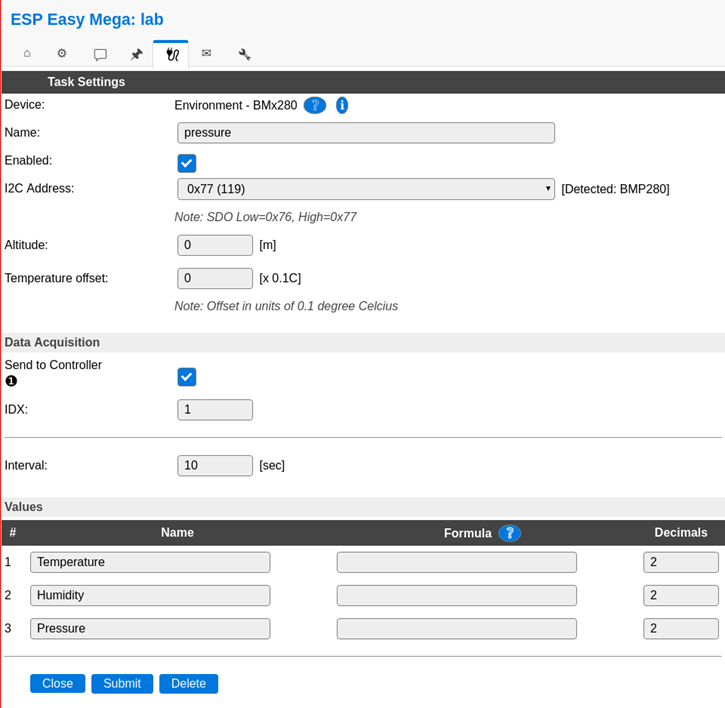
Press edit, and select device “Environment – BMx280” from the pulldown menu.
Next, set the following
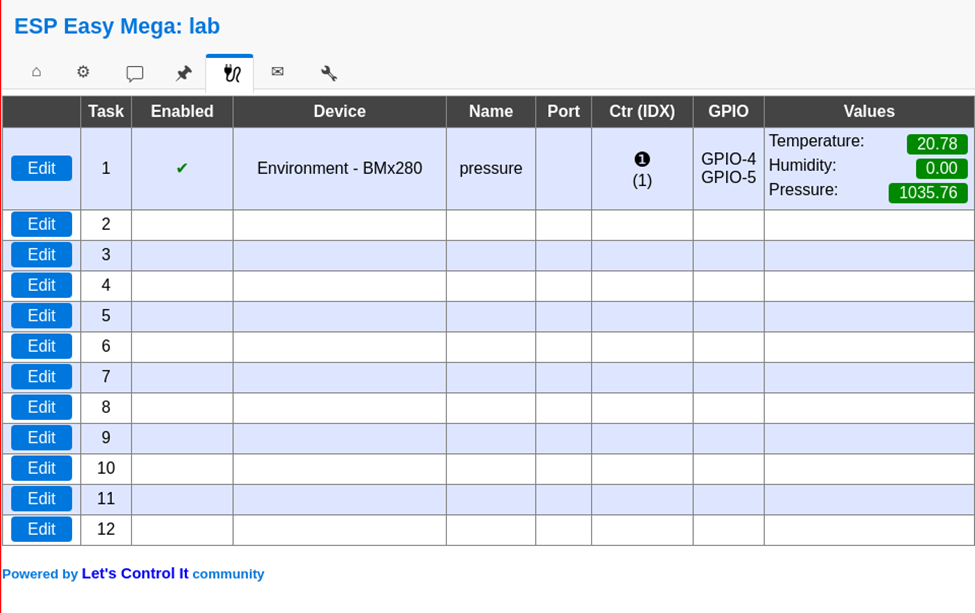
In the Devices tab, you should be able to see the sensor with the values (Temperature and pressure)
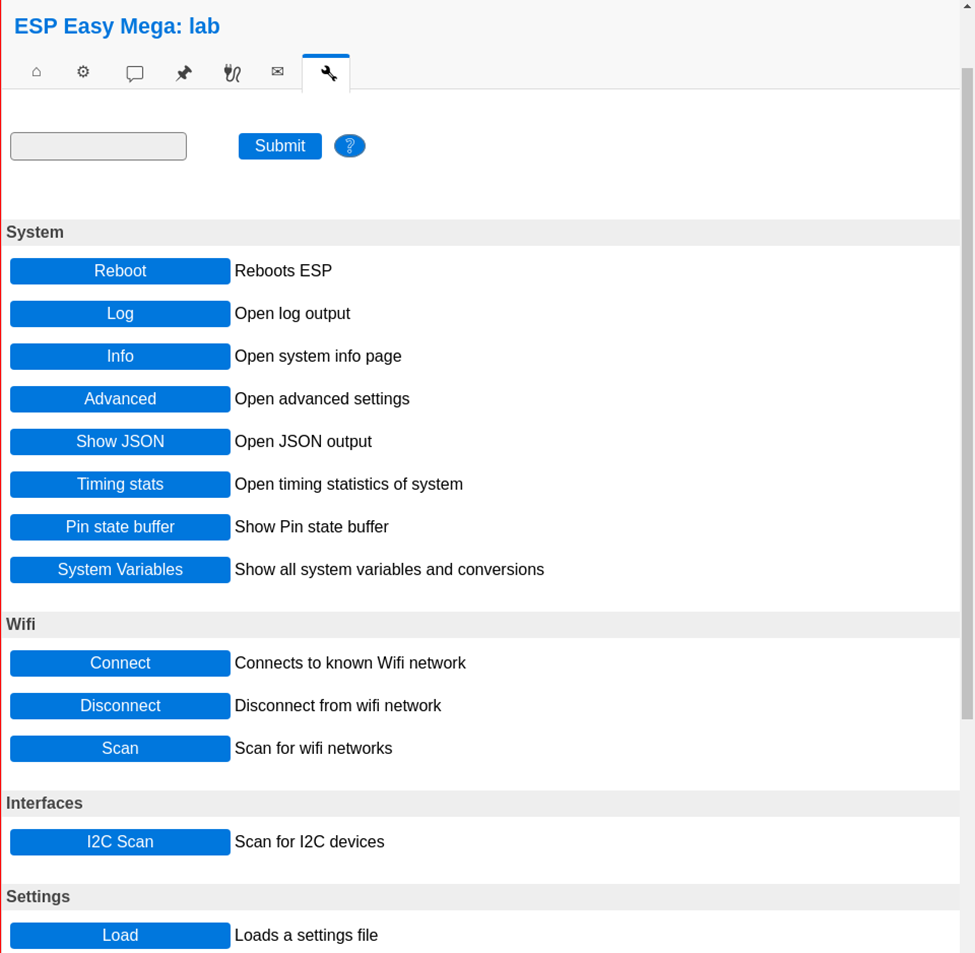
No values? Do a i2c scan and/or reboot ESP ( You can find these in the tools tab)
Tools TAB
Press I2C scan, when seeing a address like 0x76 or 0x77 use this in previous tabs.
Still nothing, even after reboot? Maybe faulty hardware?
Everything okay? Back to the config tab
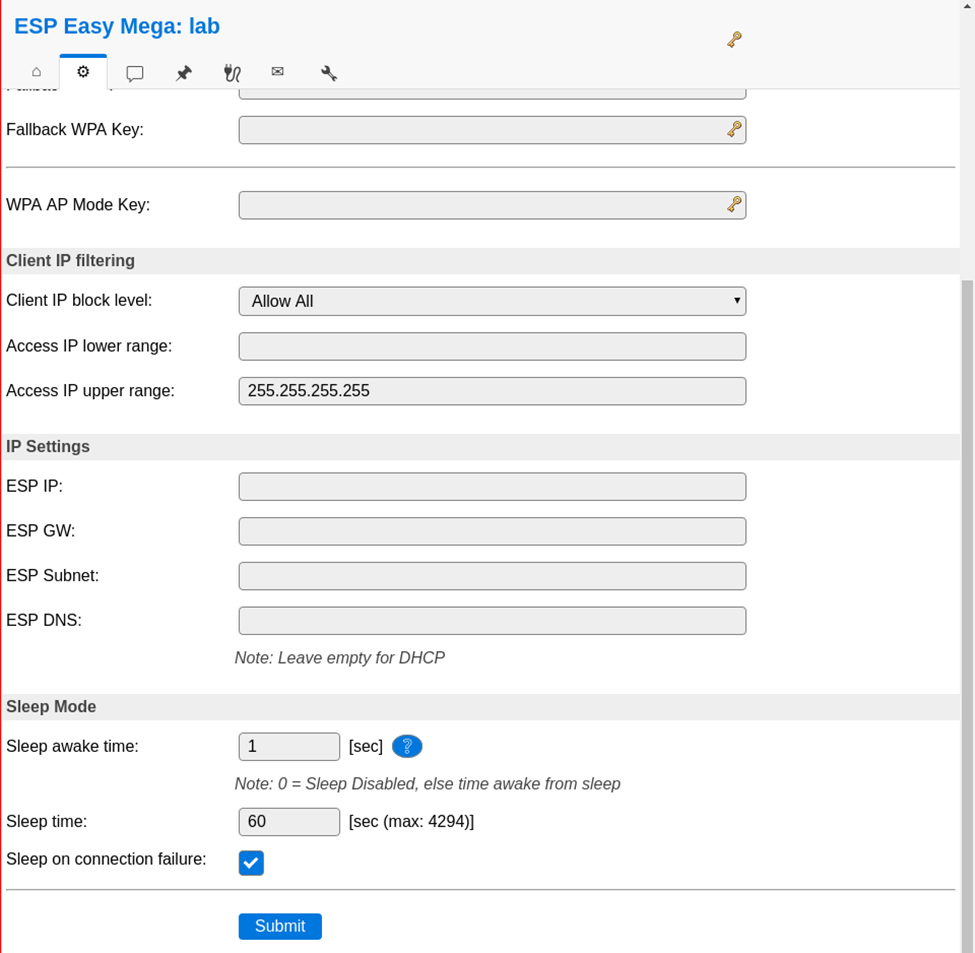
We are going to set the sleep mode.
Warning ! .. when setting this it is hard to get into the config pages again.
ESP will startup, connect to wifi, send values and goes to sleep again.
At the bottom set: Sleep awake time 1 sec
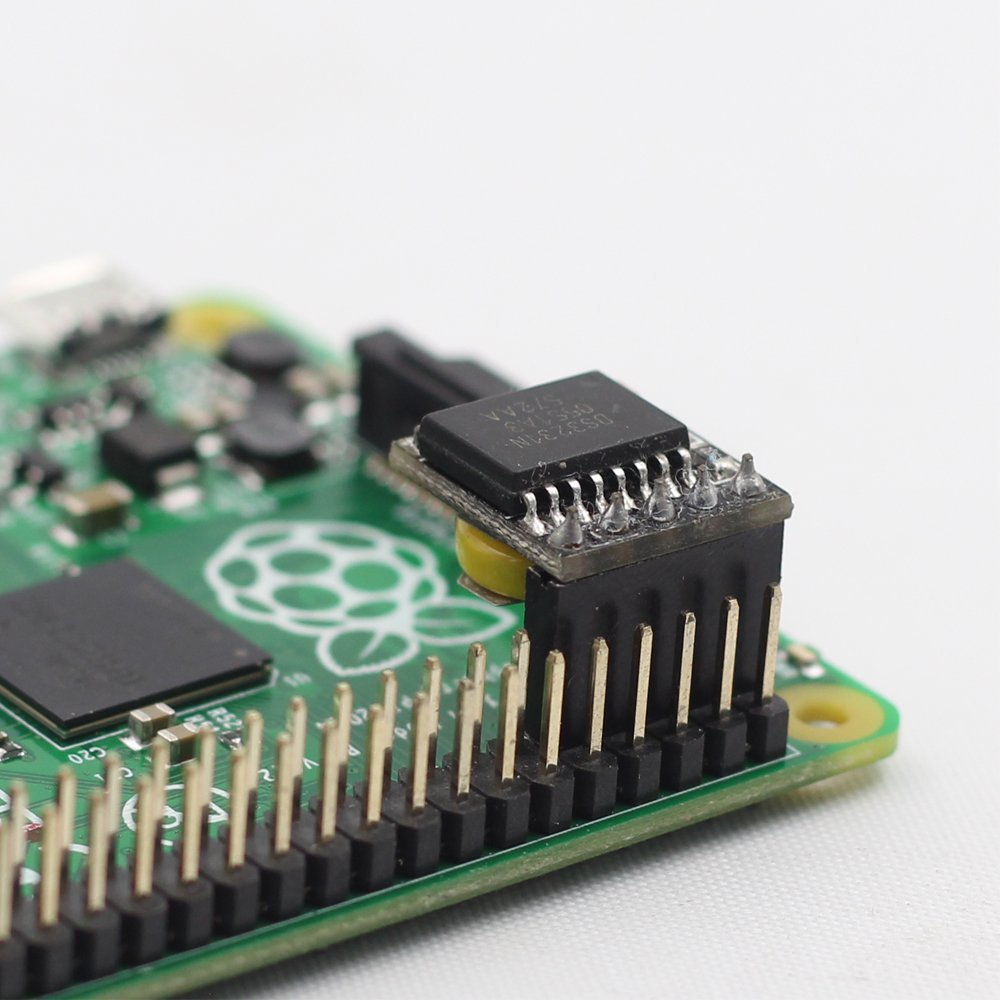
Buttons on the raspberry / pressurespot
Red button :
Led lights on the sensors
Add shutdown script to /etc/rc.local
python /usr/local/bin/power-switch.py &
/usr/local/bin/power-switch.py
#!/usr/bin/python
import threading, subprocess
import RPi.GPIO as GPIO
def shutdown():
subprocess.call('sudo shutdown -h now', shell=True)
def edge_detected(pin):
if GPIO.input(pin):
t.cancel()
subprocess.call('sudo reboot', shell=True)
else:
t.start()
if __name__ == '__main__':
try:
GPIO.setmode(GPIO.BOARD)
GPIO.setup(5, GPIO.IN)
GPIO.add_event_detect(5, GPIO.BOTH, callback=edge_detected, bouncetime=10)
t = threading.Timer(3.0, shutdown)
while True:
pass
finally:
GPIO.cleanup()
/usr/local/bin/ledoff.py
#!/usr/bin/python import RPi.GPIO as GPIO import time GPIO.setmode(GPIO.BCM) GPIO.setwarnings(False) GPIO.setup(18,GPIO.OUT) GPIO.output(18,GPIO.LOW)
/usr/local/bin/ledon.py
#!/usr/bin/python import RPi.GPIO as GPIO import time GPIO.setmode(GPIO.BCM) GPIO.setwarnings(False) GPIO.setup(18,GPIO.OUT) GPIO.output(18,GPIO.HIGH)
nmcli device wifi hotspot ssid pressurespot password pressurespot
/etc/NetworkManager/system-connections/Hotspot-1
[connection]
id=Hotspot-1
uuid=c2c05528-63f9-44c7-93ce-264187a45086
type=wifi
permissions=
timestamp=1553708934
[wifi]
hidden=true
mac-address=B8:27:EB:7F:D5:E7
mac-address-blacklist=
mode=ap
seen-bssids=B8:27:EB:7F:D5:E7;
ssid=pressurespot
[wifi-security]
group=ccmp;
key-mgmt=wpa-psk
pairwise=ccmp;
proto=rsn;
psk=pressurespot
[ipv4]
dns-search=
method=shared
[ipv6]
addr-gen-mode=stable-privacy
dns-search=
method=ignore
/usr/bin/servicecheck.sh (in rc.local and crontab root user – every minute
#!/bin/bash
nmcli connection show | grep "Hotspot-1 c2c05528-63f9-44c7-93ce-264187a45086 802-11-wireless wlan0" >/dev/null && touch /tmp/wlan || rm -f /tmp/wlan
for f in influx domoticz telegraf grafana mosquitto ; do
pgrep $f >/dev/null && touch /tmp/$f || rm -f /tmp/$f
done
count=$(ls /tmp/influx /tmp/domoticz /tmp/telegraf /tmp/grafana /tmp/mosquitto /tmp/wlan | wc -l)
if [ $count -eq 6 ] ; then
/usr/local/bin/ledon.py
exit 0
fi
for timer in {1..10} ; do
/usr/local/bin/ledon.py
sleep 1
/usr/local/bin/ledoff.py
sleep 1
done
Rest services to be installed on Raspberry
At the moment the raspberry uses domoticz between the Mqtt broker (Mosquitto) and the database (Influx)
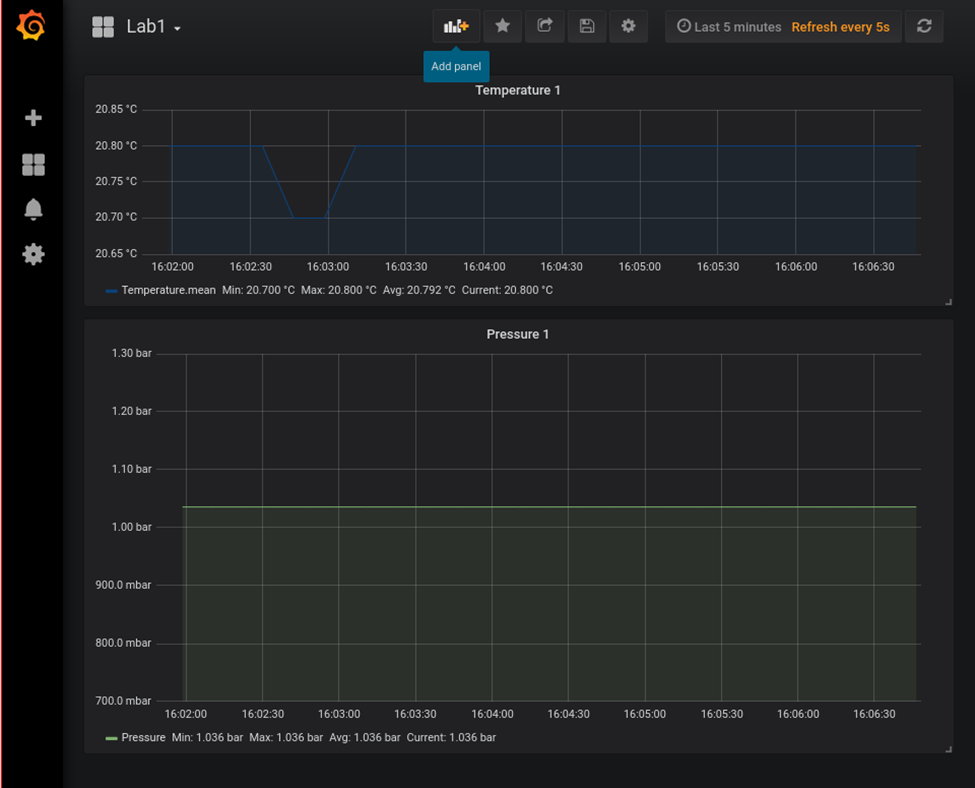
Data wil be displayed using grafana.
tail -f /var/log/syslog shows which ip to which ESP
DHCPACK(wlan0) 10.42.0.104 cc:50:e3:c4:96:61 lab-
DHCPACK(wlan0) 10.42.0.181 cc:50:e3:c4:8d:73 lab-4
DHCPACK(wlan0) 10.42.0.186 cc:50:e3:c4:9b:ef lab-1
Configuring the raspberry
Install influx and grafana
First we add Influx repositories to apt:
wget -qO- https://repos.influxdata.com/influxdb.key | sudo apt-key add - source /etc/os-release echo "deb https://repos.influxdata.com/debian $(lsb_release -cs) stable" | sudo tee /etc/apt/sources.list.d/influxdb.list
Update apt with the new repo & install.
sudo apt update && sudo apt install -y influxdb
Then start the influxdb service and set it to run at boot:
sudo systemctl enable influxdb --now
Again we need to add the Grafana packages to apt:
wget -q -O - https://packages.grafana.com/gpg.key | sudo apt-key add - echo "deb https://packages.grafana.com/oss/deb stable main" | sudo tee /etc/apt/sources.list.d/grafana.list
We can now update and install the binaries:
sudo apt update && sudo apt install -y grafana
Then simply enable the service and set to run at boot:
sudo systemctl enable grafana-server.service --now
Now we can check that grafana is up by loading it in a browser: http://10.42.0.1:3000. If so, you can log in with the username and password = admin and set a new admin password.
Install mosquitto
sudo apt install mosquitto mosquitto-clients
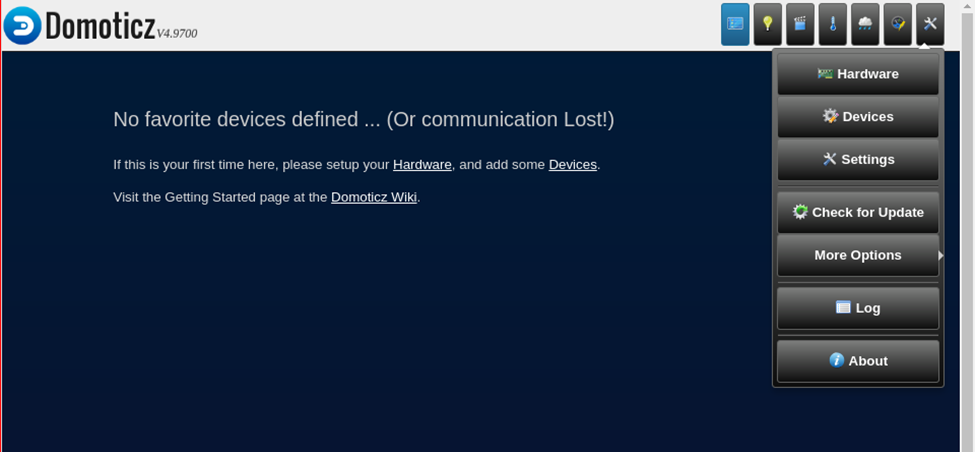
Install domoticz using below command
<code><strong>curl -sSL install.domoticz.com | sudo bash</strong></code>
Under hardware add MQTT server adress 127.0.0.1
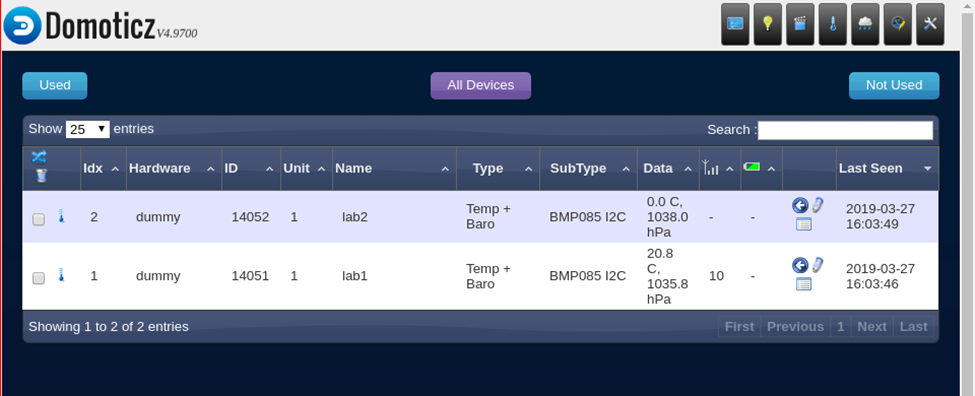
Add virtual sensors to domoticz.
Click hardware and create virtual sensor, lab with sensornumber. Sensor type is Temp+Baro.
When looking at devices you will see the virtual devices.
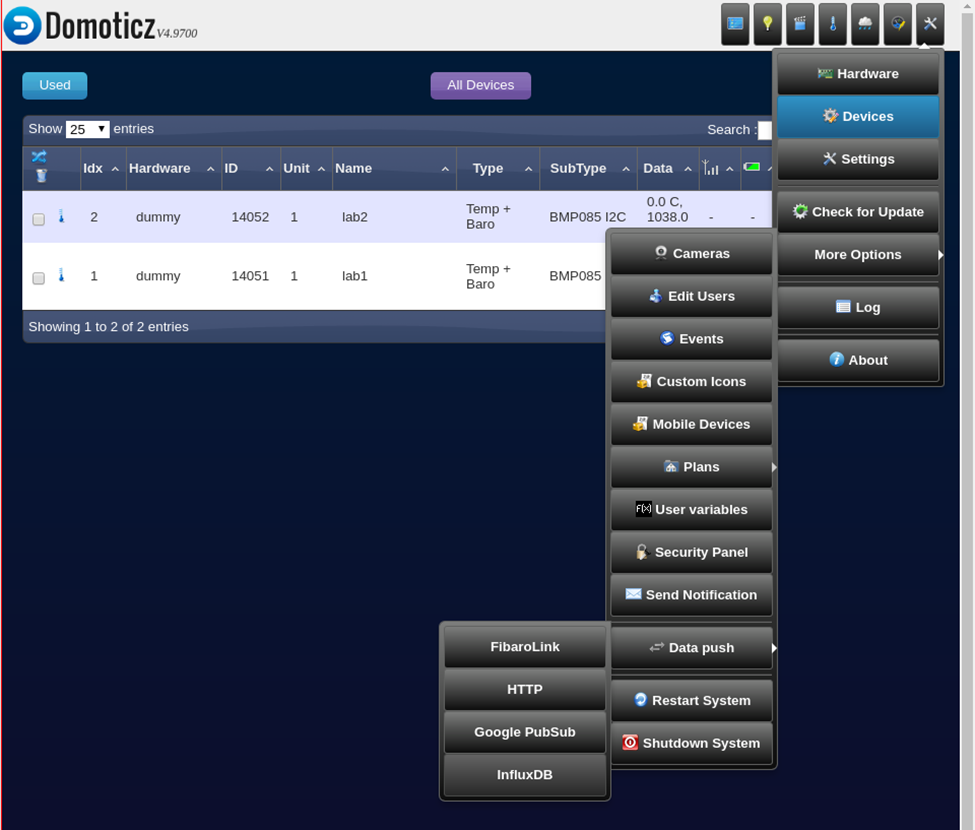
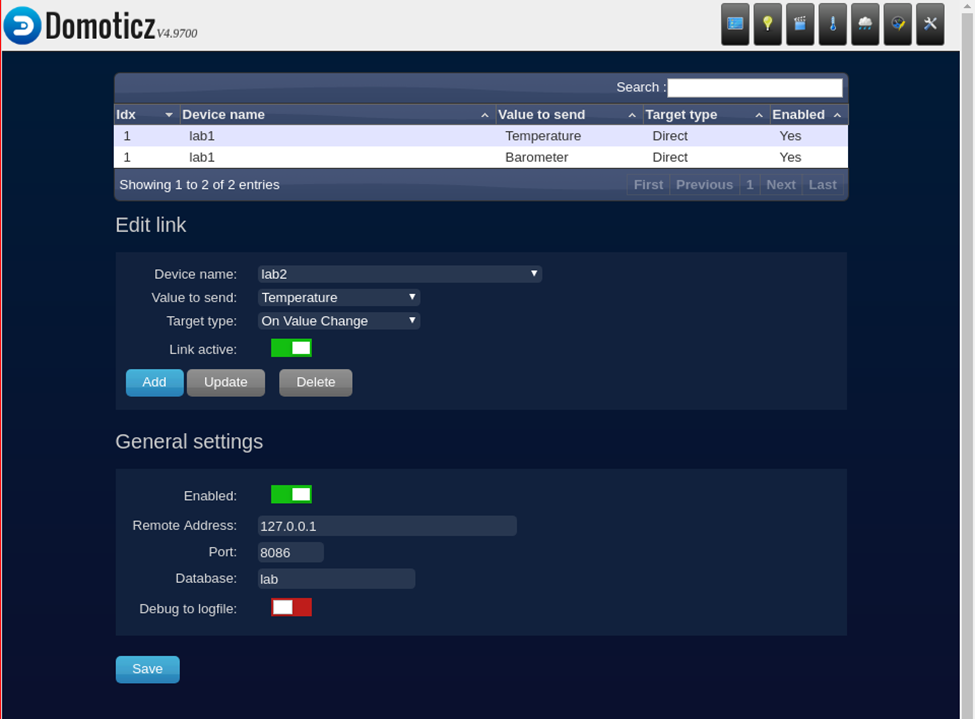
Pushing the data into Influxdb:
Goto settings > more options > data push > influxdb
Add temperature
Add barometer
Configure Grafana
Go with your browser to http://10.42.0.1 when connected to the rpi access point
Goto settings and data sources, add influxdb with source http://localhost:8086
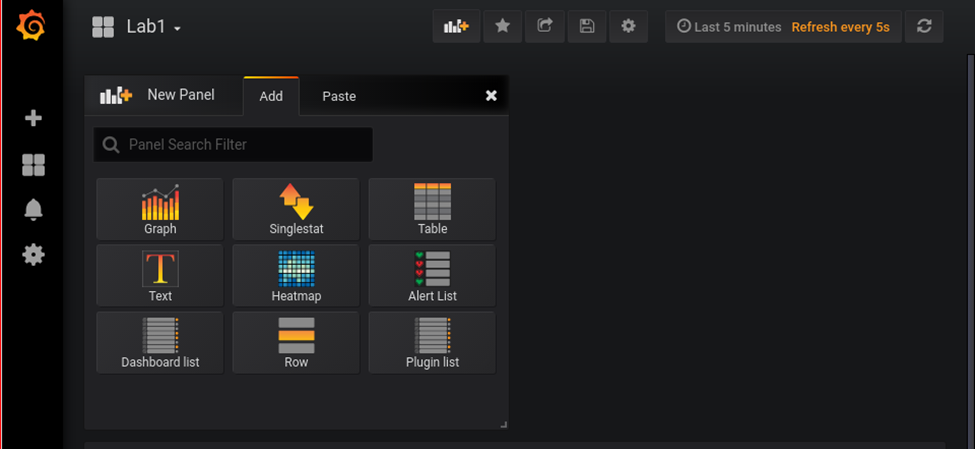
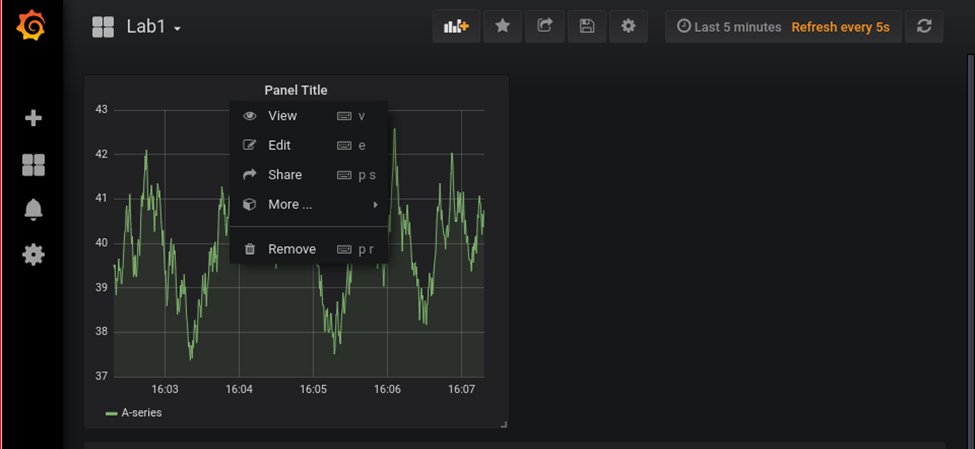
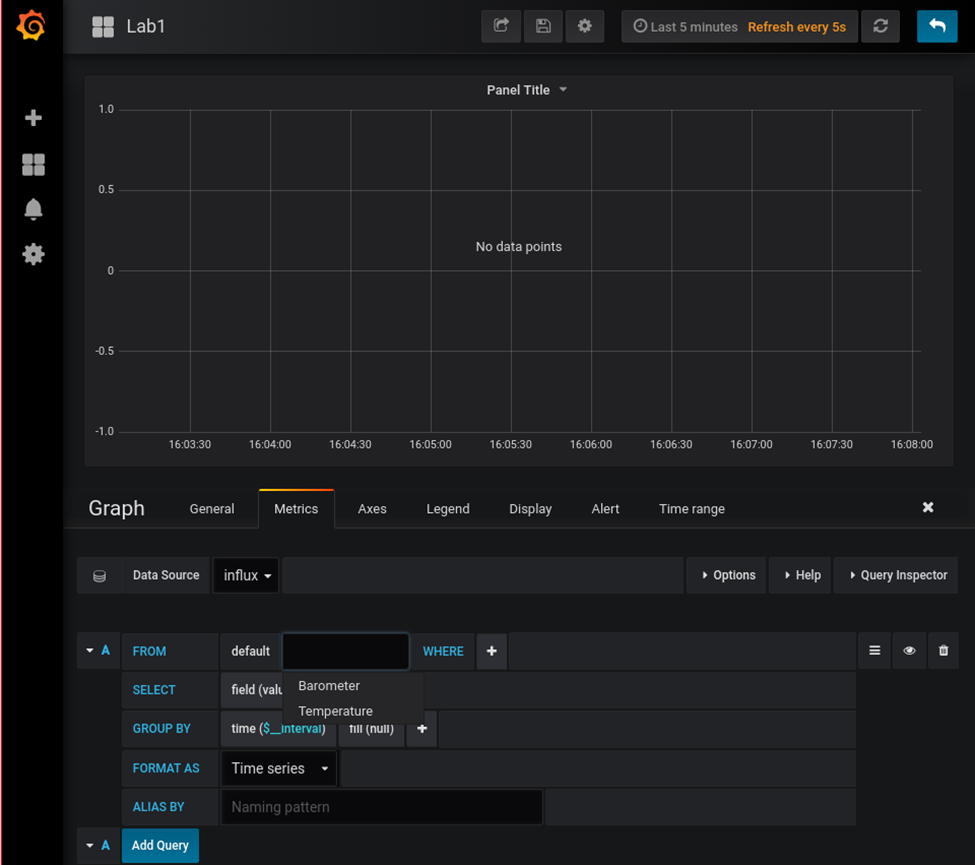
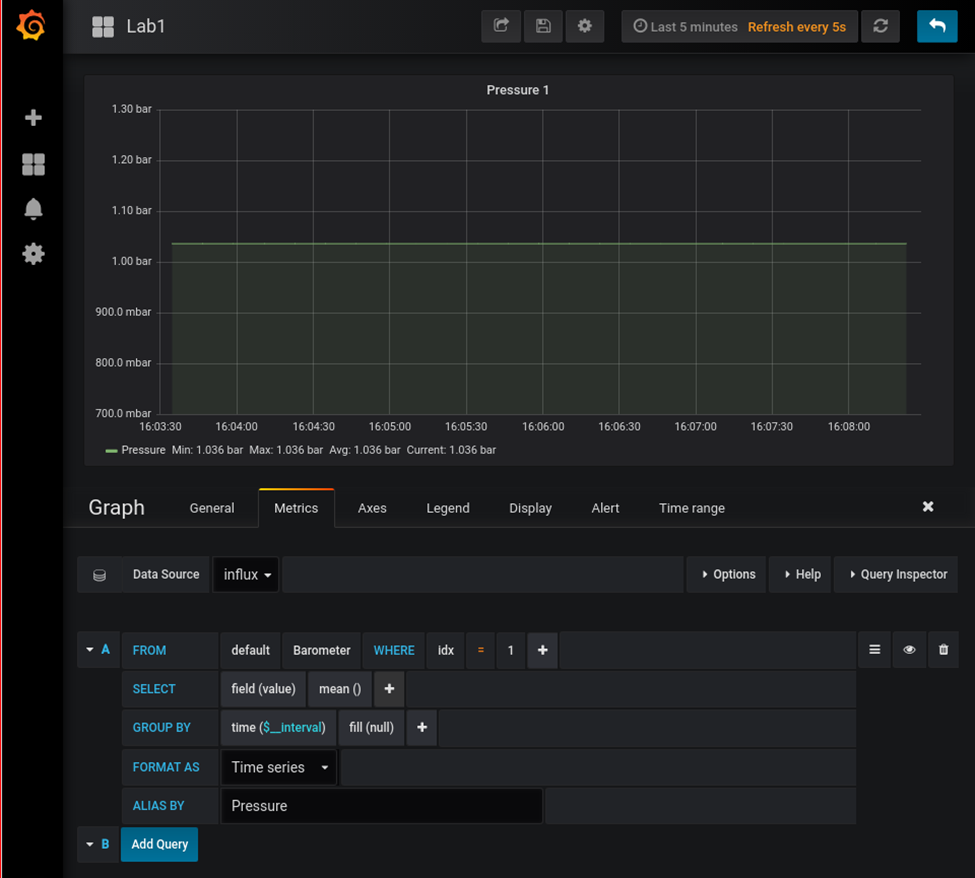
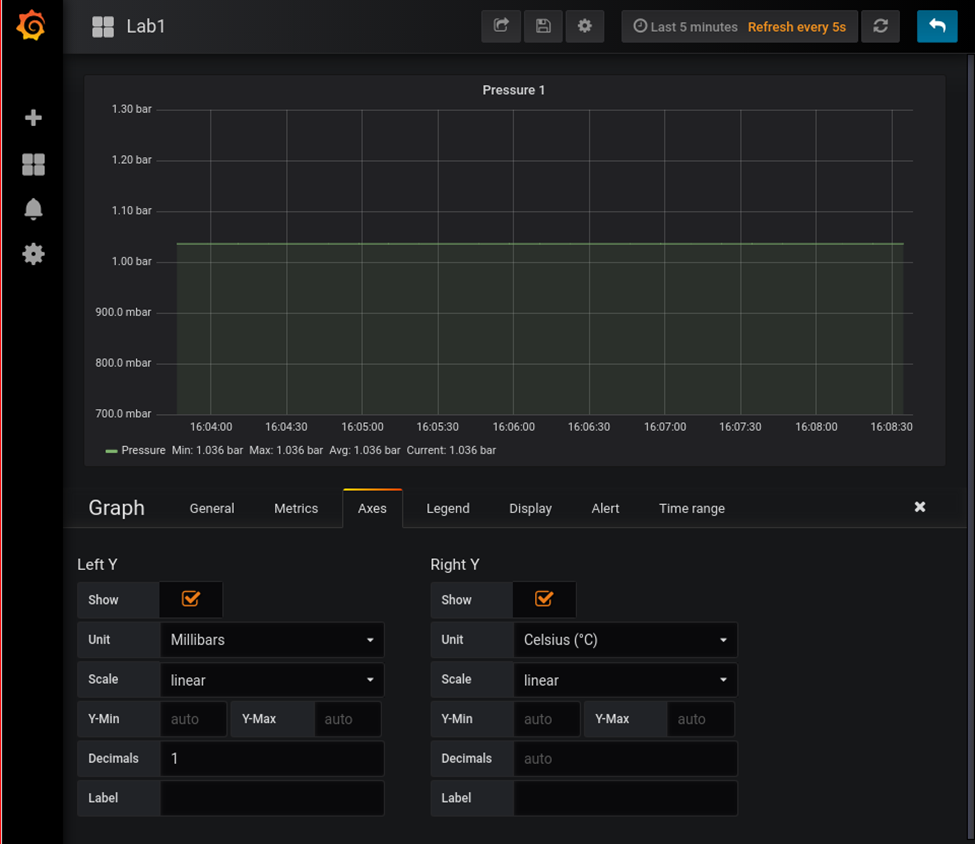
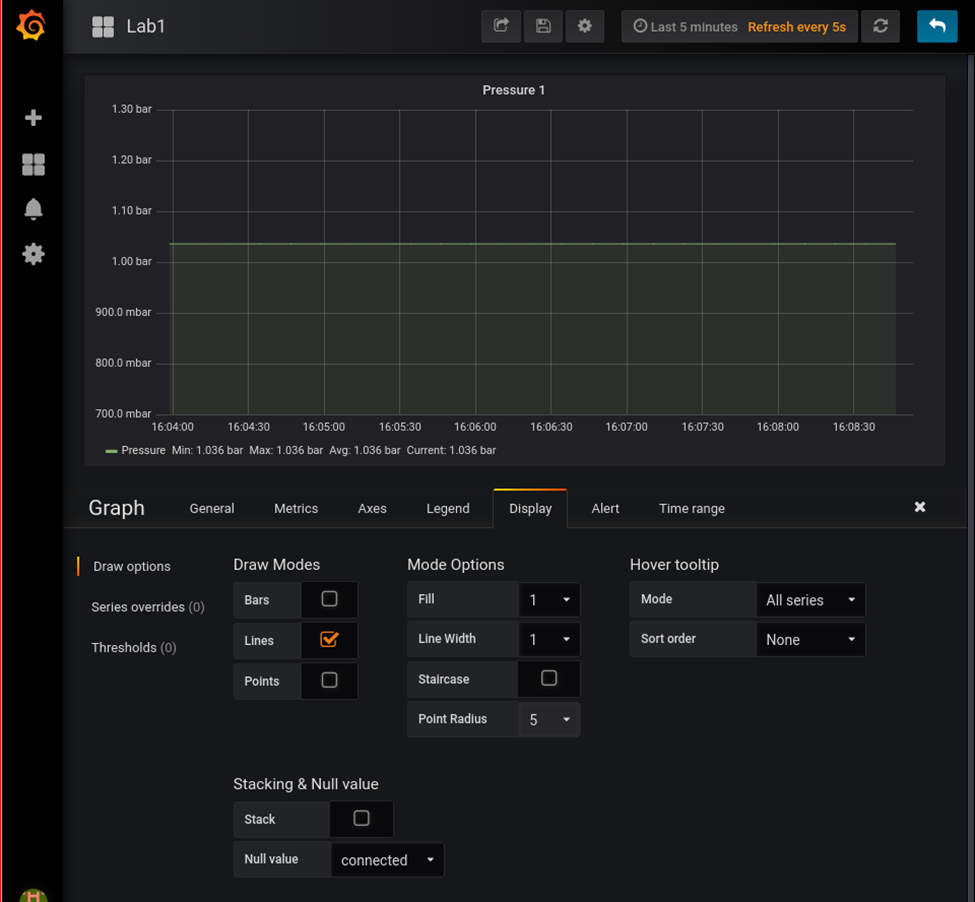
Goto dashboard and create a new one.

TODO
Telegraf/mosquito
Services in domoticz
Rpi status display
Sensor test / monitor
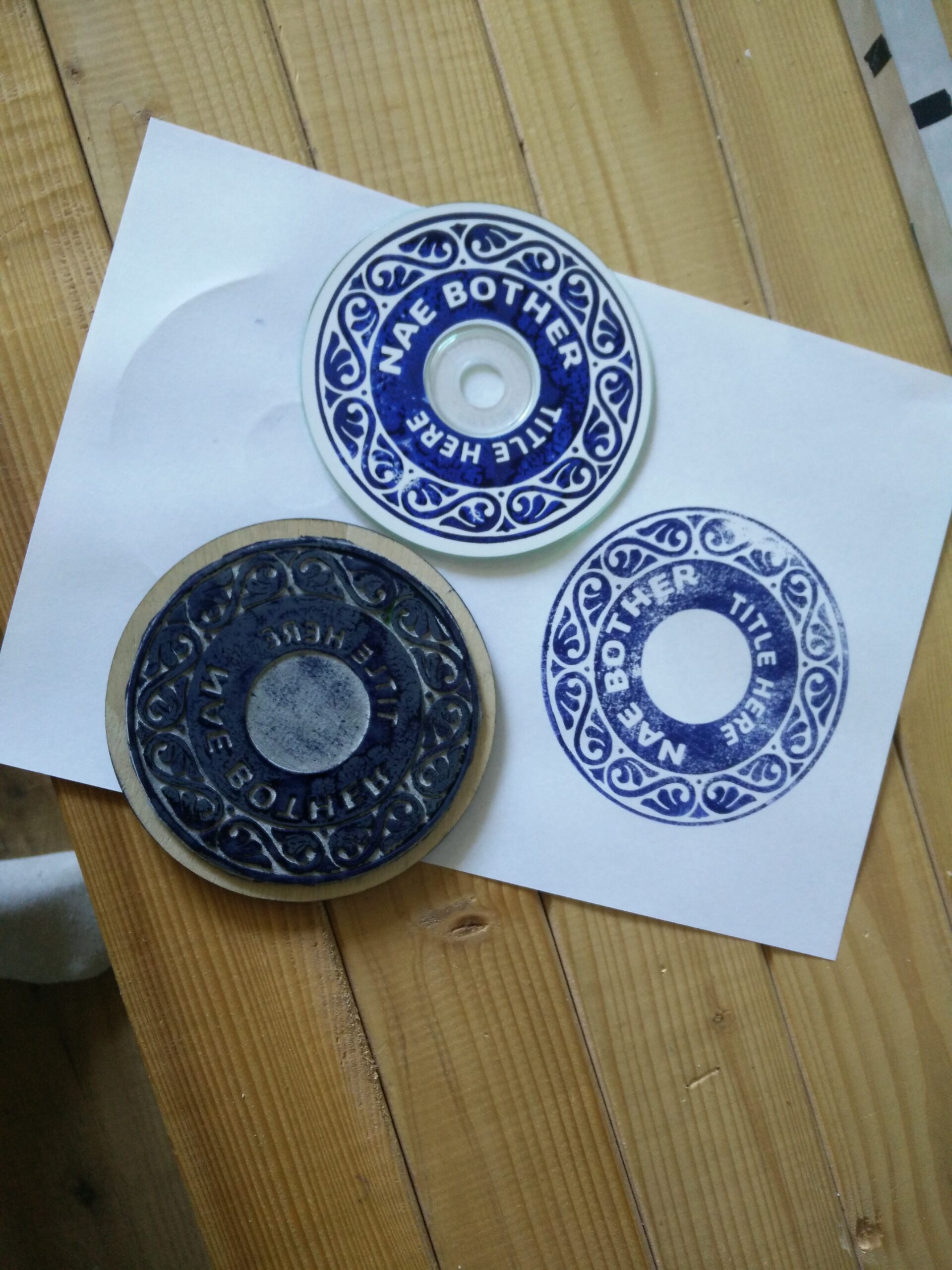
We wanted to have a nice design for our Folk Bands Audio CD.
So i designed a stamp we could use to stamp ink on a white CD.