After a long time, another post! We have been to 4 states on the west coast of America for almost 4 weeks, after that a pneumonia kept me from doing stuff.
Slowly, I started finishing my Workshop/Lab for my new business. So I didn’t have many things to post about. So now I’ll post something about this Home Assistant solution, because there was not a decent post to be found about this solution.
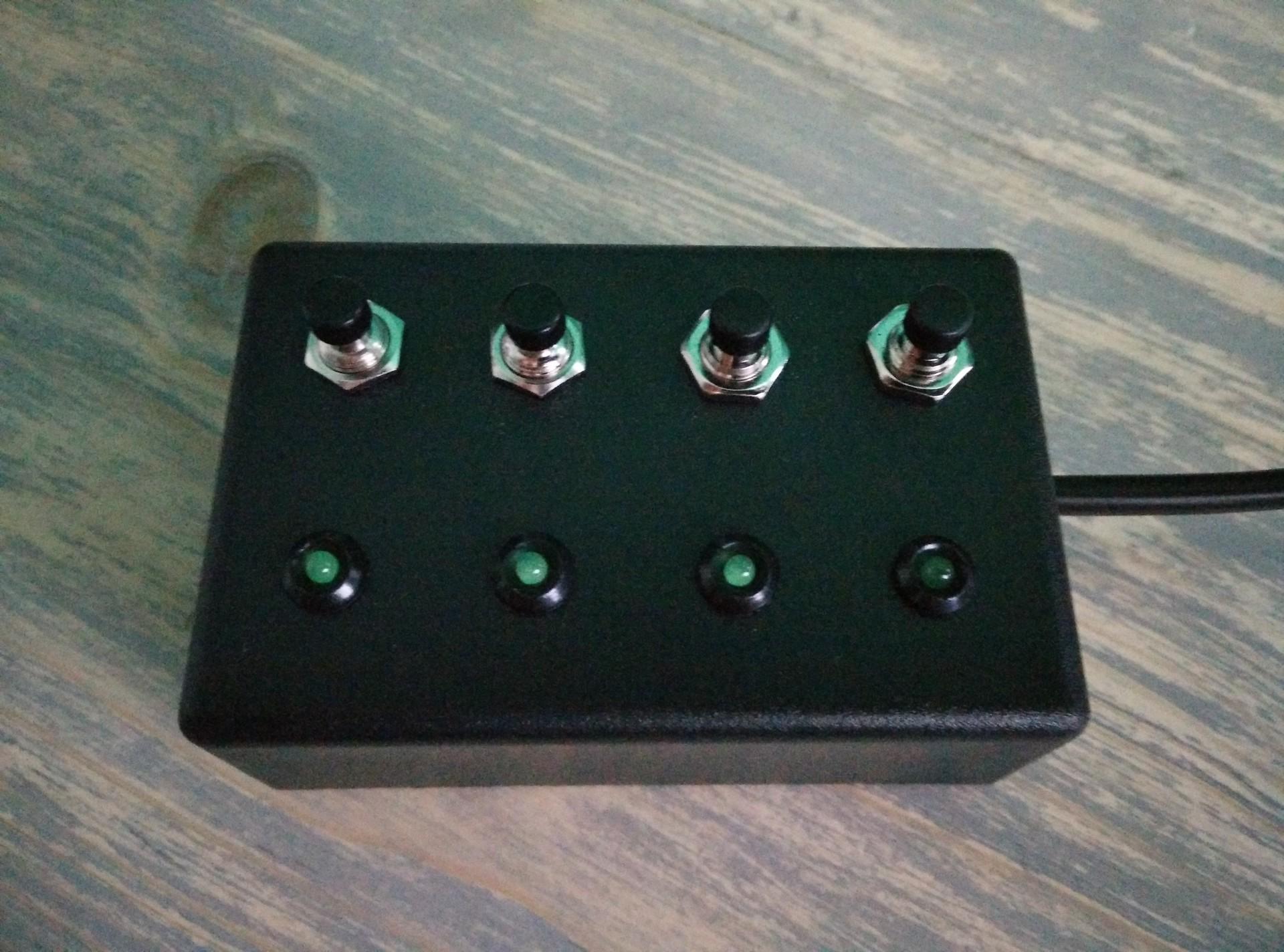
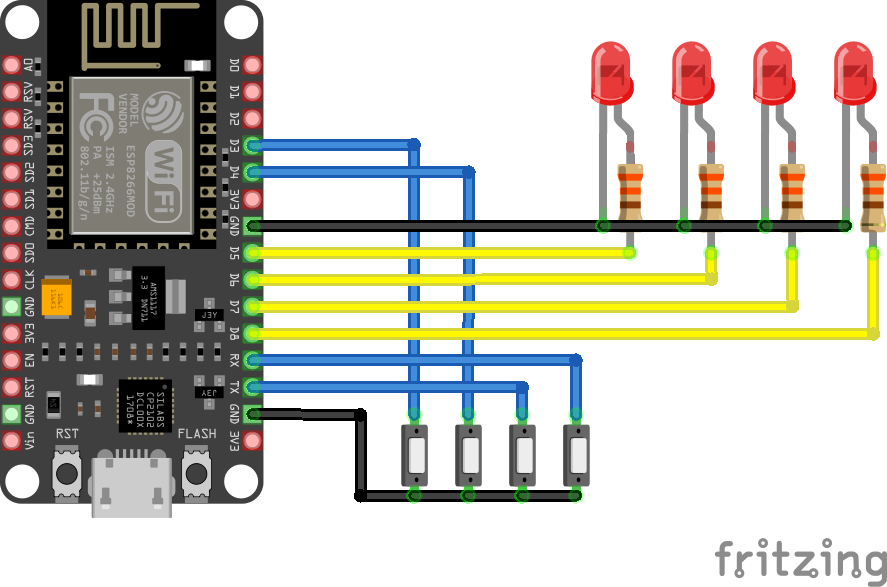
Some history: A long time ago I made a 4 button 4 led controller with my friend Duncan. At that time we were using Domoticz, and used a NodeMcu with ESP Easy to read the button states and made the leds act as status lights.
This is made using a NodeMCU (8266) but ESP32, Wemos, whatever will work also. We wanted to repurpose the old NodeMCU, instead of building a new one.
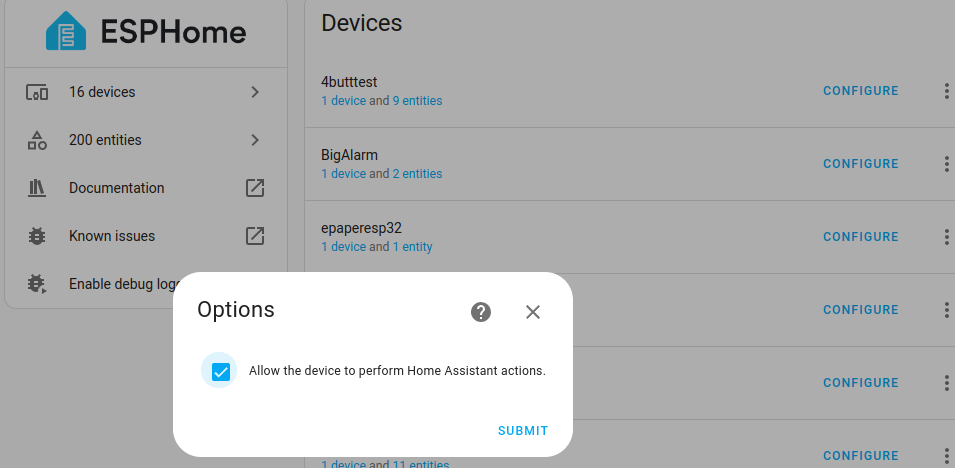
So Migrating to Home Assistant: How to install ESPHome is easy to find on the internet.
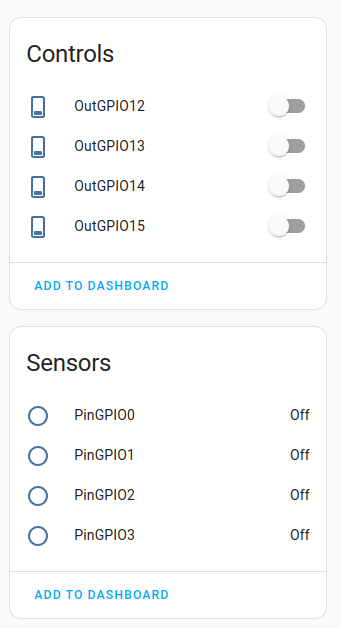
Below is an example for 4 push buttons which TOGGLE a Home Assistant entity. And the LEDs will give a feedback of the state of an entity.
Note: There is 1 out of 4 configured like that. The other ones are generic. One button toggles my shelly lab ledlight, and lights up a led when toggled!
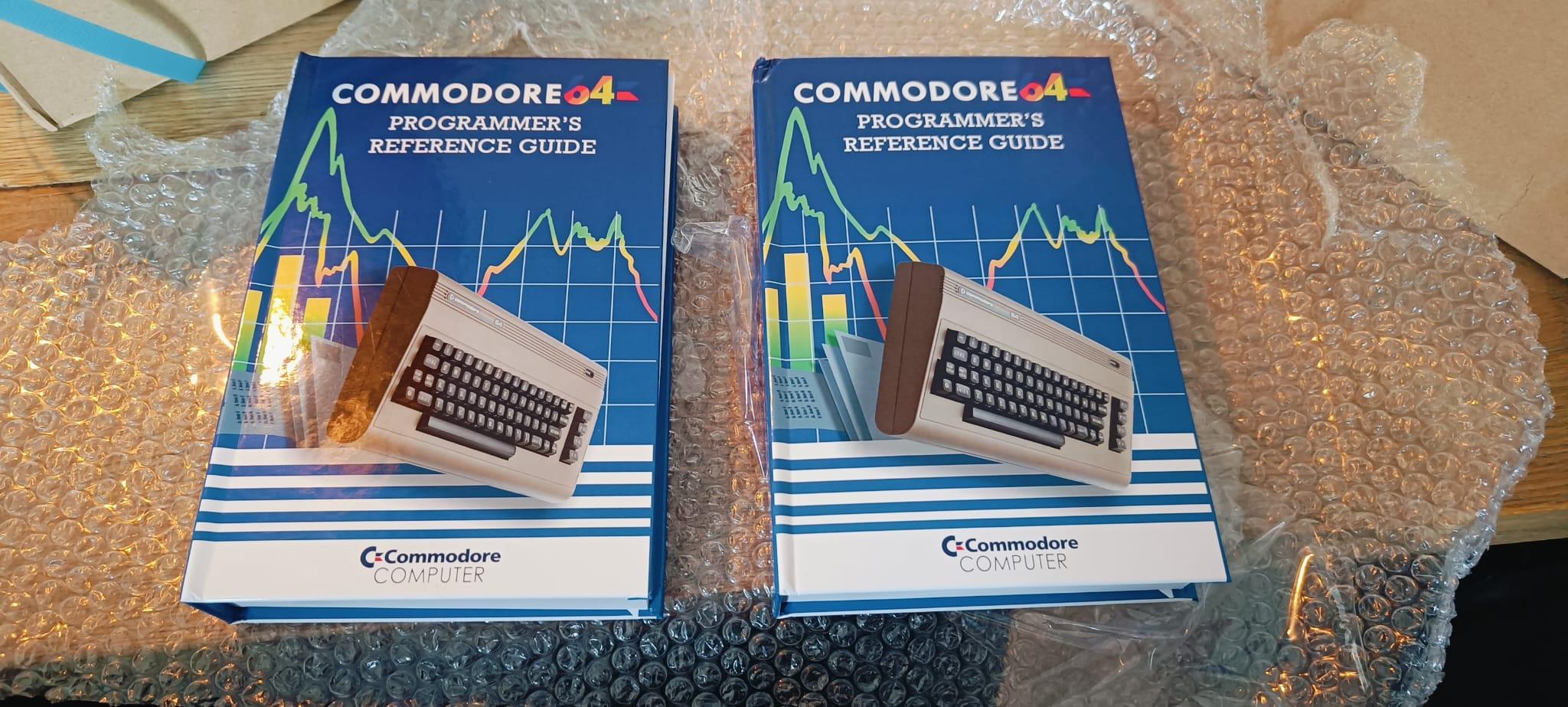
I’ve printed two books using the Lulu service. (One for Tyrone) When they arrived, I noticed some faults. Lucky Lulu will be printing them again for me.
The book has over 500 pages and has a nice hardcover.
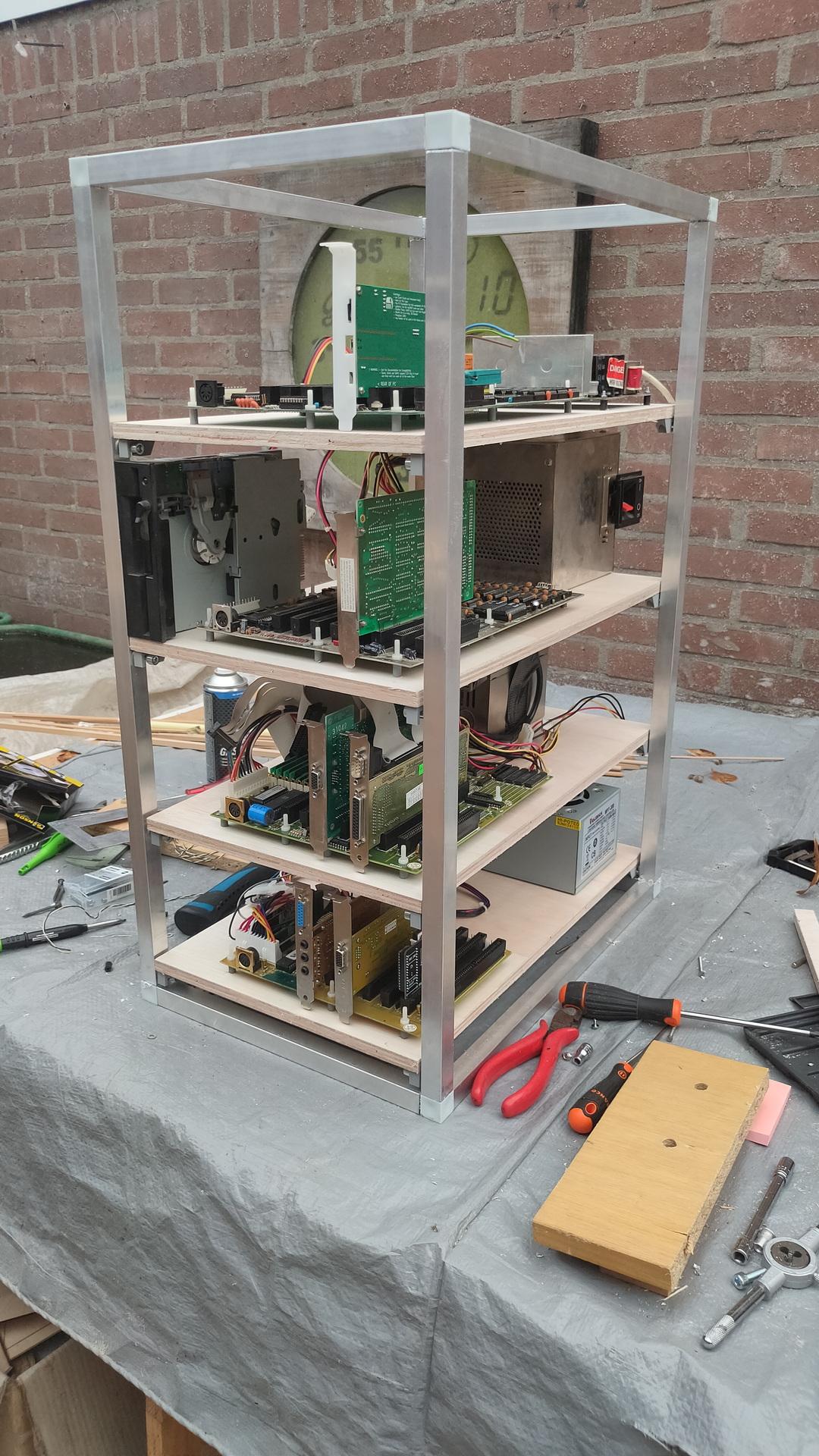
And I’ve been busy building a Mega Tower with 4 Motherboards. This will have a superb processing power! .. not. It houses some old motherboards for hardcore machine coding on real old hardware.
From top to bottom: 8088, 8086, 80386, 80484
Todo:
Rework on the cables
3D print an information plaque on the front of each board
Add a control panel on each board
Maybe some dust cover would be nice
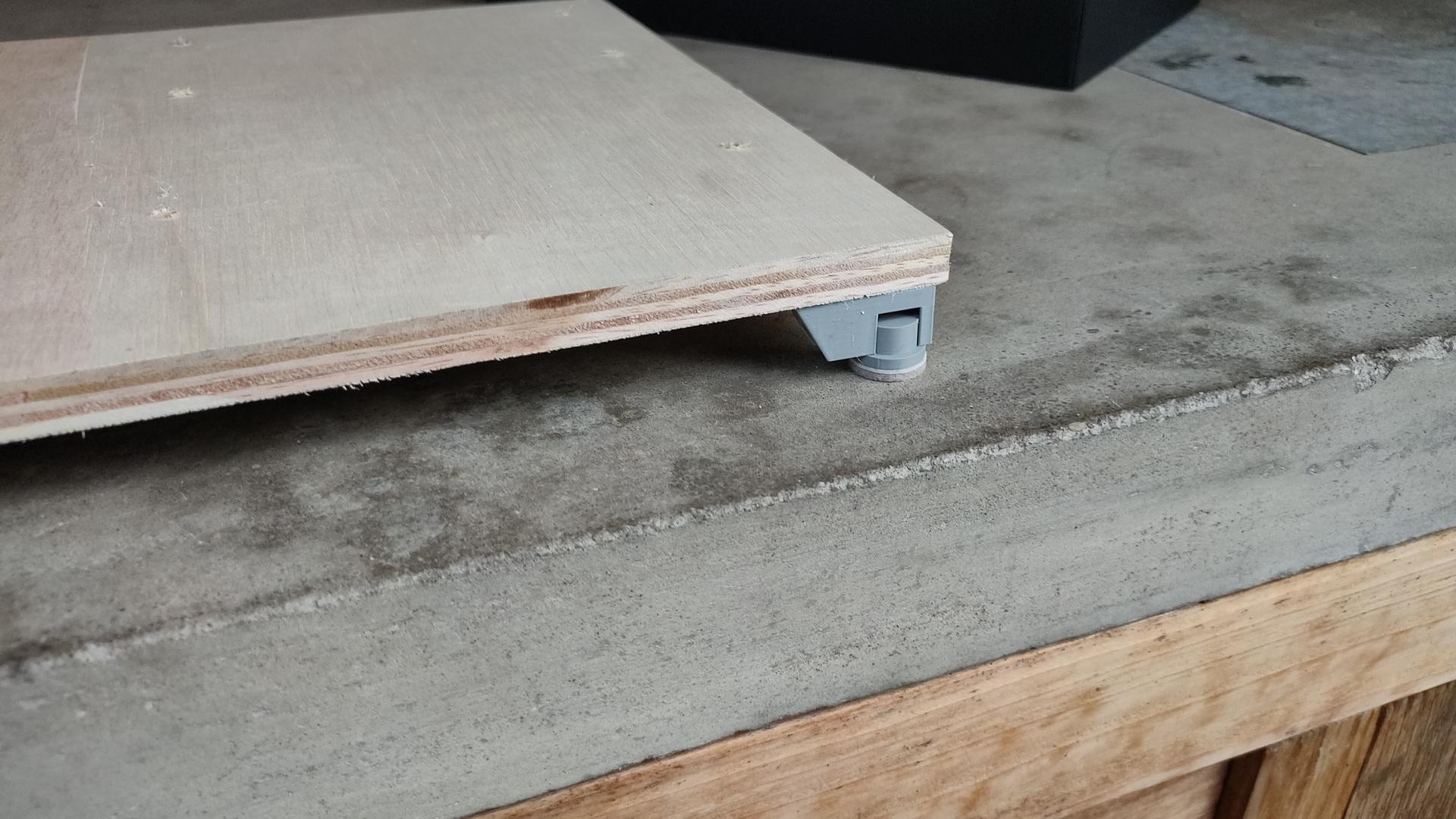
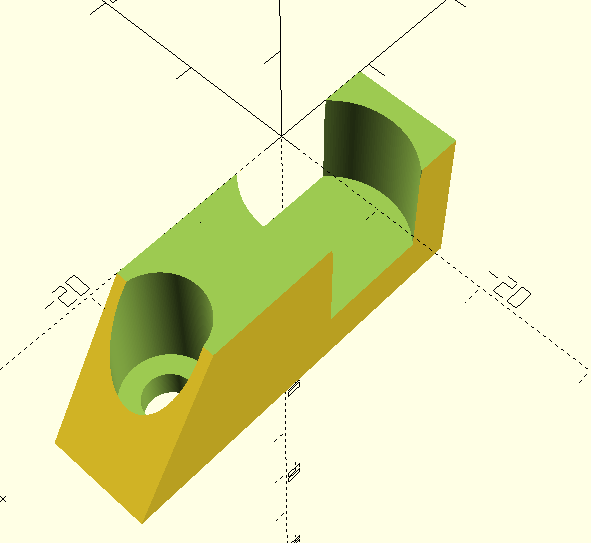
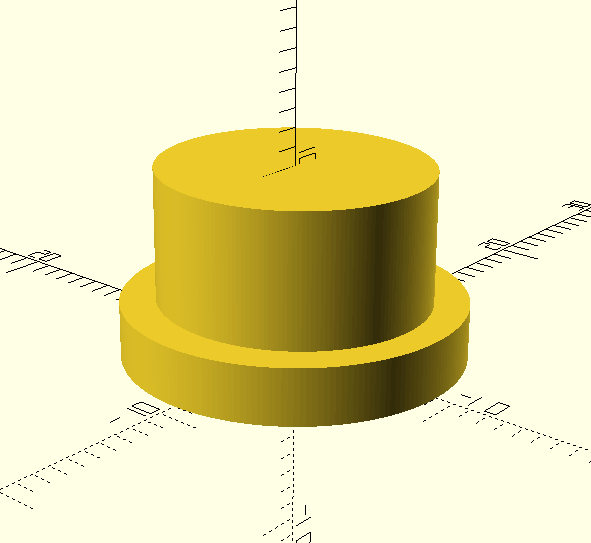
I can remove the boards, and place them on a table. I’ve made some custom feet for them. Twist and lock by my own design.
Padded feet
The openscad files:
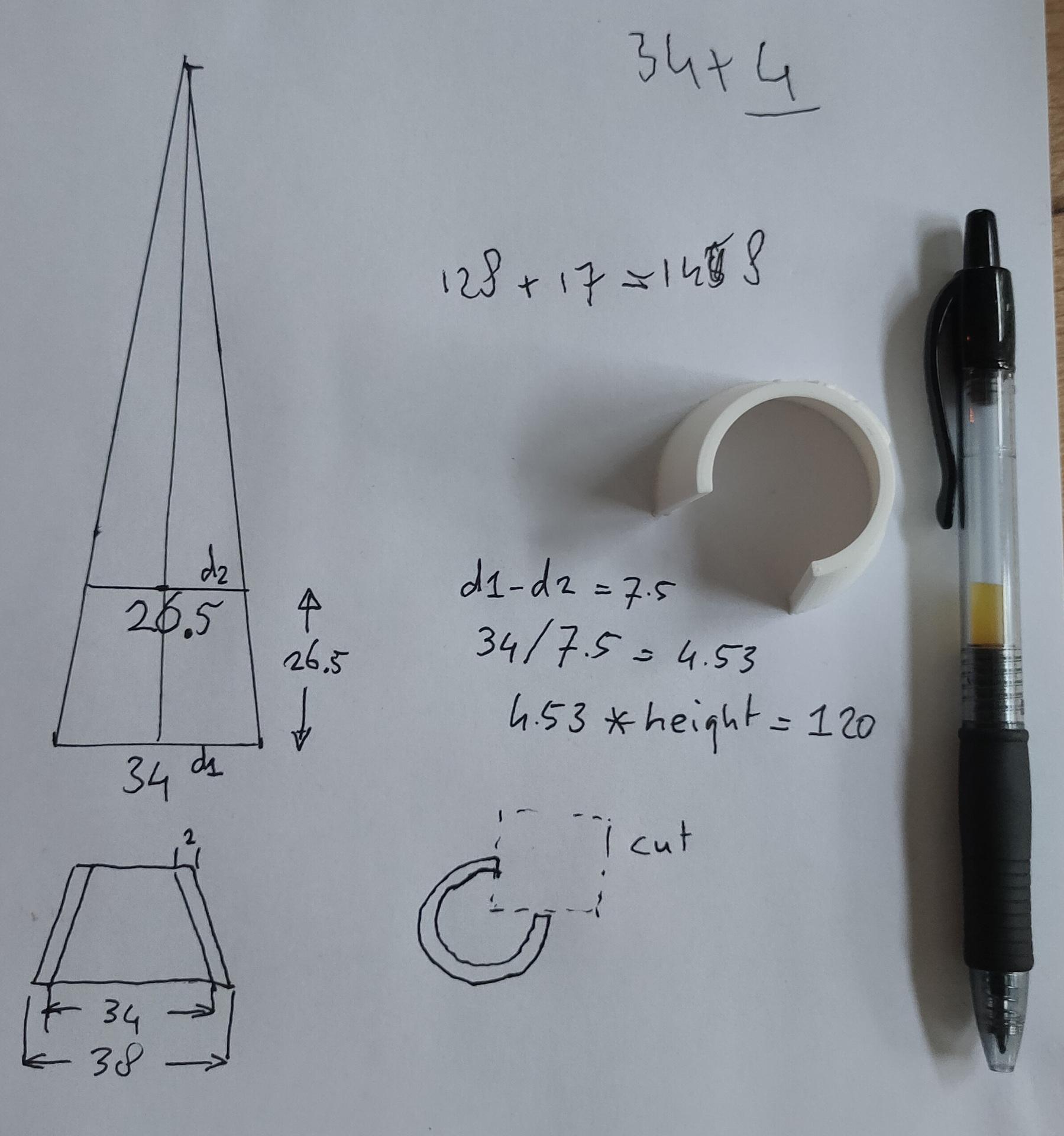
The locking is done by making the cylinder slightly oval by 0.5mm
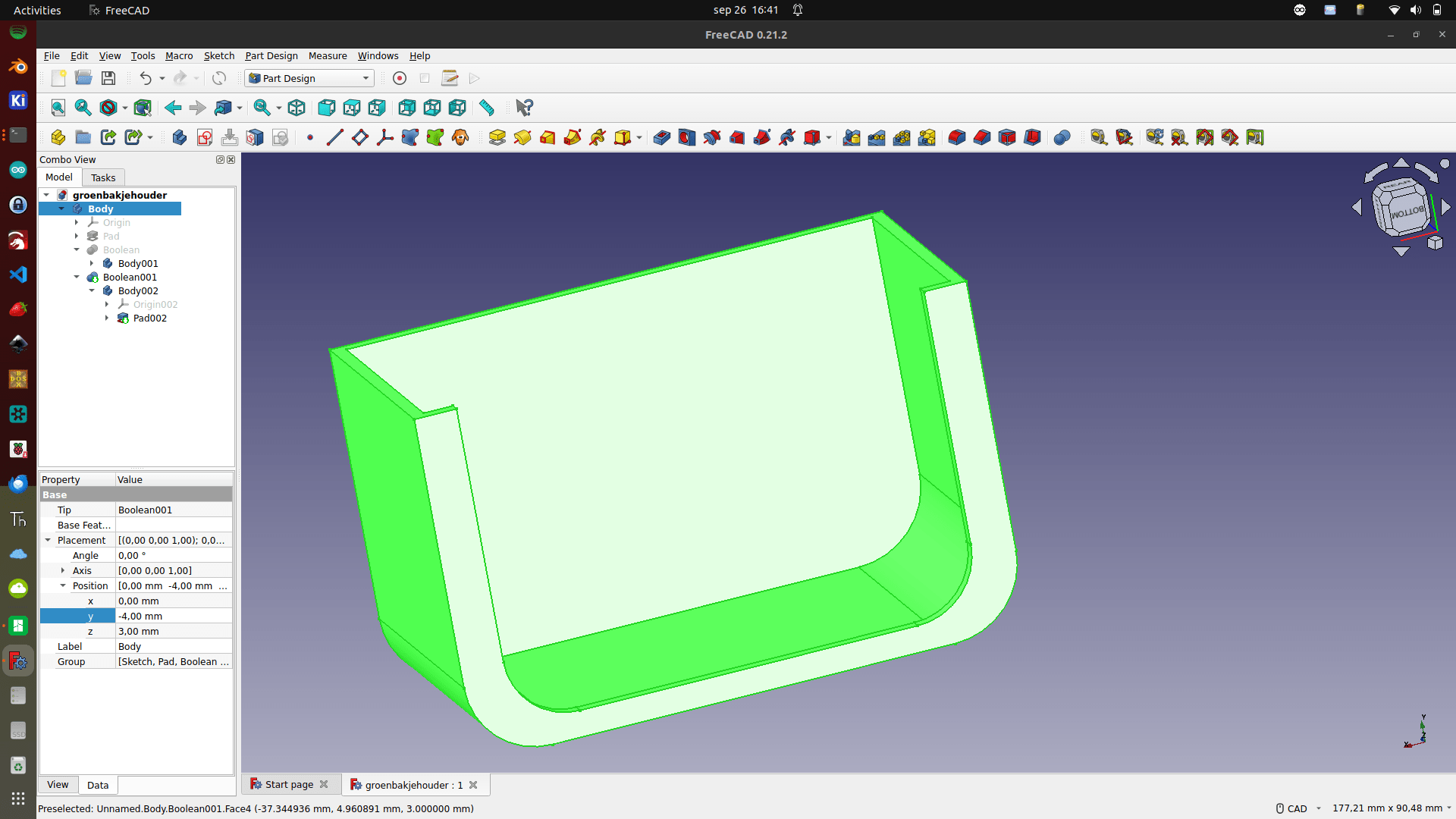
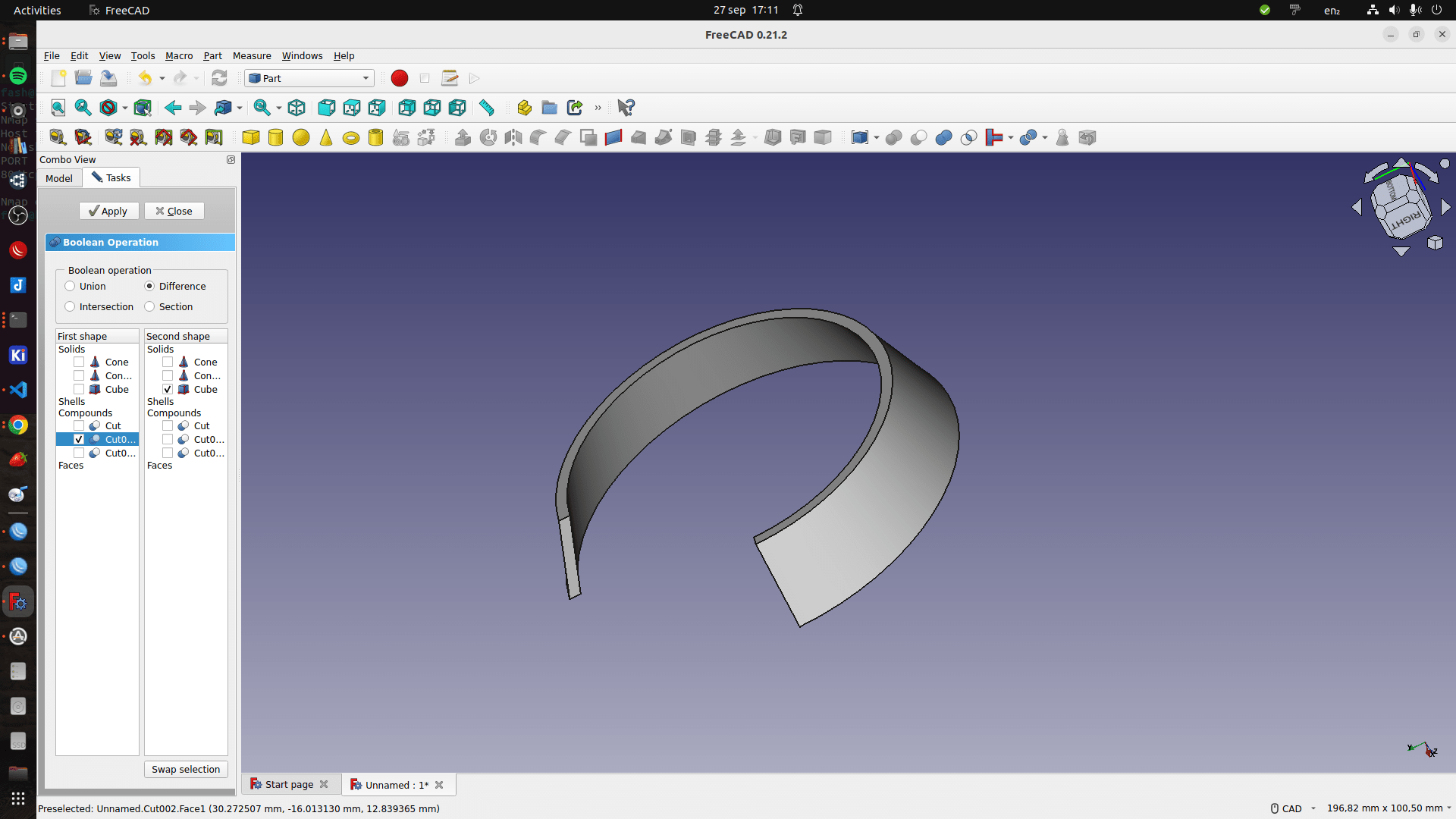
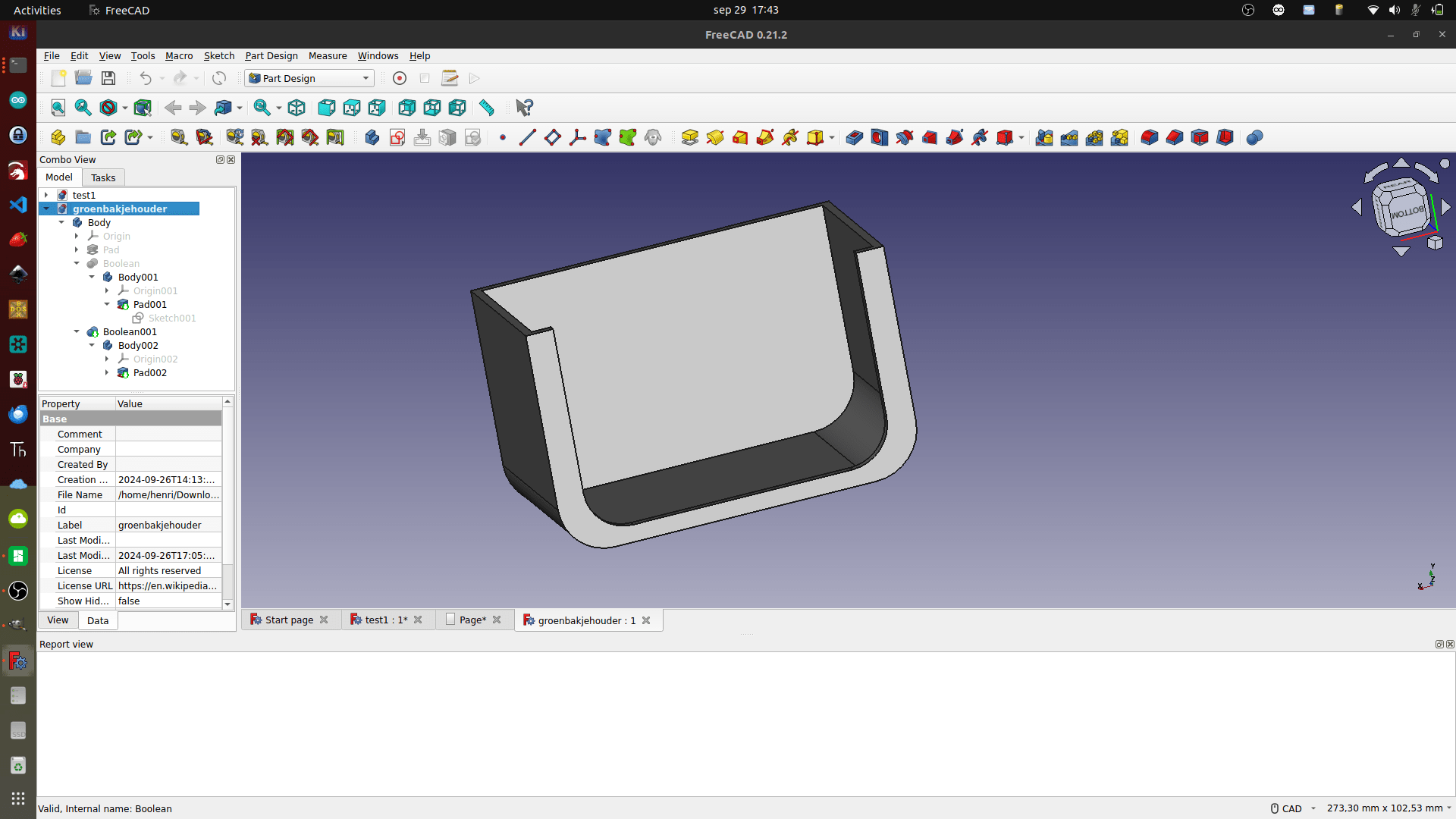
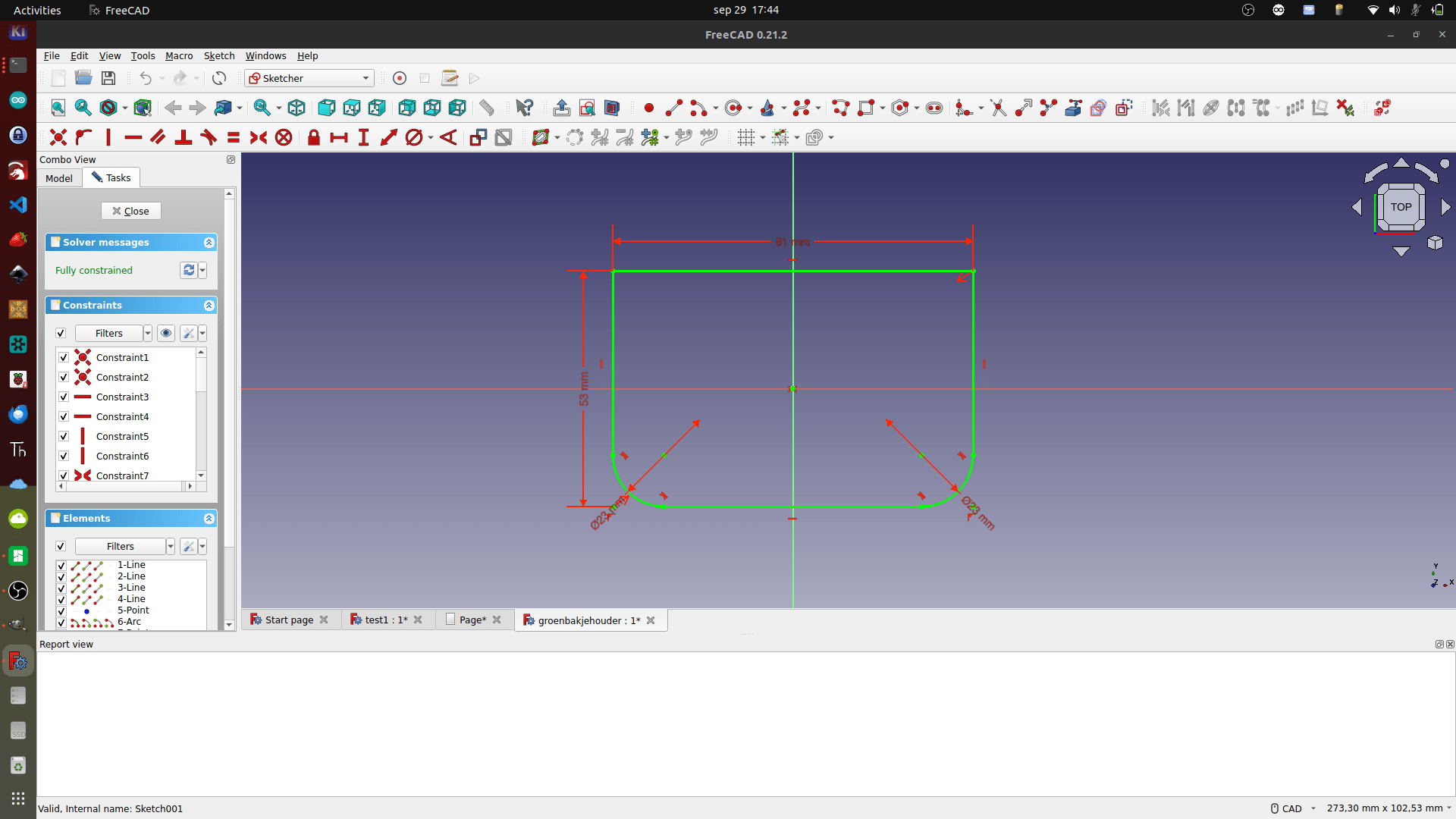
FreeCAD is an open-source parametric 3D modeller made primarily to design real-life objects of any size. Parametric modelling allows you to easily modify your design by going back into your model history and changing its parameters.
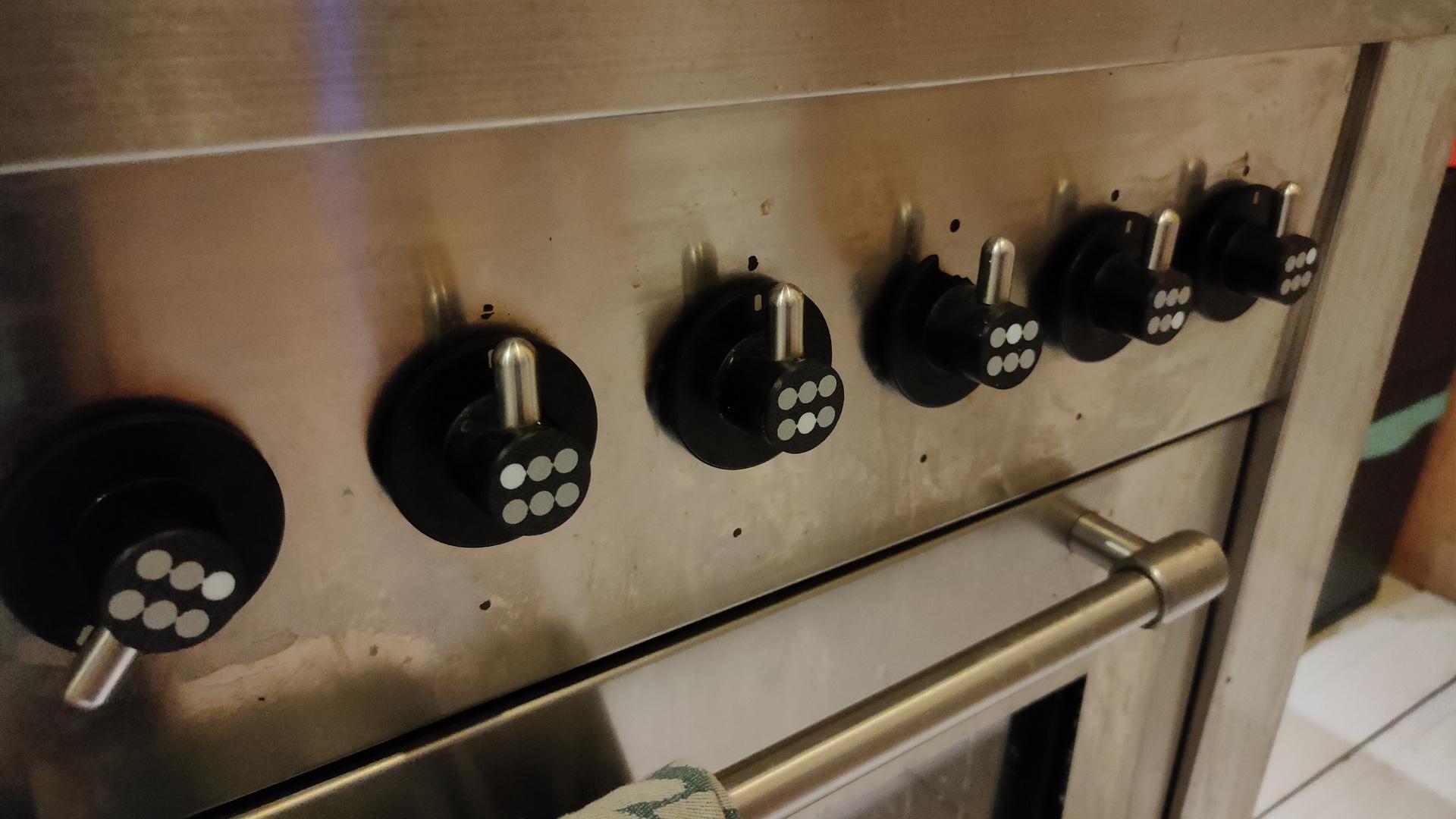
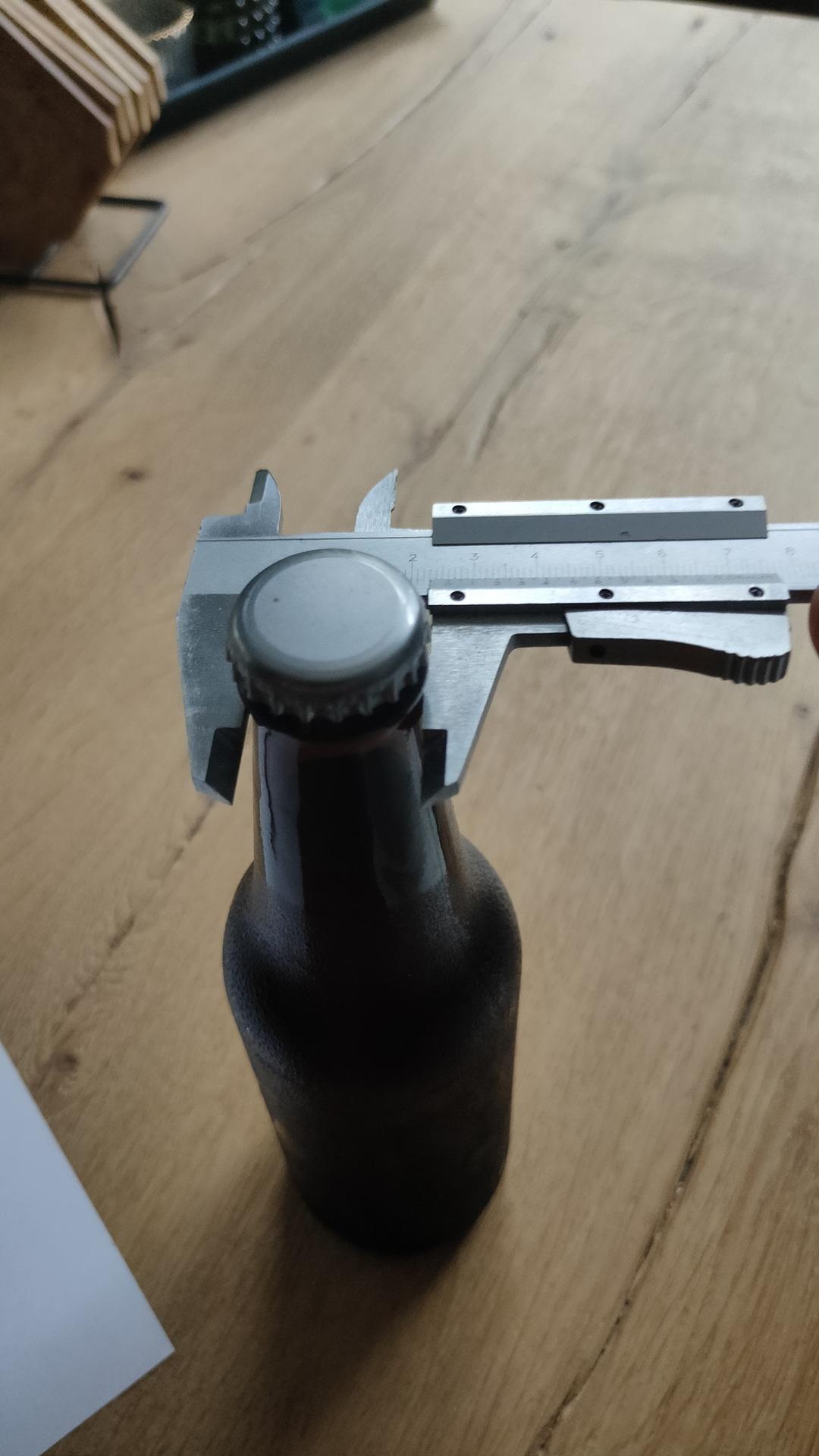
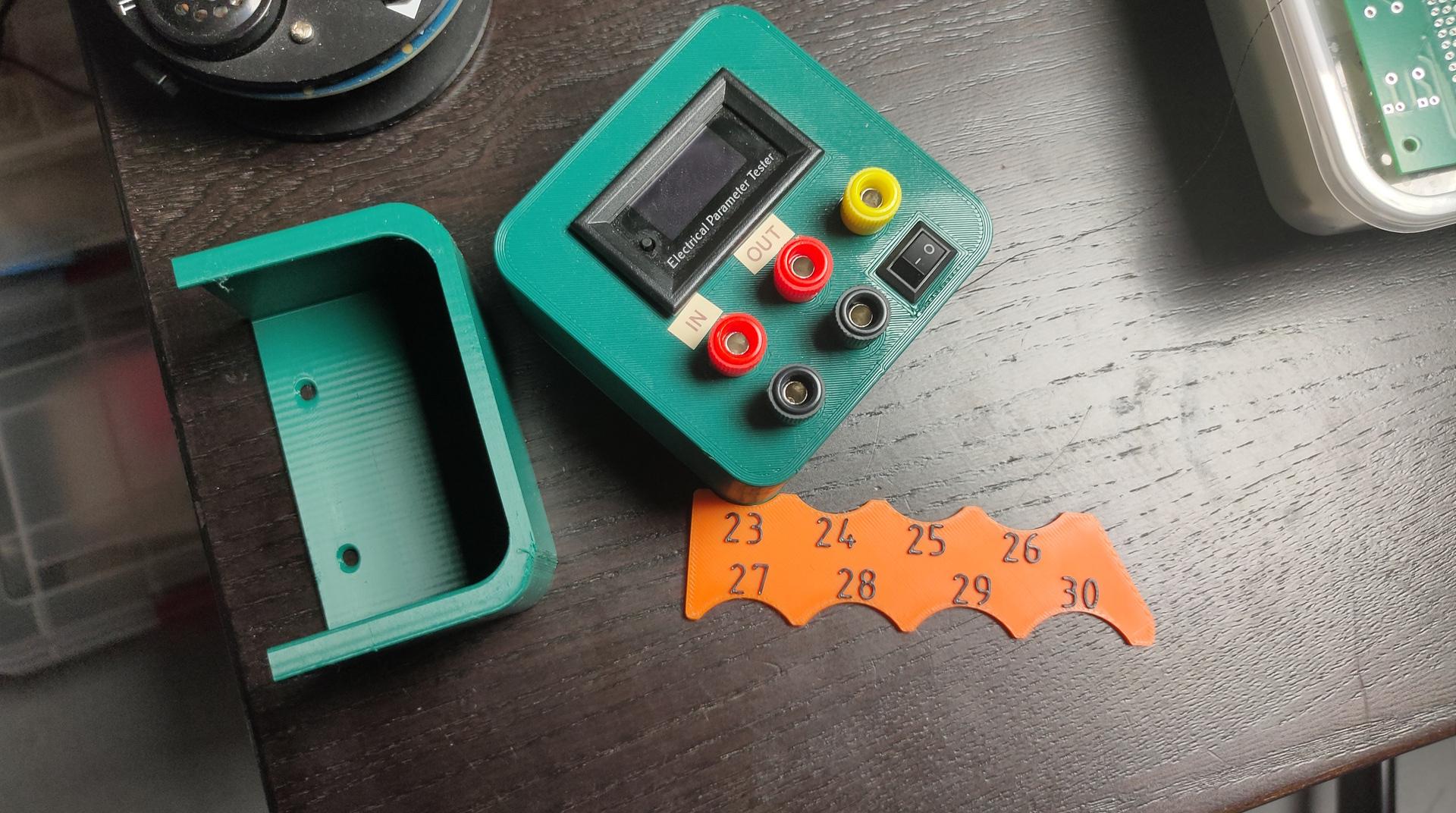
Designed a case for a measure tool, I’ve printed a case for a while ago.
What are my thoughts : I like it, I like the setup, workbench and the fact that you can edit every step again.
I’ve made a script to view the camera using vlc. But it was much work. Now I’ve installed the HACS Bambu integration in Home Assistant. Much easier to get an image.
While Bambu studio is nice, I started using FreeCad. I still use OpenScad and Blender, but I really try to use a CAD program for modeling 3D prints (technical prints). For sculpting I still use blender.
Add filament and print model (after calibration process)
All fine and dandy, problems? Check YouTube for solutions.
What do you know about 3D printing?
People are forgetting about the knowledge to get at this point ..]…
How does it work, what is needed?
My first 3D printer. Lets compare:
Get printer in parts
Assemble
Calibrate
Manual bed calibration (*) 5 point calibration step by step, needs user input
Test print
Fail several times
Try different sticky methods (hairspray, double sided tape, gluestick)
Bed warping? Add tape to underside
Feed filament by cutting at 45 degree angle and manual feeding.
Load and unload using buttons and feeding until previous color flushed
Learn about Gcodes
color changing? split part and pause manually, switch manually.
out of filament, problem with printing? start the whole print again
no out of filament detector, no temperature failsave
Filament error? Start again or split gcode by hand and superglue parts
Clean plate, clean head
Manual change temperature of head and bed when problems arise
Using multiple software tools to design and slice
Put your gcode on a sdcard to print, or later via octoprint
Every next print start at calibrate in above list.
What did you learn? How your machine works and reacts. Fix extruding problems, temperature, filament wetness, starting layers. Difference between PLA, PETG, ABS in great detail. Learn to wait Troubleshooting in general
Never forget where we came from! 40 years old, but getting available to the masses after 2000.
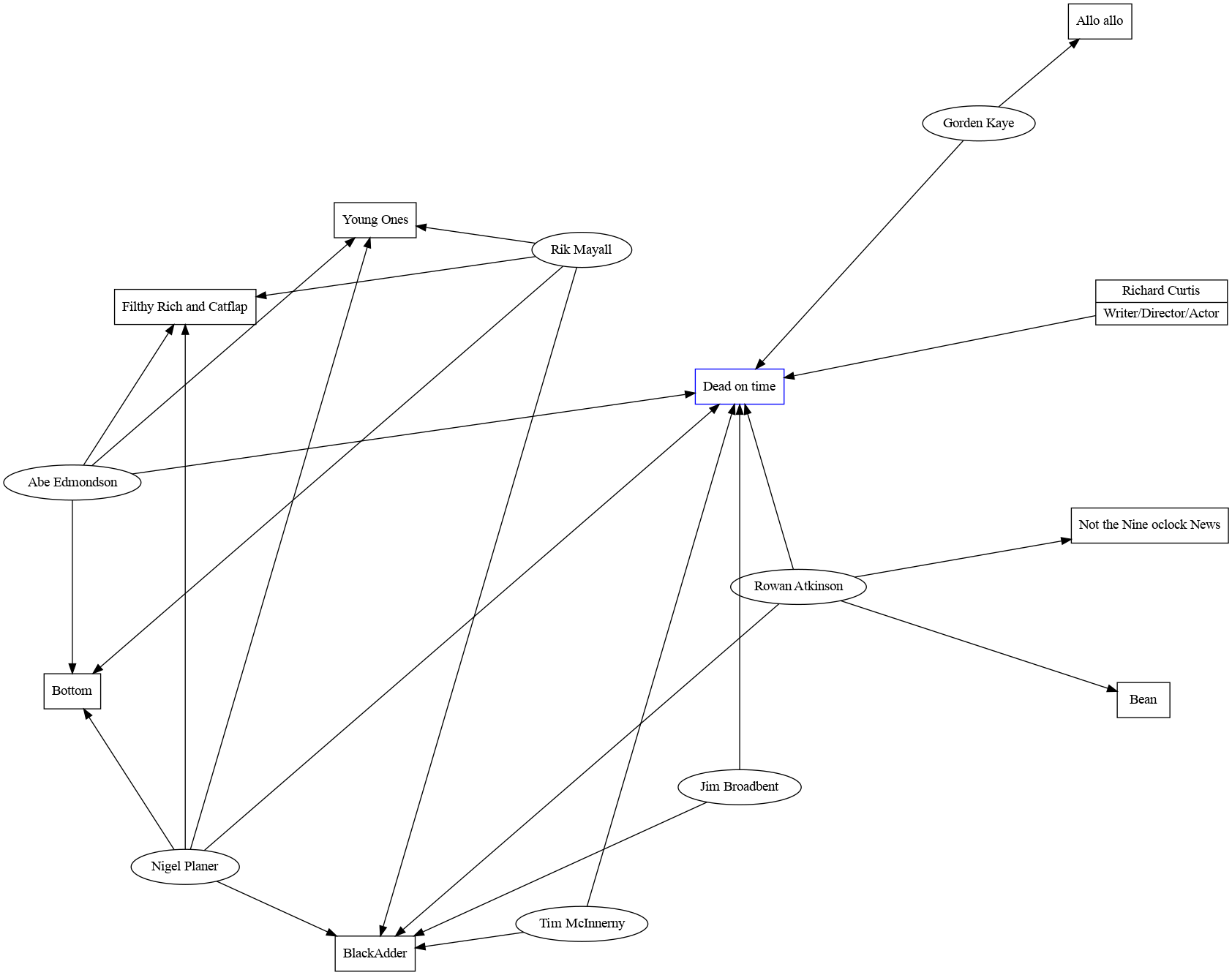
While watching this movie on YouTube, I recognised several people in small roles. Most of them their first roles. (I never knew about this short before last night)
It is the first (short) movie by Richard Curtis, a (now) famous writer/director. (Mr Bean, The Black Adder) He only did “Not the nine O’clock News” before that.
Having my own business means having a more professional electronics lab is a must. So I’m moving from the attic to our outside workshop. That also means I have to make our Music Studio smaller.
So moving, printing a lot on my new 3D printer and designing EuroCards.
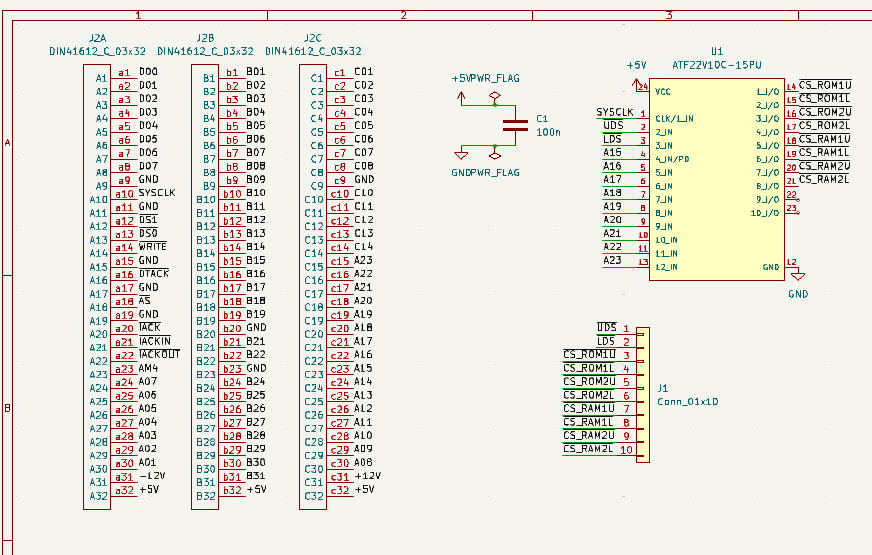
Part of the Address decoding eurocard with din41612.
Above card will hold two address decodes parts, selectable using jumpers. ( Old skool TTL using 74xx and a new solution using ATF22V10.
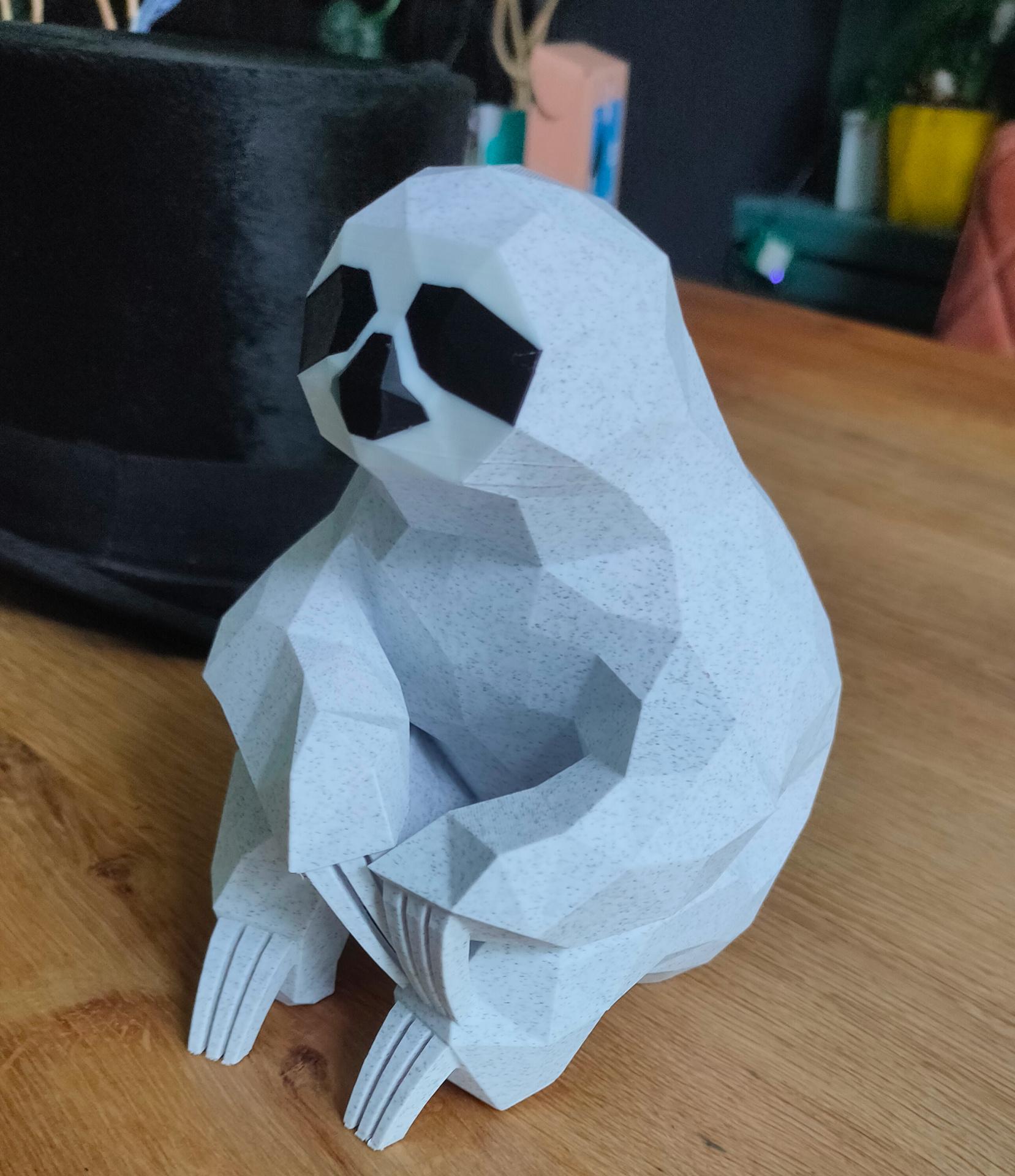
We like Low Poly models, so I printed one using marble PLA.
In the back my 100yr old highhat from my Grandfather (moleskin)
I’ve cleaned my old 3D printer, and I am planning to convert this printer to a 2D plotter and a CNC machine.
I’ve already printed a pen holder and a dremel holder. (The filament head will be removed)
I’m working on a Gcode writer to plot drawings using a pen, or using a Gyro-cut knife to cut paper. And the biggest project using this old 3D printer, a CNC machine!
Test Code:
import time
import serial

arduino = serial.Serial('/dev/ttyUSB0', 115200, timeout=.1)

# Motor stuff
arduino.write(str.encode("M84 X Y Z S12000\r\n"))
arduino.write(str.encode("M92 X160 Y160 Z800\r\n"))
# Extrude fix
arduino.write(str.encode("G92 E0\r\n"))
# Go home
arduino.write(str.encode("G28\r\n"))
# Move to x,y,z
arduino.write(str.encode("G1 Z90 X50 Y50\r\n"))
# Wait
arduino.write(str.encode("M400\r\n"))
Sin wave fun:
import time
import serial
import math
from time import sleep

arduino = serial.Serial('/dev/ttyUSB0', 115200, timeout=.1)

arduino.write(str.encode("M84 X Y Z S12000\r\n"))
arduino.write(str.encode("M92 X160 Y160 Z800\r\n"))
arduino.write(str.encode("G92 E0\r\n"))
arduino.write(str.encode("G28\r\n"))
arduino.write(str.encode("M220 S100\r\n"))
arduino.write(str.encode("G1 Z10 X60 Y60\r\n"))
arduino.write(str.encode("M400\r\n"))
sleep(10)
count = 0
while True:
	newx=(math.sin(math.radians(count))*50)+60
	newy=(math.cos(math.radians(count))*50)+60
	newz=(math.cos(math.radians(count))*10)+20
	count = count + 1
	mystring="G1 Z" + str(newz) + " X" + str(newx) + " Y" + str(newy) + "\r\n"
	print(mystring)
	arduino.write(str.encode(mystring))
	arduino.write(str.encode("M400\r\n"))
        # Not waiting for answer yet
	print(newx)
	sleep(0.1)
X,Y and Z movement (4x speed)
"If something is worth doing, it's worth overdoing."