TimeGuessr, guess the year and place.
After that, it gives information about this place.


Openguessr, a free alternative for geoguessr.


Both really cool, I’m going to revisit these sites!
Below is a solution when you want to stream IP camera’s in Kodi/Libreelec .
You can push these commands using Nodered, Bash script or whatever.
First make some camera scripts in your profile directory.
Examples:
# Kodi on Linux/Raspberry # Place a file cam1.m3u in .kodi/userdata/profiles/(kodiprofile)/playlists/video/ rtsp://admin:secretpass@192.168.1.123:88/videoMain #and another one in cam2.m3u (another example mjpeg example) http://192.168.1.124:8000/stream.mjpg #For windows it is in C:\Users\(Username)\AppData\Roaming\Kodi\userdata\profiles\(kodiprofile)\playlists\video
Enable http access in Kodi and run the playlist using curl
curl -i -X POST -H "Content-Type: application/json" -d '{"jsonrpc":"2.0","method":"Player.Open","params":{"options":{"shuffled":false,"repeat":"off"},"item":{"file":"special://profile/playlists/video/cam2.m3u"}},"id":"1"}' http://KODISERVERIP:8080/jsonrpc
A bash loop script
while true; do
curl -i -X POST -H "Content-Type: application/json" -d '{"jsonrpc":"2.0","method":"Player.Open","params":{"options":{"shuffled":false,"repeat":"off"},"item":{"file":"special://profile/playlists/video/cam1.m3u"}},"id":"1"}' http://KODISERVERIP:8080/jsonrpc
sleep 10
curl -i -X POST -H "Content-Type: application/json" -d '{"jsonrpc":"2.0","method":"Player.Open","params":{"options":{"shuffled":false,"repeat":"off"},"item":{"file":"special://profile/playlists/video/cam2.m3u"}},"id":"1"}' http://KODISERVERIP:8080/jsonrpc
sleep 5
done
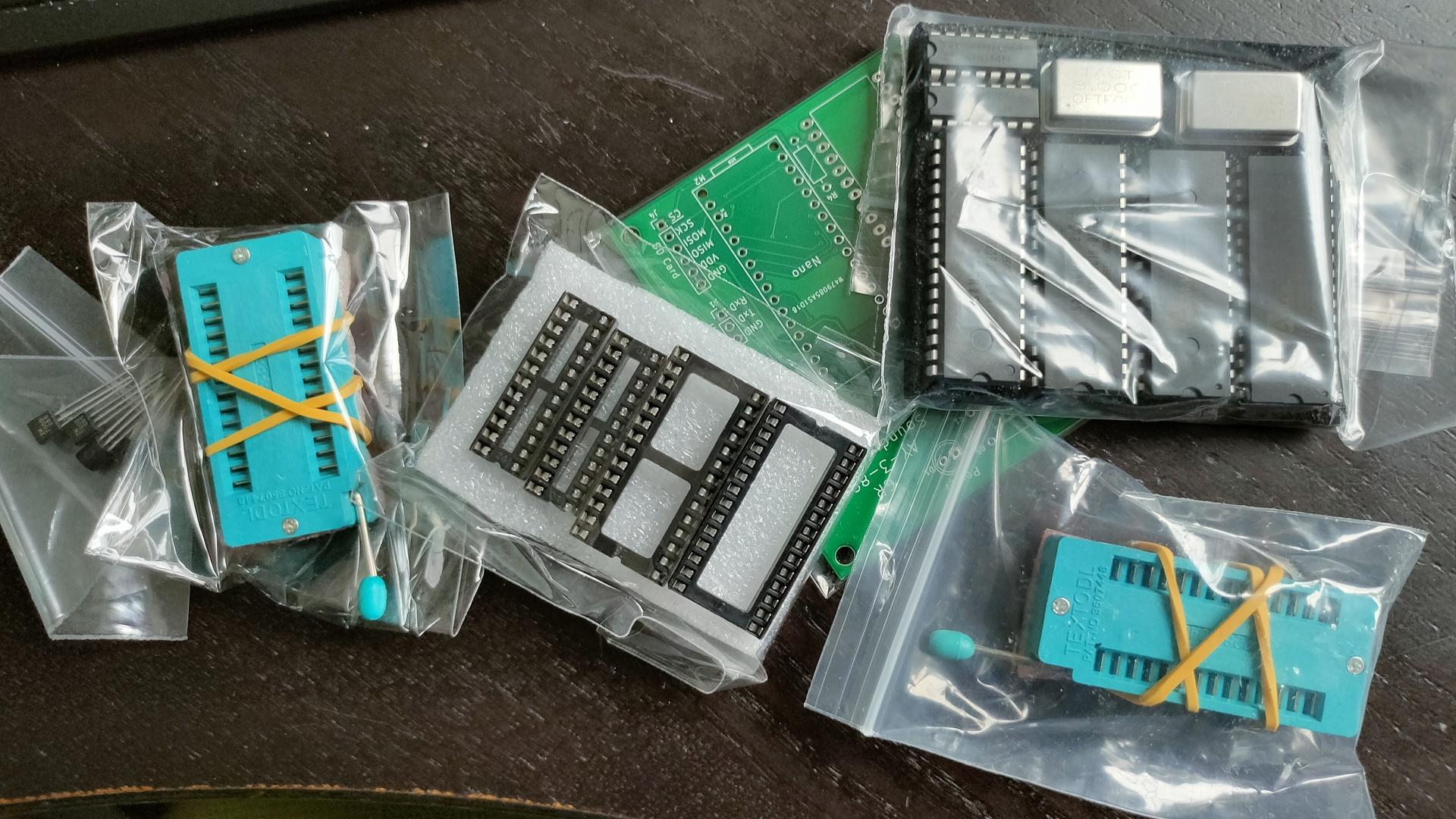
At the back the 8 pin single channel lm368 amplifier.
At the front the 3 channel setup.
I still have to tweak the resistors, and potmeters.
Then I can make a permanent PCB, and figure out the connections to the 6502.
At the moment, the Arduino Nano is playing some real sound samples by using the registers of the sound chip.
The music is being played by sending the register dumps directly to the chip.
Much like i’ve been using SID register dumps to play songs in another project.

I’m a big fan of Rik Mayall and Ade Edmondson.
(Bottom, Dangerous (Danger) Brothers, Young Ones, Black Adder etc)
I love the live shows, I’ve mentioned that before.
Today we were watching a movie, just one in our collection.
It was American Werewolf in London.
I knew there were some great practical effects in there.
(All pre CGI)
Then I saw a face a few seconds. Damn could it be Rik?
Yes it is ..
But I know he did several movies
Welllllll, I more identify with Ade.
Bald, mostly interested in being drunk, and playing in a folkband. 🙂


This time I used a rub with the following ingredients:
Seasalt, garlic, brown sugar, mustard seeds, paprica, cilantroseeds, black pepper, red pepper, oregano, thyme and cumin.
Doing a simple 3-2-1 smoke session, so .. what to do in dose 6 hours?
Lets make something using a Sense hat and Python.
Same HAT I used for my xmas ornament thingy in our tree.
Now I have to paint my ribs with BBQ sauce, and leave it in the smoker for yet another hour. (Nice glazing)
Next steps for the maze:
Use a better way to generate (reverse backtracking as I made for my other maze thing)
Wall collision detection is nearly completed.
Better placement “birth” of player in the maze.
# # # # # # # # # # # # # # # # # # # #
# R D . . . . . R D . . . . R R D R D #
# D L . . . . . U D . . . . U . R U D #
# D . . . . R R U R D . . R U U L . D #
# R D . . . U . . . R R D U . . U L D #
# . R D R R U . . . . . D U . . . U L #
# . . D U L . . . . . D L U . . . . . #
# . . R R U . . . . . R R U . . . . . #
# . . . . . . . . . . . . . . . . . . #
# . . . . . . . . . . . . . . . . . . #
# . . . . . . . . . . . . . . . . . . #
# . . . . . . . . . . . . . . . . . . #
# . . . . . . . . . . . . . . . . . . #
# . . . . . . . . . . . . . . . . . . #
# . . . . . . . . . . . . . . . . . . #
# . . . . . . . . . . . . . . . . . . #
# . . . . . . . . . . . . . . . . . . #
# . . . . . . . . . . . . . . . . . . #
# . . . . . . . . . . . . . . . . . . #
# # # # # # # # # # # # # # # # # # # #
Back in 2019 I made a volume/mute button using an ATtiny85.
(Digispark/trinkey thingy)
Same device as my password paster
It’s USB connection is perfect for this password paste thingy, but not for a big button like this. (even with a ugly usb extending cable)
Button is 3D printed (found on yeggi)
For my big battlestation i’m using:
The old way of flashing using Arduino IDE (for digispark)
Install Boards using : preferences, add board URL
http://digistump.com/package_digistump_index.json


Note: There being no regular USB device, you need to add some udev rules.
cat /etc/udev/rules.d/digispark.rules
SUBSYSTEM==”usb”, ATTR{idVendor}==”16d0″, ATTR{idProduct}==”0753″, MODE=”0660″, GROUP=”dialout”
When compiling and uploading the program, you get a message to plug in the device. See below screenshot.
Now the 2024 change.
Reason to change:
This is the first setup, with same functionality as before.
Now I can add more stuff!
Putting the code on the RP2040-zero
Press boot button and insert into your pc.
Download uf2 file from here and save in RP2 drive.
https://circuitpython.org/board/waveshare_rp2040_zero/
Open Thonny, and configure interpreter to:
Download the zip file from https://github.com/adafruit/Adafruit_CircuitPython_HID
And copy only the subdirectory adafruit_hid to the drive in subdir lib
Open the file code.py from the device, and remove example hello world code.
Paste in the following code.
import rotaryio
import board
import time
import board
import digitalio
import usb_hid
from adafruit_hid.keyboard import Keyboard
from adafruit_hid.keyboard_layout_us import KeyboardLayoutUS
from adafruit_hid.keycode import Keycode
from adafruit_hid.consumer_control import ConsumerControl
from adafruit_hid.consumer_control_code import ConsumerControlCode
but = digitalio.DigitalInOut(board.GP4)
but.direction = digitalio.Direction.INPUT
but.pull = digitalio.Pull.UP
cc = ConsumerControl( usb_hid.devices )
encoder = rotaryio.IncrementalEncoder(board.GP5, board.GP6)
last_position = 0
while True:
position = encoder.position
if int(last_position) < int(position):
#print(position)
command = ConsumerControlCode.VOLUME_DECREMENT
cc.send(command)
#last_position = position
if int(last_position) > int(position):
#print(position)
command = ConsumerControlCode.VOLUME_INCREMENT
cc.send(command)
last_position = position
if not but.value:
command = ConsumerControlCode.MUTE
cc.send(command)
time.sleep(0.5)
Above code is the bare minimum, I’ll add more functionality soon.
(LEDs and more buttons)
Next and Previous Track and mode change.
From Audio to Navigation for example.
Some quotes I like to refer to:
https://www.henriaanstoot.nl/aboutme/
One of my websites was slow after the whole neighbourhood was without power for a few hours.
My lab using dual power, and a UPS went down for a few hours.
After that incident, one of my websites was slow, and it got worse with time.
But I never took the time to really look into this problem.
Until it was too much .. 8 seconds to TTFB
I’ve checked in the last month:
So, I was planning to rebuild my WordPress setup.
Meanwhile, let’s check some sites for information.
Then I came across WPCast on YouTube.
( How To Fix A Slow WordPress Site – WordPress Speed Optimization Tutorial )
Let’s watch this, while rebuilding my website.
All suggestions were in vain.
Until Query Monitor was mentioned.
I soon discovered that the resolving within my docker container was messed up!
2 http api call’s taking a long time.
Rebuild the docker container with my DNS nameserver and a second as fail back.
Fixed.
What did I learn, check all components!
Start close to the problem source.
UPDATE: AccessPoint on Arduino implemented with captive portal for Wifi Configuration
Got my Waveshare Epaper Cloud running on ESPHome
This is a Epaper display with a 2000mAh Lipo and a passive buzzer.
Running parts of my Smoker monitor.
Below a little movie clip with RTTTL sound notification.
(Send from Home Assistant)
B.t.w. RTTTL are those ringtones we used to have. (Ring Tone Text Transfer Language)
Sending from HA
Parts of the ESPHOME Yaml
NOTE: For the time, you need the time integration to get hours:minutes as a sensor!
esphome:
name: epaperesp32
esp32:
board: esp32dev
framework:
type: arduino
# Enable logging
logger:
# Enable Home Assistant API
api:
services:
- service: play_rtttl
variables:
song_str: string
then:
- rtttl.play:
rtttl: !lambda 'return song_str;'
output:
- platform: ledc
pin: GPIO22
id: rtttl_out
rtttl:
output: rtttl_out
on_finished_playback:
- logger.log: 'Song ended!'
ota:
password: "xxxxxxxxxxxxxxxxxxxxxxxxxxx"
wifi:
ssid: !secret wifi_ssid
password: !secret wifi_password
# Enable fallback hotspot (captive portal) in case wifi connection fails
ap:
ssid: "Epaperesp32 Fallback Hotspot"
password: "xxxxxxxxxxxxxxxxx"
captive_portal:
font:
- file: 'fonts/tahoma.ttf'
id: font1
size: 16
- file: 'fonts/tahoma.ttf'
id: font2
size: 32
sensor:
- platform: adc
pin: GPIO36
name: "epaperesp32 Battery voltage"
id: battery_voltage
icon: mdi:battery
device_class: voltage
attenuation: auto
filters:
- multiply: 3
update_interval: 60s
text_sensor:
- platform: homeassistant
entity_id: sensor.bbqenv
name: "mystate"
id: mystate
internal: true
- platform: homeassistant
entity_id: sensor.bbqcore
name: "mystate1"
id: mystate1
internal: true
- platform: homeassistant
entity_id: sensor.time
name: "mytime"
id: mytime
internal: true
spi:
clk_pin: GPIO13
mosi_pin: GPIO14
binary_sensor:
- platform: gpio
pin:
number: GPIO12
inverted: true
mode:
input: true
pullup: true
name: "epaperesp32 button"
filters:
- delayed_on: 50ms
on_press:
- logger.log: "Button pressed"
display:
- platform: waveshare_epaper
cs_pin: GPIO15
dc_pin: GPIO27
busy_pin: GPIO25
reset_pin: GPIO26
model: 2.13in-ttgo
rotation: 270
full_update_every: 12
update_interval: 10s
lambda: |-
it.print(0, 0, id(font2), "BBQ Meter V3");
it.printf( 35, 32, id(font2), "%s", id(mystate).state.c_str());
it.printf( 155, 32, id(font2), "%s", id(mystate1).state.c_str());
MQTT Notifier over Internet
This is part of a test where my friends and me can have notifications LEDs over the internet.

Using certificate parts from:
Controlling the led will be done using Mattermost webhooks, or slashcommand with custom scripting.
(Mattermost is my own hosted chat server)
I flashed a Wemos with below code:
(Rotary/display/button part removed.)
#include <ESP8266WiFi.h>
#include <WiFiClientSecure.h>
#include <time.h>
#include <PubSubClient.h>
#include <Adafruit_NeoPixel.h>
#define encoderCLK 5 //D1
#define encoderDT 4 //D2
#define rgbled D4 //D4
Adafruit_NeoPixel pixels = Adafruit_NeoPixel(1, rgbled, NEO_RGB + NEO_KHZ400);
int servoAngle = 0;
int crntCLK;
int prvsCLK;
String myString;
char ang[50];
#ifndef SECRET
const char ssid[] = "MYSSID";
const char pass[] = "MYPASS";
#define HOSTNAME "henrimqtt"
const char MQTT_HOST[] = "www.henriaanstoot.nl";
const int MQTT_PORT = 9883;
const char MQTT_USER[] = "xxxxxx"; // leave blank if no credentials used
const char MQTT_PASS[] = "xxxxxx"; // leave blank if no credentials used
const char MQTT_SUB_TOPIC[] = "notification/" HOSTNAME "/in";
const char MQTT_PUB_TOPIC[] = "notification/" HOSTNAME "/out";
const char MQTT_PUB_TOPIC_angle[] = "notification/" HOSTNAME "/send";
#ifdef CHECK_CA_ROOT
static const char digicert[] PROGMEM = R"EOF(
-----BEGIN CERTIFICATE-----
MIIFtTCCA52gAwIBAgIUXEEQRLHhYox8a95YiAYX/wQ/XeMwDQYJKoZIhvcNAQEN
//--------------- SNIP SNIP ... generated cert here
vht8GyCCgCH55Syvy9ls6gCyLjTT2rtllw==
-----END CERTIFICATE-----
)EOF";
#endif
#ifdef CHECK_PUB_KEY
// Extracted by: openssl x509 -pubkey -noout -in ca.crt
static const char pubkey[] PROGMEM = R"KEY(
-----BEGIN PUBLIC KEY-----
xxxxxxxxxxxxxxxxxxxxxxxxxxxxxxxxxxxxxxxxxxxxxxxxxxxxxxxxxxxxxxxx
xxxxxxxx
-----END PUBLIC KEY-----
)KEY";
#endif
#ifdef CHECK_FINGERPRINT
// Extracted by: openssl x509 -fingerprint -in ca.crt
static const char fp[] PROGMEM = "AA:BB:CC:DD:EE:FF:00:11:22:33:44:55:66:77:88:99:AA:BB:CC:DD";
#endif
#endif
//////////////////////////////////////////////////////
#if (defined(CHECK_PUB_KEY) and defined(CHECK_CA_ROOT)) or (defined(CHECK_PUB_KEY) and defined(CHECK_FINGERPRINT)) or (defined(CHECK_FINGERPRINT) and defined(CHECK_CA_ROOT)) or (defined(CHECK_PUB_KEY) and defined(CHECK_CA_ROOT) and defined(CHECK_FINGERPRINT))
#error "cant have both CHECK_CA_ROOT and CHECK_PUB_KEY enabled"
#endif
BearSSL::WiFiClientSecure net;
PubSubClient client(net);
time_t now;
unsigned long lastMillis = 0;
void mqtt_connect()
{
while (!client.connected()) {
Serial.print("Time: ");
Serial.print(ctime(&now));
Serial.print("MQTT connecting ... ");
if (client.connect(HOSTNAME, MQTT_USER, MQTT_PASS)) {
Serial.println("connected.");
client.subscribe(MQTT_SUB_TOPIC);
} else {
Serial.print("failed, status code =");
Serial.print(client.state());
Serial.println(". Try again in 5 seconds.");
/* Wait 5 seconds before retrying */
delay(5000);
}
}
}
void receivedCallback(char* topic, byte* payload, unsigned int length) {
// pixels.clear(); // Set all pixel colors to 'off'
Serial.print("Received [");
Serial.print(topic);
Serial.print("]: ");
for (int i = 0; i < length; i++) {
Serial.print((char)payload[i]);
}
if (!strncmp((char *)payload, "0", length)) {
pixels.setPixelColor(0, pixels.Color(0, 0, 0));
pixels.show(); // Send the updated pixel colors to the hardware.
}
if (!strncmp((char *)payload, "1", length)) {
pixels.setPixelColor(0, pixels.Color(150, 0, 0));
pixels.show(); // Send the updated pixel colors to the hardware.
}
if (!strncmp((char *)payload, "2", length)) {
pixels.setPixelColor(0, pixels.Color(0, 0, 150));
pixels.show(); // Send the updated pixel colors to the hardware.
}
if (!strncmp((char *)payload, "3", length)) {
pixels.setPixelColor(0, pixels.Color(0, 150, 0));
pixels.show(); // Send the updated pixel colors to the hardware.
}
}
void setup()
{
pixels.begin(); // INITIALIZE NeoPixel strip object (REQUIRED)
pinMode (encoderCLK,INPUT_PULLUP);
pinMode (encoderDT,INPUT_PULLUP);
prvsCLK = digitalRead(encoderCLK);
Serial.begin(115200);
Serial.println();
Serial.println();
Serial.print("Attempting to connect to SSID: ");
Serial.print(ssid);
WiFi.hostname(HOSTNAME);
WiFi.mode(WIFI_STA);
WiFi.begin(ssid, pass);
while (WiFi.status() != WL_CONNECTED)
{
Serial.print(".");
delay(1000);
}
Serial.println("connected!");
Serial.print("Setting time using SNTP");
configTime(1 * 3600, 0, "pool.ntp.org", "time.nist.gov");
now = time(nullptr);
while (now < 1510592825) {
delay(500);
Serial.print(".");
now = time(nullptr);
}
Serial.println("done!");
struct tm timeinfo;
gmtime_r(&now, &timeinfo);
Serial.print("Current time: ");
Serial.print(asctime(&timeinfo));
#ifdef CHECK_CA_ROOT
BearSSL::X509List cert(digicert);
net.setTrustAnchors(&cert);
#endif
#ifdef CHECK_PUB_KEY
BearSSL::PublicKey key(pubkey);
net.setKnownKey(&key);
#endif
#ifdef CHECK_FINGERPRINT
net.setFingerprint(fp);
#endif
#if (!defined(CHECK_PUB_KEY) and !defined(CHECK_CA_ROOT) and !defined(CHECK_FINGERPRINT))
net.setInsecure();
#endif
client.setServer(MQTT_HOST, MQTT_PORT);
client.setCallback(receivedCallback);
mqtt_connect();
pixels.setPixelColor(0, pixels.Color(0, 0, 0));
pixels.show(); // Send the updated pixel colors to the hardware.
}
void loop()
{
crntCLK = digitalRead(encoderCLK);
if (crntCLK != prvsCLK){
// If the encoderDT state is different than the encoderCLK state then the rotary encoder is rotating counterclockwise
if (digitalRead(encoderDT) != crntCLK) {
servoAngle ++;
}
else {
servoAngle --;
}
Serial.println(servoAngle);
String myString = String(servoAngle);
myString.toCharArray(ang, myString.length() + 1);
client.publish(MQTT_PUB_TOPIC_angle, ang, false);
}
prvsCLK = crntCLK;
now = time(nullptr);
if (WiFi.status() != WL_CONNECTED)
{
Serial.print("Checking wifi");
while (WiFi.waitForConnectResult() != WL_CONNECTED)
{
WiFi.begin(ssid, pass);
Serial.print(".");
delay(10);
}
Serial.println("connected");
}
else
{
if (!client.connected())
{
mqtt_connect();
}
else
{
client.loop();
}
}
if (millis() - lastMillis > 5000) {
lastMillis = millis();
client.publish(MQTT_PUB_TOPIC, ctime(&now), false);
}
}


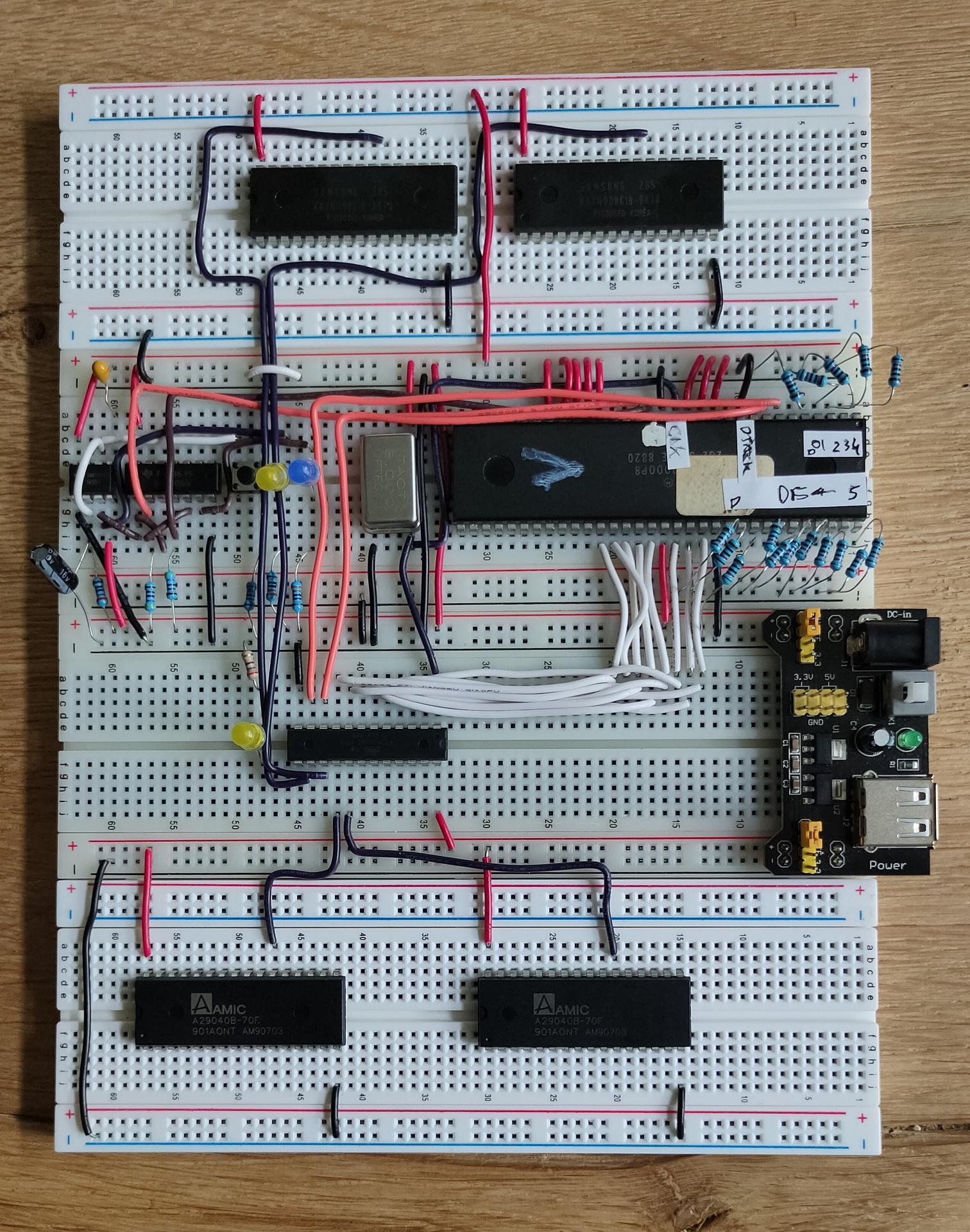
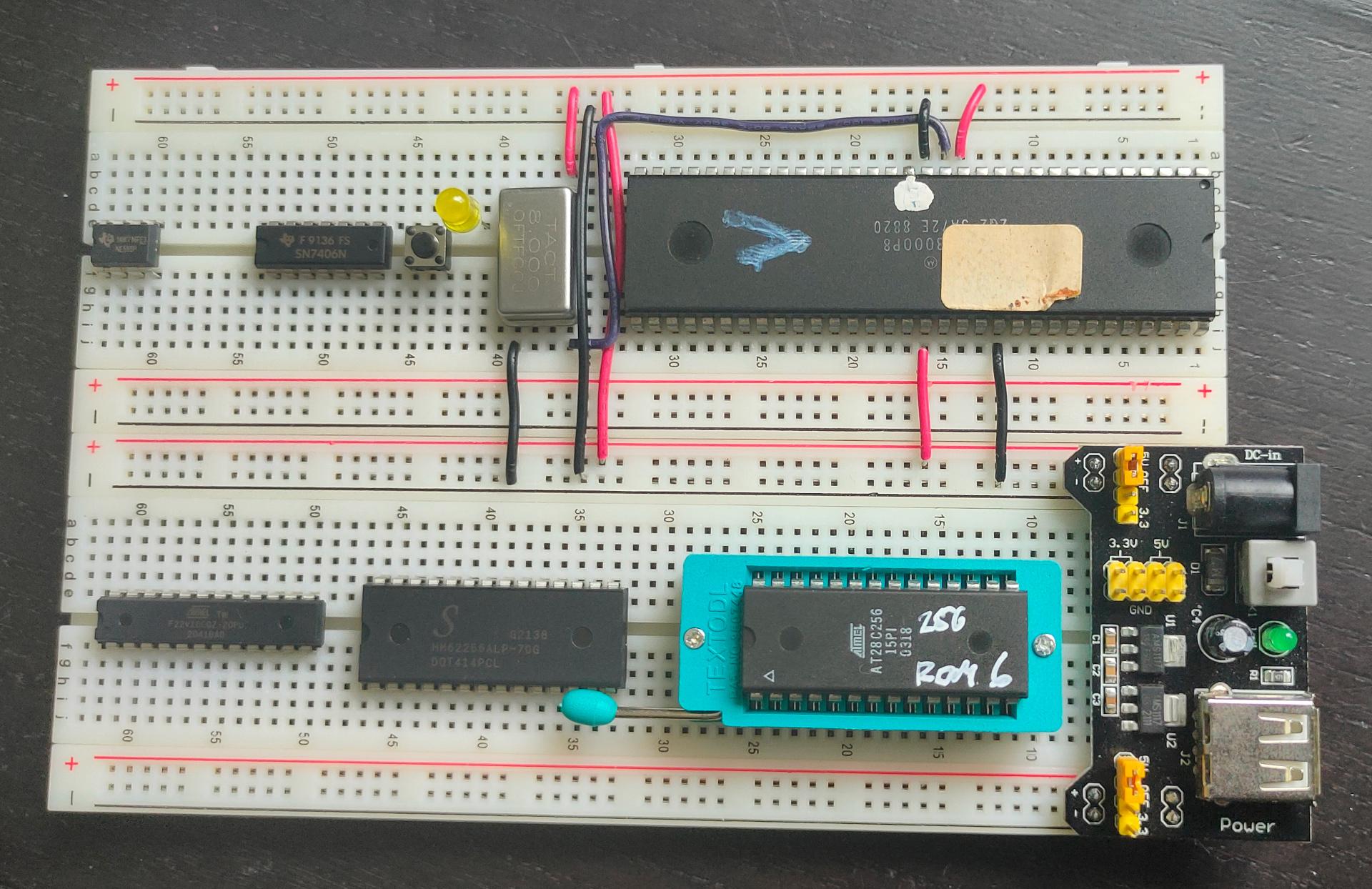
I was working on a MCUME proof of concept, with my own compiled version.
But my combination of a Pico and an ILI9341 display didn’t work.
Luckily, a package arrived.
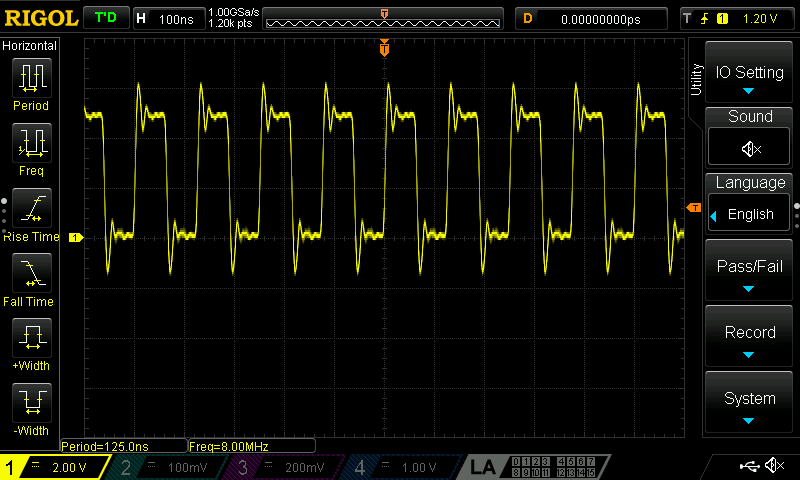
My new scope!
A Rigol DS1074Z+ oscilloscope!
The replacement of my CRT version.


This new oscilloscope has 4 channels AND there is a add-on for a 16channel logic analyser.
The Rigol can be connected to a wired network.
So that’s one of the first things I did.
(It came with all software options enabled, so no need to ‘fix’ those)
Using the ISCP protocol, you can remotely control the device.
( see my Onkyo web hack https://www.henriaanstoot.nl/2009/10/23/onkyo-web-control-hack/ )
See https://www.batronix.com/pdf/Rigol/ProgrammingGuide/DS1000DE_ProgrammingGuide_EN.pdf for commands.
So I created a capture script using bash
capture-rigol.sh # ./capture-rigol.sh fft echo ':display:data?' | netcat -w 20 my-rigol-static-ip 5555 | tail -c +12 > $1.bmp


Below a screen of DSremote
But back to the problem:
My SPI setup didn’t work, display broken?
Lets try a micropython setup.
Nope, the display is fine, my compiled version is borked.
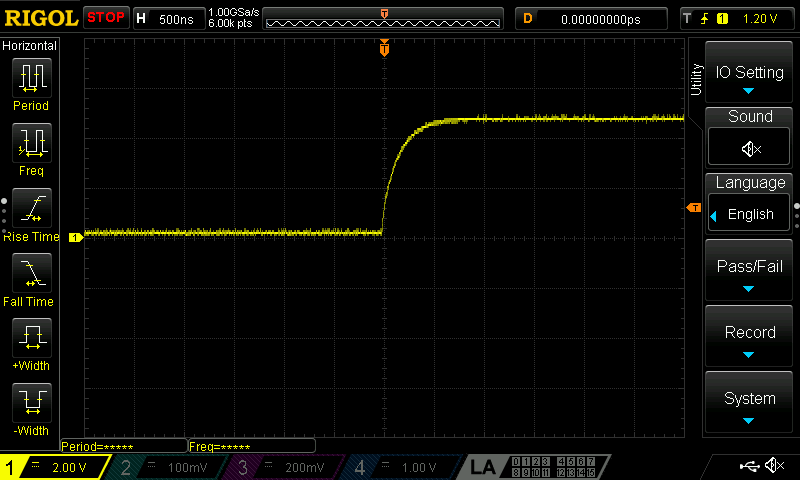
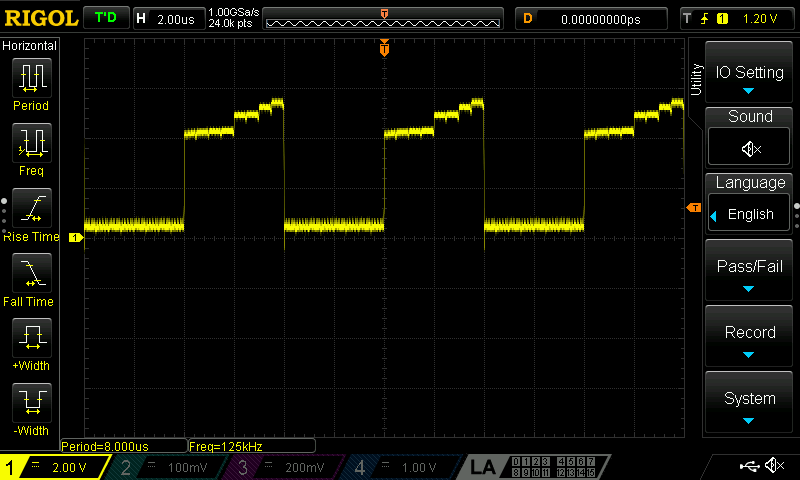
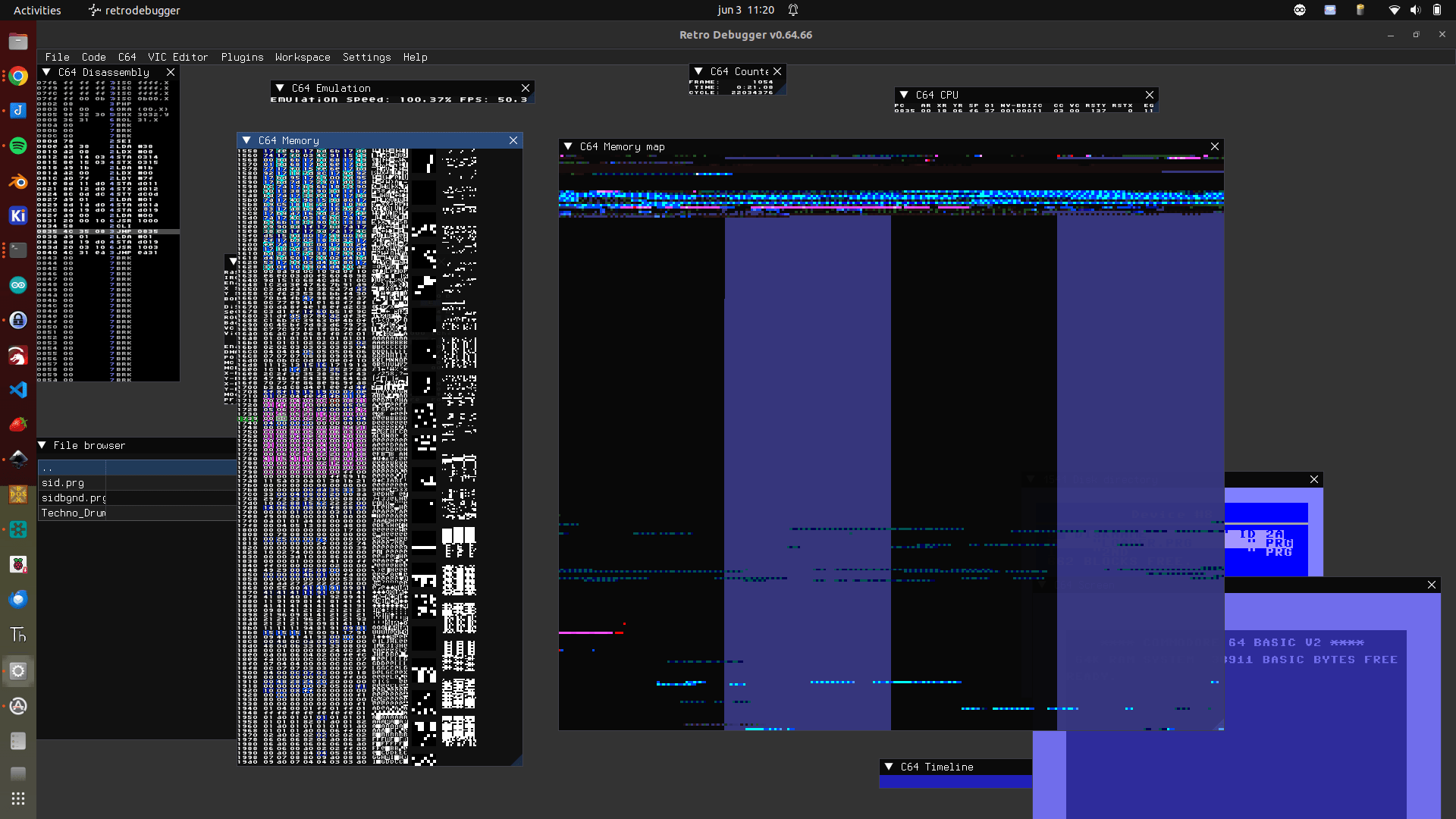
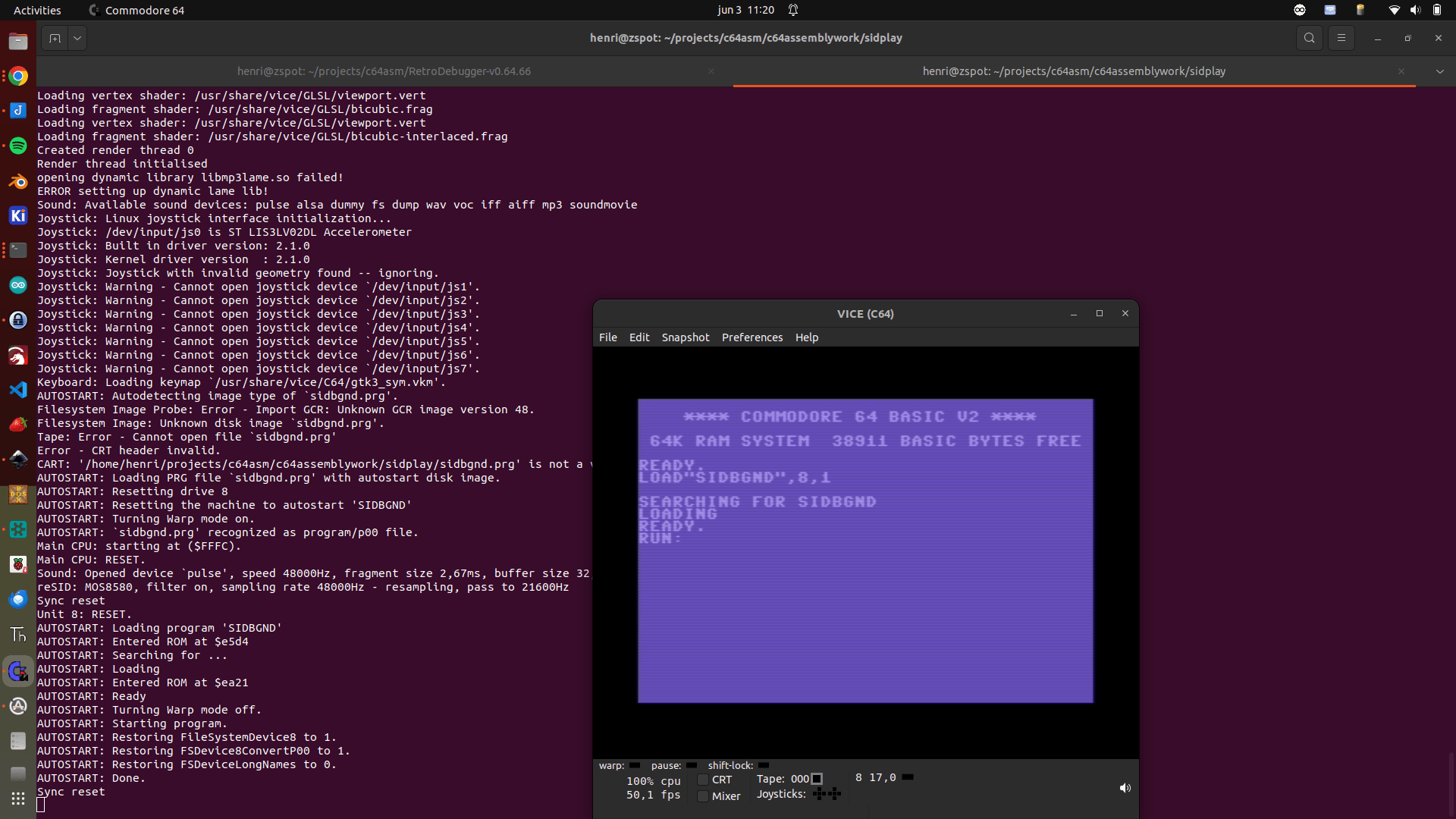
See protocol decode in above gallery, so I have to check my sources:(
Warning .. nerd stuff ahead, many many more.
These are the ones I currently can think off.
Sid music (commodore C64)
Northumbrian pipes
Concertina
Banjo
Irish Bouzouki
Mandoline
Borderpipes
Great Highland Bagpipe (TO many)
Irish Flute / Whistle
Uilleann Pipes
Other pipes
Callum Armstrong (with Branschke)
https://www.youtube.com/@CallumArmstrongPiping
Angie’s Jig on double chanter, I love that tune
He even has a tripple chanter
https://youtu.be/bGIhFBwItHA
Other instruments
Balalaika – Aleksei Arkhipovsky
https://www.youtube.com/watch?v=5JqeSU7lSLE
Throat singing: